
Quick Answer: How Do You Complete a Lusha Login?
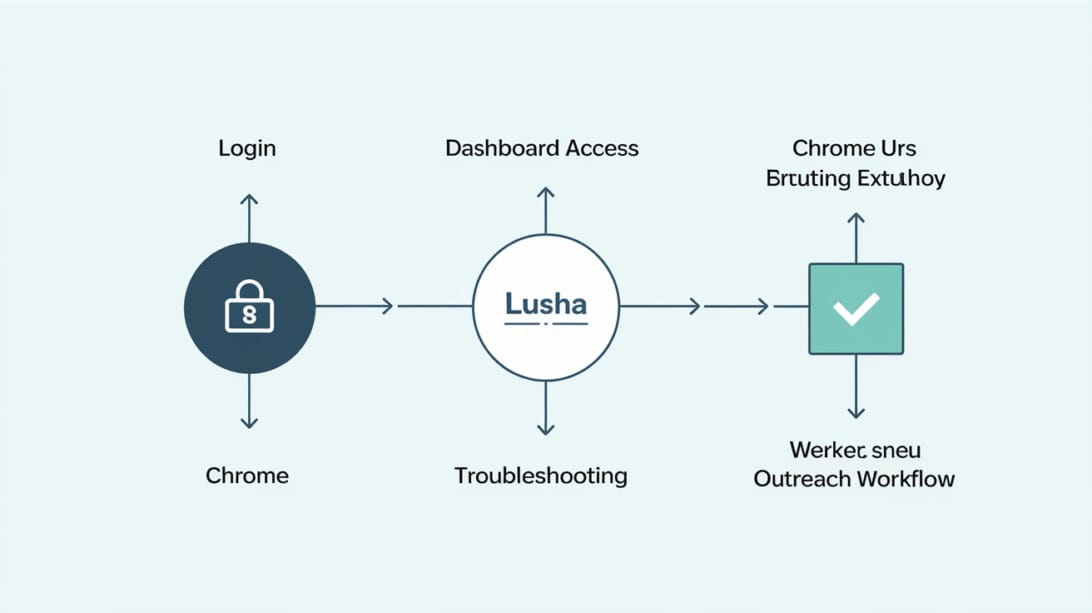
To complete a Lusha login, go to the official sign-in page at `https://auth.lusha.com/login`, enter the email address connected to your Lusha account, follow the password, SSO, or email verification flow shown on screen, then open the Lusha dashboard or Chrome extension after authentication. If sign-in fails, check that you are using the correct workspace email, clear browser cookies for Lusha, disable conflicting extensions, and ask your workspace admin whether SSO or seat permissions are required.
That short answer solves the immediate access problem, but most Lusha login searches have a second layer. People are not only trying to reach a page. They are trying to get back to prospecting, recover an account, connect the Chrome extension, export data to a CRM, or understand why a team member cannot access a paid workspace.
This guide covers the full path: official Lusha sign-in URLs, desktop login steps, Chrome extension access, SSO notes, troubleshooting, account security, and what to do after you export contact data. Lusha is a contact data platform. It can help you find B2B emails and phone numbers, but your outreach results also depend on verification, sending infrastructure, warmup, sequencing, and bounce control. That is where tools such as Mystrika, DoYouMail, and Filter Bounce fit naturally after the login is working.
Official Lusha Login URLs and What Each One Is For
Use official Lusha domains when signing in. Search results for “Lusha login” can show lookalike pages, parked domains, old examples, or pages that are not owned by Lusha. For a sales or RevOps team, that is a security risk because prospecting tools often connect to CRMs, email accounts, enrichment credits, and customer data.
| Need | URL or destination | Use it for | Notes |
|---|---|---|---|
| Main Lusha sign in | `https://auth.lusha.com/login` | Standard account login | Best starting point for most users. |
| New account creation | `https://auth.lusha.com/signup` | Creating a new Lusha account | Use your work email if you need workspace access. |
| Lusha website | `https://www.lusha.com/` | Product, pricing, extension, legal pages | Do not treat the marketing site as the dashboard. |
| Lusha Chrome extension | Chrome Web Store listing for Lusha | Browser extension install and updates | Use the official publisher listing. |
| Dashboard or app redirects | Lusha dashboard URLs | Post-login workspace access | These often redirect through authentication. |
| Support | Lusha support resources | Password, billing, workspace, or extension help | Use for issues you cannot solve locally. |
A safe login habit is simple: type the official URL directly, use a password manager, and avoid entering credentials into domains that only resemble Lusha. If your password manager does not autofill on a page claiming to be Lusha, pause and verify the domain before typing.
Lusha Login Step-by-Step on Desktop
The standard desktop sign-in process should take less than a minute when your account, browser, and workspace permissions are healthy.
1. Open a modern browser such as Chrome, Edge, Safari, or Firefox.
2. Go to `https://auth.lusha.com/login`.
3. Enter the email address tied to your Lusha account.
4. Continue with the password, Google sign-in, Microsoft sign-in, SSO, or verification method shown for your account.
5. Complete any multi-factor authentication challenge if your organization uses one.
6. Wait for the redirect to the Lusha dashboard or the original Lusha page you were trying to open.
7. Confirm that the correct workspace is selected if you belong to more than one team.
8. If you use the Chrome extension, open the extension after the dashboard login has completed.
The most common mistake is using the wrong email address. A personal Gmail account, an old work email, and a team-managed SSO email can all route you to different outcomes. If Lusha says an account does not exist, but you know your company pays for Lusha, ask your admin which email domain and identity provider the workspace uses.
Desktop Login Checklist
Before you assume Lusha is down, run this short checklist.
- You are on `auth.lusha.com`, not a lookalike domain.
- Your email address matches the email invited to the workspace.
- Your browser allows cookies for Lusha authentication domains.
- Your VPN, firewall, or privacy extension is not blocking login scripts.
- Your password manager is filling credentials only on the correct domain.
- Your workspace seat is active and not removed by an admin.
- Your company SSO provider is working if SSO is required.
- Your browser clock and operating system time are accurate.
How to Sign In to the Lusha Chrome Extension
The Lusha Chrome extension lets users reveal or enrich B2B contact data while browsing places such as LinkedIn, Sales Navigator, company websites, Gmail, Google Calendar, or supported CRM pages. The extension is useful because it reduces context switching. You do not have to copy a profile, open another tab, search manually, then return to the page.
To sign in to the extension:
1. Install the official Lusha extension from the Chrome Web Store.
2. Pin the extension to your browser toolbar so it is easy to find.
3. Click the Lusha icon.
4. Choose sign in if the extension does not already detect your web session.
5. Complete authentication in the browser window that opens.
6. Return to the page where you want to use Lusha.
7. Refresh the page if the extension still shows a logged-out state.
8. Confirm that the extension is enabled for the website you are visiting.
According to the Chrome Web Store listing, the Lusha extension handles prospecting workflows such as revealing contact details, saving leads to lists, exporting to CRMs, and using data on supported browsing surfaces. The listing also shows privacy disclosures, so admins should review those disclosures before rolling the extension out to a full team.
Why the Extension May Still Look Logged Out
If the Lusha dashboard works but the extension still asks you to sign in, the issue is usually local to the browser. Try these fixes in order:
1. Refresh the page where you are using the extension.
2. Open the extension and click sign in again.
3. Make sure third-party cookie or tracking protection settings are not breaking the auth handoff.
4. Disable other prospecting, scraper, privacy, or script-blocking extensions temporarily.
5. Remove and reinstall the official Lusha extension.
6. Restart the browser.
7. Test in a fresh Chrome profile.
A fresh browser profile is a useful diagnostic step because it removes years of cached cookies, conflicting extensions, and unusual permissions. If Lusha works in a clean profile, your account is probably fine and your original browser profile needs cleanup.
Lusha Login Not Working: Troubleshooting Matrix
When login fails, diagnose it by symptom rather than guessing. The table below gives you the fastest path from error to fix.
| Symptom | Most likely cause | What to do first | When to escalate |
|---|---|---|---|
| Page keeps loading or shows a blank screen | Browser cache, blocked scripts, privacy extension, corporate firewall | Open in incognito, disable extensions, try another network | Escalate if multiple teammates see the same issue. |
| Password rejected | Wrong email, old password, account created with social login | Use password reset or try the original sign-in method | Escalate if reset emails never arrive. |
| Account not found | Wrong email or workspace invitation not accepted | Check invite email and ask admin to resend | Escalate if admin confirms the seat exists. |
| SSO loop | Identity provider mismatch, stale SSO session, blocked cookies | Sign out of the identity provider and retry | Escalate to IT or Lusha admin. |
| Extension logged out but dashboard works | Extension session mismatch | Refresh page, reinstall extension, test fresh profile | Escalate if all team members see it. |
| CRM integration login fails | OAuth permission or admin approval issue | Reconnect CRM as an authorized user | Escalate to CRM admin. |
| Credits or paid features missing after login | Wrong workspace, inactive seat, plan limitation | Switch workspace and check team settings | Escalate to billing or workspace owner. |
| Login works on mobile but not desktop | Local browser or device issue | Clear cookies and test another browser | Escalate only after another device confirms the issue. |

Fix 1: Verify the Email and Workspace
Start with identity. Lusha access is tied to the email address and workspace configuration. If you signed up with one email but your company invited another email, you may land in a free account while your paid workspace sits elsewhere.
Ask yourself:
- Did I sign up with Google, Microsoft, email/password, or SSO?
- Is my company using a required identity provider?
- Was I invited to the workspace, or did I create a separate personal account?
- Am I seeing the correct company name after login?
- Did my admin recently change seats, groups, or credit allocation?
A wrong workspace can look like a failed login because credits, integrations, saved lists, and team settings may disappear. Before resetting everything, check whether you are simply in the wrong account context.
Fix 2: Clear Lusha Cookies Without Nuking Your Whole Browser
Clearing every browser cookie is disruptive. A better first step is clearing site data only for Lusha authentication and dashboard domains. In Chrome, open settings, search for site data, locate Lusha-related entries, remove them, then restart the browser and log in again.
This helps when your browser holds an old token, a broken redirect state, or a session from a different workspace. It is especially useful after password resets, SSO changes, or extension reinstallations.
Fix 3: Disable Conflicting Extensions
Prospecting tools, LinkedIn helpers, ad blockers, privacy blockers, script blockers, and cookie managers can interfere with authentication flows. Disable them temporarily, restart the browser, and test Lusha login again.
If login works after disabling extensions, re-enable them one at a time. The goal is not to browse without protection forever. The goal is to find which extension blocks the auth handoff.
Fix 4: Test Incognito, Another Browser, and Another Network
A good troubleshooting sequence is:
1. Same browser, incognito mode.
2. Different browser on the same device.
3. Same browser on a different device.
4. Same device on a different network.
5. Another team member on the same network.
This sequence tells you whether the problem is account-level, browser-level, device-level, network-level, or workspace-level. It also gives your admin useful evidence if you need to open a support ticket.
Lusha SSO Login and Team Admin Notes
SSO, or single sign-on, means your organization uses an identity provider to control Lusha access. Instead of every user managing a separate Lusha password, users authenticate through a company-approved provider.
Official pricing information reviewed during research indicated that SSO is associated with Lusha’s Scale tier. Plan details can change, so admins should verify current availability in their own account or the latest Lusha pricing page before promising SSO to a team.
For team admins, the practical SSO checklist is:
- Confirm that the workspace plan includes SSO.
- Confirm the accepted email domains.
- Confirm whether users must be pre-provisioned before first login.
- Confirm whether deactivated employees lose access automatically.
- Confirm whether groups or credit allocation rules affect what a user sees after login.
- Document the exact sign-in path for your team.
- Keep a fallback admin account if your security policy allows it.
For users, the key rule is to follow the company login method. If your organization requires SSO, password reset may not help because the password is not controlled inside Lusha.
Account Security Checklist for Lusha Users
A Lusha account can connect to contact data, prospect lists, CRM exports, and team credits. Treat it like a business-critical system, not a casual browser plugin.
Use this checklist for safer access:
- Use a password manager and a unique password if password login is enabled.
- Enable multi-factor authentication where available.
- Use SSO for larger teams when the plan and policy support it.
- Remove access for former employees quickly.
- Review connected CRM and email integrations regularly.
- Limit admin roles to people who need them.
- Monitor credit usage for unusual spikes.
- Train users to check the URL before entering credentials.
- Avoid shared logins because they weaken auditability.
- Revoke browser extension access from unmanaged devices.
Security is not only about preventing account takeover. It is also about preventing accidental data leakage. If a user connects the wrong CRM, exports unverified data, or syncs contacts into the wrong workflow, the operational damage can be larger than the login issue itself.
What You Can Do After Logging In to Lusha
Once you are inside Lusha, your next action depends on your role.
| Role | Common post-login action | What to verify before exporting |
|---|---|---|
| SDR | Reveal emails and phone numbers for named accounts | Persona fit, region, seniority, and consent basis. |
| AE | Enrich target account contacts | CRM owner, duplicate records, and account stage. |
| RevOps | Sync data to CRM | Field mapping, duplicate rules, and source tracking. |
| Founder | Build a first outbound list | ICP clarity, domain readiness, and bounce risk. |
| Recruiter | Find candidate contact details | Lawful basis, relevance, and outreach policy. |
| Admin | Manage team seats and credits | Seat permissions, SSO, credit allocation, and usage. |
The best teams do not treat login as the finish line. They treat it as the start of a controlled workflow: find contacts, verify data, enrich records, segment the audience, send from healthy infrastructure, monitor replies, and suppress bad contacts quickly.
Responsible Lusha Workflow for Cold Email Outreach
Lusha helps you find contact data. It does not automatically make every contact appropriate to email, every address deliverable, or every campaign compliant. Your workflow after export matters.
A responsible workflow looks like this:
1. Define the ICP before searching.
2. Use Lusha to find relevant contacts, not random volume.
3. Export only the fields you need.
4. Deduplicate against your CRM and suppression list.
5. Verify email addresses before sending.
6. Segment by persona, industry, region, and use case.
7. Send from warmed and authenticated infrastructure.
8. Use short, relevant, non-deceptive messaging.
9. Monitor bounces, spam complaints, replies, and unsubscribe signals.
10. Feed outcomes back into your targeting rules.
This is where Mystrika, DoYouMail, and Filter Bounce fit naturally.
Mystrika is useful when you need an outreach platform for sequencing, warmup, inbox management, AI-assisted workflows, and campaign execution after your list is ready. If you are learning the infrastructure side, start with this guide on cold email deliverability before you send to a newly enriched list.
DoYouMail is useful when you need scalable sending infrastructure for outbound campaigns. It pairs well with a workflow where Lusha supplies contact discovery and a separate system handles sending domains and mailboxes.
Filter Bounce is useful before sending because even “verified” data should be checked in your own workflow. If you want a deeper primer, read this guide on email verification so you understand why verification is a risk-control step, not a formality.
Lusha Credits, Plans, and Login Expectations
Lusha uses credits for revealing contact information. Official pricing details reviewed during research listed a free plan with monthly credits, paid tiers with larger annual credit pools, and different team features by plan. Those details can change, so treat plan tables as current-context guidance and verify in your own Lusha account before making a purchase decision.
Why does this matter for login? Because many “login problems” are actually plan, permission, or workspace problems.
| What the user sees | Possible explanation | Admin check |
|---|---|---|
| Can log in but cannot reveal enough contacts | Credits are exhausted or plan is limited | Review workspace credits and allocation. |
| Can log in but cannot use SSO | Plan may not include SSO | Check plan entitlement. |
| Can log in but cannot export to CRM | Integration permission missing | Check CRM OAuth and user permissions. |
| Can log in but cannot see team lists | User is in wrong workspace or group | Review groups and seat settings. |
| Can log in but phone reveals consume credits quickly | Phone numbers may cost more credits than email reveals | Train users on credit usage. |
A useful admin habit is to document three things for every new user: where to log in, which workspace they should see, and what features their seat includes. This prevents support tickets that are really onboarding gaps.
Lusha Login for CRM and OAuth Integrations
If you use Lusha with a CRM, login can involve two separate systems: Lusha authentication and CRM authorization. A user may be logged into Lusha but still unable to sync contacts because the CRM connection is expired, revoked, or missing the right permissions.
Use this CRM access checklist:
- Confirm the user can log into Lusha normally.
- Confirm the user can log into the CRM normally.
- Confirm the CRM admin allows the integration.
- Confirm the connected CRM account has permission to create or update records.
- Confirm field mappings are current.
- Confirm duplicate rules do not block sync.
- Confirm required fields are populated before export.
- Reconnect OAuth if the token expired.
Do not solve CRM sync problems by giving every user admin access. That may fix the immediate export, but it creates avoidable security and data quality risks.
Decision Matrix: Lusha Alone or Lusha Plus Outreach Tools?
Lusha is best understood as a contact data and enrichment tool. It is not the whole outbound stack for every team. Use the decision matrix below to decide what else you need.
| Scenario | Lusha alone may be enough | Add Mystrika | Add DoYouMail | Add Filter Bounce |
|---|---|---|---|---|
| You only need to look up a few contacts manually | Yes | No | No | Optional |
| You are building outbound sequences | No | Yes | Maybe | Yes |
| You need multiple sending domains or mailboxes | No | Yes | Yes | Yes |
| You are enriching CRM records only | Maybe | No | No | Optional |
| You are sending to cold lists at scale | No | Yes | Yes | Yes |
| Your bounce rate is a major risk | No | Yes | Maybe | Yes |
| You need replies organized across campaigns | No | Yes | Maybe | Yes |
If you are warming a new outbound setup, do not skip infrastructure preparation. This guide to cold email warmup explains why mailbox reputation needs time and consistent behavior before you push volume.
Practical Examples: Common Lusha Login Scenarios
Example 1: The SDR Who Cannot See Paid Credits
An SDR logs in successfully but sees a free account with very few credits. The likely issue is not the password. The SDR probably used a different email than the one invited to the paid workspace, or the admin has not added the user to the correct team.
Fix: ask the admin to confirm the invited email, workspace membership, seat status, and credit allocation. Then sign out and log back in with the correct work email.
Example 2: The Chrome Extension Keeps Asking for Login
A user can access the Lusha dashboard, but the extension shows a logged-out state on LinkedIn. This usually points to browser session issues, blocked cookies, or extension conflicts.
Fix: refresh the page, sign in from the extension, disable conflicting extensions, clear Lusha site data, and test a fresh Chrome profile. If the fresh profile works, rebuild the original browser profile settings.
Example 3: SSO Works for One User but Not Another
One user reaches Lusha through the identity provider. Another user hits a loop or receives an access denied message. The likely cause is identity provider group membership, domain mismatch, or missing provisioning.
Fix: compare the users in the identity provider, confirm group assignment, and confirm the second user has an active Lusha seat.
Example 4: Login Works but CRM Export Fails
The user is authenticated in Lusha but cannot sync to the CRM. This is a separate authorization issue.
Fix: reconnect the CRM integration, check OAuth permissions, validate required fields, and ask the CRM admin whether the integration has permission to create or update records.
Compliance and Data Handling Notes After Lusha Sign In
Any contact data workflow should be handled with care. Lusha’s official materials reference compliance frameworks and privacy commitments, but your organization remains responsible for how it uses exported data. Laws, consent requirements, legitimate interest standards, opt-out obligations, and do-not-call rules vary by country and use case.
Use this operational checklist before launching outreach:
- Know the lawful basis for your outreach in each target region.
- Avoid collecting fields you do not need.
- Keep a suppression list and honor opt-outs quickly.
- Verify addresses before sending to reduce bounces and misdirected mail.
- Avoid deceptive subject lines, fake personalization, or misleading sender identity.
- Segment by relevance rather than sending the same message to everyone.
- Respect do-not-call and local telemarketing rules for phone outreach.
- Keep records of source, consent basis, opt-outs, and campaign history.
- Train reps on what they can and cannot do with exported data.
This is not legal advice. It is a practical reminder that login access is only one part of a responsible revenue workflow.
How to Avoid Fake Lusha Login Pages
Search results can include pages that look like login resources but are not the official Lusha login. Some may be harmless examples, parked domains, or unrelated sites. Others may be risky.
Use these rules:
1. Prefer `auth.lusha.com/login` for login.
2. Prefer `www.lusha.com` for product, pricing, legal, and extension pages.
3. Prefer the official Chrome Web Store listing for extension installation.
4. Do not enter credentials on domains that merely contain the word “lusha”.
5. Let your password manager protect you by autofilling only on saved domains.
6. Bookmark the official login page for your team.
7. Report suspicious pages to IT or your security team.
A good internal onboarding document should include the official login URL, extension URL, support path, workspace owner, and escalation process. That one-page document saves time and reduces credential risk.
Lusha Login vs Lusha Sign Up vs Lusha Extension
These three paths are related but not identical.
| Path | Best for | What can go wrong |
|---|---|---|
| Lusha login | Existing users accessing dashboard or account | Wrong email, SSO loop, stale cookies, inactive seat. |
| Lusha sign up | New users creating an account | Creates a separate account instead of joining company workspace. |
| Lusha extension | Users prospecting inside browser workflows | Extension session mismatch, blocked cookies, site permission issues. |
If your company already has a paid Lusha workspace, do not casually sign up with a different email just because login is not working. You may create a disconnected account that lacks your team’s credits, lists, integrations, and admin policies.
Fast Escalation Template for Lusha Login Support
If you need to contact support or an internal admin, include details that shorten the back-and-forth.
Copy this template:
“`text
Issue: Lusha login problem
User email:
Workspace/company name:
Login URL used:
Sign-in method: password / Google / Microsoft / SSO
Browser and version:
Device and operating system:
Network: office / home / VPN / mobile hotspot
Error message or screenshot:
Does incognito work? yes/no
Does another browser work? yes/no
Does another teammate have the issue? yes/no
Extension involved? yes/no
CRM integration involved? yes/no
Time issue started:
Recent changes: password reset / SSO change / new seat / extension update / CRM reconnect
“`
This format helps admins separate authentication, browser, workspace, billing, and integration problems.
Key Takeaways
- The safest Lusha login starting point is `https://auth.lusha.com/login`.
- If login fails, diagnose by symptom: wrong email, workspace mismatch, SSO loop, browser cookies, extension conflict, or CRM OAuth issue.
- The Lusha Chrome extension may need a separate browser-session refresh even after dashboard login works.
- SSO and team permissions are admin-controlled, so password resets do not solve every login problem.
- Lusha helps with contact discovery, but outbound success also needs verification, deliverability, warmup, infrastructure, sequencing, and compliance controls.
- Mystrika, DoYouMail, and Filter Bounce fit after Lusha when you need to verify contacts, prepare sending infrastructure, warm mailboxes, sequence campaigns, and control bounce risk.
- Avoid lookalike login pages. Bookmark official Lusha URLs and use a password manager.
Frequently Asked Questions
What is the official Lusha login URL?
The official Lusha login URL is `https://auth.lusha.com/login`. Use that page for standard account access, and avoid entering credentials into lookalike domains or old example pages that appear in search results.
Why can I log in to Lusha but not see my team credits?
You may be in the wrong workspace, using the wrong email address, or missing an active seat or credit allocation. Ask your workspace admin to confirm the invited email, team membership, plan, group assignment, and credit settings.
How do I fix the Lusha Chrome extension when it keeps asking me to sign in?
First, sign in through the main Lusha login page, then refresh the page where you are using the extension. If the extension still looks logged out, clear Lusha site data, disable conflicting browser extensions, reinstall the official extension, and test in a fresh Chrome profile.
Does Lusha support SSO login?
Lusha has SSO capabilities for eligible team plans, but availability depends on your plan and workspace configuration. If your organization requires SSO, follow your company identity provider flow rather than trying repeated password resets.
Why does Lusha say my account does not exist?
The most common reason is that you are using a different email address than the one used for the original account or workspace invitation. Check your invite email, try your work email, and ask your admin to resend the invitation if needed.
Can I use Lusha contact data directly in a cold email campaign?
You should verify and prepare the data before sending. Deduplicate it, check it with a verification tool such as Filter Bounce, suppress opted-out contacts, segment by relevance, and send through warmed infrastructure and a sequencing platform such as Mystrika.
What should I do if Lusha login works but CRM export fails?
Treat this as a CRM authorization issue, not a basic login issue. Reconnect the CRM integration, confirm OAuth permissions, review field mappings, and ask your CRM admin whether your account can create or update the required records.
Is the Lusha login page the same as the Lusha sign-up page?
No. Login is for existing users, while sign-up creates a new account. If your company already has a Lusha workspace, use the invited work email and avoid creating a separate account that will not contain your team credits or lists.