
What Is a Mail Merge?
A mail merge is a way to combine one reusable template with a spreadsheet or contact list so every recipient gets a personalized document, email, label, envelope, or letter. Instead of writing 500 messages manually, you write one template and insert merge fields like `FirstName`, `Company`, `Address`, or `RenewalDate`.
For example, a spreadsheet might contain this data:
| FirstName | Company | Plan | RenewalDate | |
|---|---|---|---|---|
| Maya | Northstar Labs | [email protected] | Pro | July 15 |
| Jordan | Clearpath Ops | [email protected] | Team | July 18 |
Your template might say:
Hi `FirstName`, your `Plan` plan at `Company` renews on `RenewalDate`.
The merged output becomes:
Hi Maya, your Pro plan at Northstar Labs renews on July 15.
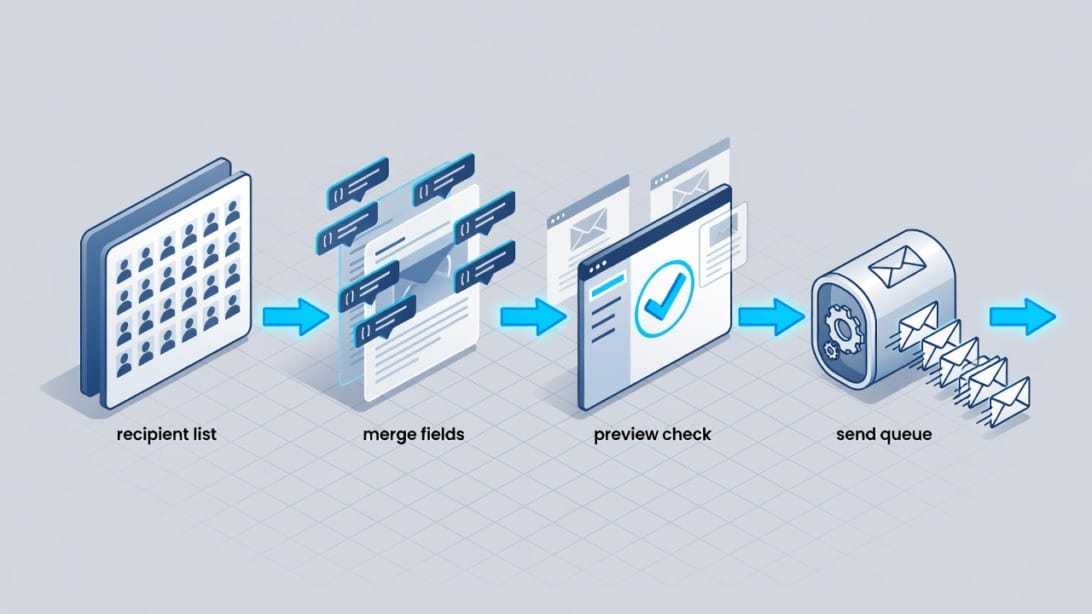
That is the core idea behind every mail merge tool. The interface changes between Microsoft Word, Outlook, Gmail, Google Sheets, and email outreach platforms, but the logic is always the same: data source plus template plus merge fields plus preview plus send or export.

Mail merge is useful for:
- Personalized sales or partnership outreach
- Event invitations
- Renewal notices
- Recruiting messages
- Customer onboarding emails
- Invoices and account notices
- Printed letters
- Address labels
- Envelopes
- Certificates
- Internal HR communications
The important distinction is that mail merge is not just “bulk sending.” A good merge sends a relevant, correct, personalized message to each recipient. A bad merge sends broken placeholders, wrong names, duplicate emails, formatting errors, or messages that look automated in the worst possible way.
If you are using mail merge for outreach, treat it as part of your email deliverability workflow, not just a productivity shortcut. Personalization helps, but sender reputation, list quality, authentication, bounce control, and unsubscribe handling still matter.
Before You Start: What You Need
Before you do a mail merge, you need four things: a clean data source, a template, a merge tool, and a pre-send review process. Most mail merge problems happen before anyone clicks “send” because the spreadsheet is messy or the template uses field names that do not match the data.
1. A clean recipient list
Your recipient list is usually an Excel file, Google Sheet, CSV, CRM export, or contact list. Each row should represent one recipient or one output item. Each column should represent one field you want to merge.
Use simple column headers. These work well:
- `FirstName`
- `LastName`
- `Company`
- `Email`
- `Address1`
- `City`
- `State`
- `PostalCode`
- `CustomLine`
Avoid headers like these:
- `First Name!`
- `Client / Company`
- `Email Address (required)`
- `Renewal Date – 2026`
Some tools can handle spaces or symbols, but simple field names reduce errors. If you are merging in Microsoft Word, the field names in Word must match the headers in your spreadsheet. If you are merging in Gmail from a spreadsheet, special characters in headers can make merge tags harder to use.
2. A template
Your template is the reusable email, letter, label layout, or document. It contains normal text plus merge fields.
A basic email template might look like this:
Hi `FirstName`,
I noticed `Company` is hiring for `Role`. I thought this resource might help your team plan outreach more efficiently.
A letter template might include:
`FirstName` `LastName`
`Address1`
`City`, `State` `PostalCode`
Then the body of the letter follows.
3. A tool that fits the output
Different tools are better for different jobs.
| Output you need | Best starting point | Why |
|---|---|---|
| Printed letters | Microsoft Word plus Excel | Strong native support for letters and formatting |
| Address labels | Microsoft Word plus Excel | Built-in label templates and preview |
| Envelopes | Microsoft Word plus Excel | Built-in envelope layout support |
| Simple Gmail personalization | Gmail mail merge or Google Sheets add-on | Works inside Google Workspace |
| Outlook email merge | Word plus Outlook | Native Microsoft flow for HTML or plain text email |
| Cold outreach sequences | Mystrika | Built for personalized campaigns, inbox rotation, warmup, unibox, and follow-ups |
| High-volume sending infrastructure | DoYouMail | Useful when you need dedicated sending infrastructure rather than a basic merge |
| List verification before sending | Filter Bounce | Helps reduce invalid addresses before an email merge |
4. A review process
Never send a mail merge without previewing real records. You are not just checking spelling. You are checking whether every field resolves correctly, whether names look natural, whether missing values create awkward sentences, and whether the final output is safe to send.
Use this quick pre-flight rule:
- Preview the first record.
- Preview a middle record.
- Preview the last record.
- Preview a record with missing optional fields.
- Send a test to yourself.
- Confirm links, unsubscribe language, sender identity, and formatting.
How to Do a Mail Merge in 9 Steps
To do a mail merge, prepare a spreadsheet, write a reusable template, insert merge fields, connect the data source, preview multiple records, fix missing data, send a test, complete the merge, and verify the output. The exact buttons differ by tool, but the process is the same across Word, Outlook, Gmail, and Google Workspace.
Step 1: Decide the output type
Start by deciding what you are creating. This choice affects the tool you should use.
Choose one:
1. Email messages
2. Printed letters
3. Mailing labels
4. Envelopes
5. Certificates or PDFs
6. Follow-up sequences
7. CRM or sales outreach messages
If you only need printed letters, Microsoft Word is usually enough. If you need personalized outreach with follow-ups, replies, bounce handling, and inbox management, a dedicated platform like Mystrika is a better fit than forcing a basic document mail merge to behave like a campaign system.
Step 2: Build your spreadsheet
Create one row per recipient. Put your headers in the first row. Keep one type of information per column.
Good structure:
| FirstName | LastName | Company | PersonalLine | |
|---|---|---|---|---|
| Aisha | Patel | [email protected] | BrightOps | Loved your recent logistics hiring post |
| Ben | Wright | [email protected] | AtlasWorks | Your new Denver office caught my eye |
Bad structure:
| Name | Contact info | Notes |
|---|---|---|
| Aisha Patel | [email protected], BrightOps | Loved post, logistics, Denver maybe |
The bad structure forces you to manually split values later. Clean columns make clean merge fields.
Step 3: Clean and validate the list
Before connecting the list, check for:
- Duplicate email addresses
- Blank email fields
- Invalid email formats
- Missing first names
- Placeholder values like `N/A`, `Unknown`, or `-`
- Extra spaces before or after values
- Postal codes that lost leading zeroes
- Dates that changed format
- Companies written in inconsistent ways
- Suppressed contacts who should not receive email
For email campaigns, validate the list before sending. Filter Bounce is useful when you want to reduce invalid addresses before a bulk personalized send. Fewer invalid addresses means fewer bounces, and fewer bounces help protect sender reputation.
Step 4: Write the template without merge fields first
Write the message as if you were sending it to one person. Make it clear, specific, and short enough for the channel.
For email, avoid writing a template that depends on personalization to make sense. This is weak:
Hi `FirstName`, I saw `PersonalLine`. We help companies like `Company`. Are you free tomorrow?
This is better:
Hi `FirstName`,
I noticed `PersonalLine`. If `Company` is trying to start more relevant outbound conversations this quarter, I can share a short workflow for keeping personalization consistent without slowing the team down.
The second version still works even if the reader skims it. The personalization supports the message instead of carrying the entire message.
Step 5: Insert merge fields
Add merge fields where personalization belongs. Common fields include:
- First name
- Company
- Job title
- City
- Account owner
- Renewal date
- Plan name
- Custom opening line
- Event name
- Discount code
- Meeting date
Do not overdo it. Too many merge fields can make the message feel robotic. For most email merges, two to four personalized fields are enough.
Step 6: Add default values or rewrite around missing data
Missing data is one of the most common causes of bad mail merges. If `FirstName` is blank, your email might start with “Hi ,”. If `Company` is blank, your sentence may become “I noticed is expanding.”
You can fix this in three ways:
| Problem | Fix |
|---|---|
| Missing first name | Use “Hi there” as a fallback or remove those rows |
| Missing company | Rewrite the sentence so company name is optional |
| Missing custom line | Segment those recipients into a different template |
| Missing address | Exclude from printed letter or label merge |
| Unknown date | Use a generic date range or update the spreadsheet |
The safest approach is to create a `Greeting` column yourself. Instead of relying on the tool to handle missing names, write the exact greeting you want in the spreadsheet:
| FirstName | Greeting |
|---|---|
| Maya | Hi Maya, |
| Hi there, |
Then merge `Greeting` directly.
Step 7: Preview multiple records
Previewing only the first row is not enough. The first row is often the cleanest because it was used for testing. Preview records that represent different conditions:
- Long company name
- Missing first name
- International address
- Long city or state name
- Special characters in name
- Different date formats
- Different subscription plans
- Different message segments
If your merge tool lets you send a test message, send it to yourself and another teammate. Check it on desktop and mobile.
Step 8: Complete the merge in batches
If you are printing labels or letters, you can usually merge all records at once after previewing. If you are sending email, start with a smaller batch.
For email, batching helps you catch:
- Broken personalization
- Unexpected formatting
- Spam filter problems
- Bounce spikes
- Reply routing issues
- Incorrect sender identity
- Unsubscribe problems
If you are sending cold outreach, do not treat a mail merge like a newsletter blast. Use a platform that supports throttling, follow-ups, warmup, inbox rotation, and reply management. Mystrika is built for that kind of workflow, while a basic mail merge is best for simpler one-time personalization.
Step 9: Verify the output
After completing the merge, confirm the result.
For documents, check:
- Page breaks
- Address placement
- Label alignment
- Missing fields
- Font consistency
- PDF export quality
For email, check:
- Sent folder or outbox
- Reply-to address
- Unsubscribe link if required
- Bounce reports
- Delivered test messages
- Link tracking if enabled
- Responses in your inbox or unibox
If you use Mystrika for outreach after preparing your merge data, keep replies centralized in the unibox so conversations do not get scattered across multiple sending accounts.
How to Do a Mail Merge in Microsoft Word
Microsoft Word is the most common tool for mail merge letters, labels, envelopes, and Outlook email merges. It works best when your data source is an Excel spreadsheet with clean headers in the first row.
Word mail merge for letters
Use this process when you want printed letters or PDF letters.
1. Open Microsoft Word.
2. Create a new document.
3. Go to Mailings.
4. Select Start Mail Merge.
5. Choose Letters.
6. Click Select Recipients.
7. Choose Use an Existing List.
8. Select your Excel file.
9. Choose the correct worksheet.
10. Place your cursor where personalization should appear.
11. Click Insert Merge Field.
12. Add fields such as `FirstName`, `LastName`, `Address1`, and `Company`.
13. Click Preview Results.
14. Use the arrows to review multiple recipients.
15. Click Finish & Merge.
16. Choose Edit Individual Documents, Print Documents, or Send Email Messages.
Choose Edit Individual Documents if you want to inspect or customize the final letters before printing. Choose Print Documents only after you are confident the merge is correct.
Word mail merge for labels
Use labels when you need address stickers or name badges.
1. Open Word.
2. Go to Mailings.
3. Select Start Mail Merge.
4. Choose Labels.
5. Select the label vendor and product number.
6. Click Select Recipients and connect your Excel file.
7. Insert an Address Block or individual address fields.
8. Click Update Labels so the layout copies to every label.
9. Click Preview Results.
10. Check alignment across the full sheet.
11. Print a test page on plain paper.
12. Hold it behind a label sheet to confirm alignment.
13. Print the final labels.
Do not skip the plain-paper test. Label sheets are easy to waste, and small alignment problems can ruin an entire batch.
Word mail merge for envelopes
Use envelopes when you need addresses printed directly on envelopes.
1. Go to Mailings.
2. Choose Start Mail Merge.
3. Select Envelopes.
4. Choose envelope size and printing options.
5. Connect your recipient list.
6. Insert the address block.
7. Preview several records.
8. Print one test envelope.
9. Adjust feed direction or margins if needed.
10. Print the final batch.
Envelope printing is printer-specific. If the address appears rotated or misplaced, the issue is usually feed orientation, not the mail merge itself.
How to Do a Mail Merge in Gmail
Gmail mail merge lets eligible Google Workspace users send personalized emails from Gmail using recipients entered directly or imported from a spreadsheet. It is best for simple, one-time personalized email sends, not complex multi-step outreach campaigns.
Gmail mail merge with recipients typed directly
1. Open Gmail.
2. Click Compose.
3. Add recipients in the To field.
4. Turn on Mail merge from the compose window.
5. Type your message.
6. Use `@` to insert available merge tags such as first name, last name, full name, or email.
7. Preview if available.
8. Send a test to yourself if your workflow allows it.
9. Send the merge.
This is useful for small groups where you already trust the recipient data.
Gmail mail merge from a spreadsheet
1. Create a Google Sheet.
2. Put headers in row one.
3. Include an email column for every recipient.
4. Open Gmail.
5. Click Compose.
6. Turn on Mail merge.
7. Choose Add from a spreadsheet.
8. Select the spreadsheet.
9. Map the email, first name, and last name fields.
10. Write the email.
11. Type `@` to insert merge tags from your sheet.
12. Review missing values or errors.
13. Send a test.
14. Send the merge.
Google’s own help documentation notes several constraints that matter in real campaigns: mail merge availability depends on your Workspace plan, merge tags have limitations, Cc and Bcc behavior is restricted, and attachments can consume storage because they are duplicated per recipient. Treat those constraints as planning inputs, not afterthoughts.
When Gmail is not enough
Gmail mail merge is convenient, but it is not a full outbound system. Consider a dedicated tool if you need:
- Follow-up sequences
- Inbox rotation
- Warmup
- Bounce handling
- Centralized replies
- Campaign analytics
- Multiple sender accounts
- Team workflows
- Deliverability controls
- Safer scaling
For cold email, Mystrika is a natural next step because it combines personalization, sequencer, warmup, unibox, and campaign management. If your main bottleneck is sending infrastructure, DoYouMail can support scalable sending. If your list quality is uncertain, run the list through Filter Bounce before you send.
How to Do a Mail Merge with Google Sheets and Google Docs
Google Sheets and Google Docs are useful when you want to generate documents, PDFs, certificates, or simple letters from spreadsheet data. Gmail is usually better for email, while Docs is better for document generation.
Google Docs mail merge workflow
Google Docs does not have the same native mail merge interface as Microsoft Word. Most teams use an add-on or Apps Script.
The general workflow is:
1. Create a Google Sheet with one row per recipient.
2. Create a Google Docs template.
3. Add placeholders such as `<
4. Install or open your chosen merge add-on.
5. Select the spreadsheet as the data source.
6. Select the Google Docs file as the template.
7. Map spreadsheet columns to template placeholders.
8. Choose the output format, such as Docs or PDF.
9. Run a test merge for one row.
10. Review the generated document.
11. Run the full merge.
This workflow is strong for certificates, invoices, offer letters, and internal documents. It is less ideal for cold outreach because it does not solve deliverability, replies, or sending reputation by itself.
Google Sheets mail merge quality tips
Use a separate sheet tab for your final merge data. Keep raw exports on another tab. That way you can clean, deduplicate, and review the final list without destroying the original source.
Recommended tabs:
| Tab | Purpose |
|---|---|
| Raw Export | Original CRM, form, or database export |
| Cleaned Data | Deduplicated and formatted merge list |
| Suppression List | People who should not receive the email |
| Test Records | Internal recipients for test merges |
| Sent Log | Date, campaign, sender, and status |
This structure is especially helpful when multiple teammates are editing the same sheet.
How to Do a Mail Merge in Outlook
Outlook email mail merge usually starts in Microsoft Word, not Outlook. Word creates the personalized messages and sends them through Outlook as the email client.
Outlook mail merge steps
1. Open Microsoft Word.
2. Go to Mailings.
3. Click Start Mail Merge.
4. Choose E-mail Messages.
5. Click Select Recipients.
6. Choose your Excel file, Outlook contacts, or another supported source.
7. Write your email in Word.
8. Insert merge fields such as greeting line, first name, company, or custom fields.
9. Click Preview Results.
10. Review multiple records.
11. Click Finish & Merge.
12. Select Send Email Messages.
13. Choose the email address field in the To box.
14. Add a subject line.
15. Select HTML or plain text.
16. Choose all records, current record, or a record range.
17. Confirm and send.
18. Check Outlook Outbox and Sent Items.
Outlook limitations to know
Microsoft’s own support guidance highlights limitations that many users discover too late:
| Limitation | What it means |
|---|---|
| No normal CC or BCC workflow | Word sends individual messages to each email address, but CC/BCC options are limited or unavailable in the merge flow |
| Attachments are not straightforward | You may need links or a different tool if every recipient needs an attachment |
| Default email client matters | Word needs a compatible email client configured correctly |
| Formatting needs review | HTML email created in Word can look different across inboxes |
| Send limits still apply | Your mailbox provider can throttle or block high-volume sending |
Outlook mail merge is fine for internal notices, account updates, and moderate one-time sends. For sales outreach or higher-volume campaigns, use a purpose-built outreach platform rather than pushing a mailbox beyond its intended workflow.
Mail Merge Decision Matrix
The best mail merge tool depends on what you are sending, how many people you are sending to, and whether replies or deliverability matter.
| Use case | Recommended tool | Best for | Watch out for |
|---|---|---|---|
| 20 printed letters | Word plus Excel | Formal letters and print control | Address formatting and page breaks |
| 500 address labels | Word plus Excel | Label templates | Printer alignment |
| 100 internal emails | Outlook mail merge | Simple Microsoft environment | Limited CC/BCC and attachment support |
| 200 personalized Gmail messages | Gmail mail merge | Workspace users and simple sends | Plan eligibility and Gmail limits |
| 1,000 certificates as PDFs | Google Sheets plus Docs add-on | Document generation | Add-on permissions and output review |
| Cold outreach with follow-ups | Mystrika | Sequenced outreach, warmup, unibox, personalization | Requires campaign planning, list quality, and compliance |
| Large sending infrastructure | DoYouMail | Sending domains and infrastructure | Must pair with good list hygiene and authentication |
| Risky or old email list | Filter Bounce before sending | Reducing invalid addresses | Verification does not replace consent or relevance |
Use the simplest tool that safely completes the job. Do not buy an outreach platform to print 30 labels. Do not use a label-oriented Word merge to run a multi-step cold email campaign.
Data Prep Checklist
A clean spreadsheet makes the merge easier, safer, and more professional. Use this checklist before connecting your data source.
Spreadsheet structure checklist
- [ ] One recipient per row
- [ ] One field per column
- [ ] Header row is row one
- [ ] Headers are short and simple
- [ ] No duplicate header names
- [ ] Email column exists for email merges
- [ ] Address columns are split cleanly for postal merges
- [ ] Postal codes are stored as text when leading zeroes matter
- [ ] Dates use one consistent format
- [ ] Currency and percentages are formatted intentionally
- [ ] Blank required fields are fixed or removed
- [ ] Test records are included separately
List hygiene checklist for email merges
- [ ] Remove duplicate email addresses
- [ ] Remove unsubscribed contacts
- [ ] Remove role accounts if inappropriate, such as `info@` or `support@`
- [ ] Remove obviously invalid addresses
- [ ] Verify old or purchased lists before sending
- [ ] Segment by audience or message intent
- [ ] Include a suppression list
- [ ] Keep a record of the source of each contact
- [ ] Confirm the sender account is appropriate for the audience
- [ ] Send a small test batch before scaling
Personalization checklist
- [ ] Greeting works when first name is missing
- [ ] Company name appears naturally
- [ ] Custom opening line is accurate
- [ ] No private notes are accidentally included
- [ ] No competitor notes are exposed
- [ ] No placeholder values remain
- [ ] Merge fields match spreadsheet headers
- [ ] Preview records include edge cases
- [ ] Test email is checked on mobile
Email Deliverability and Compliance Checklist
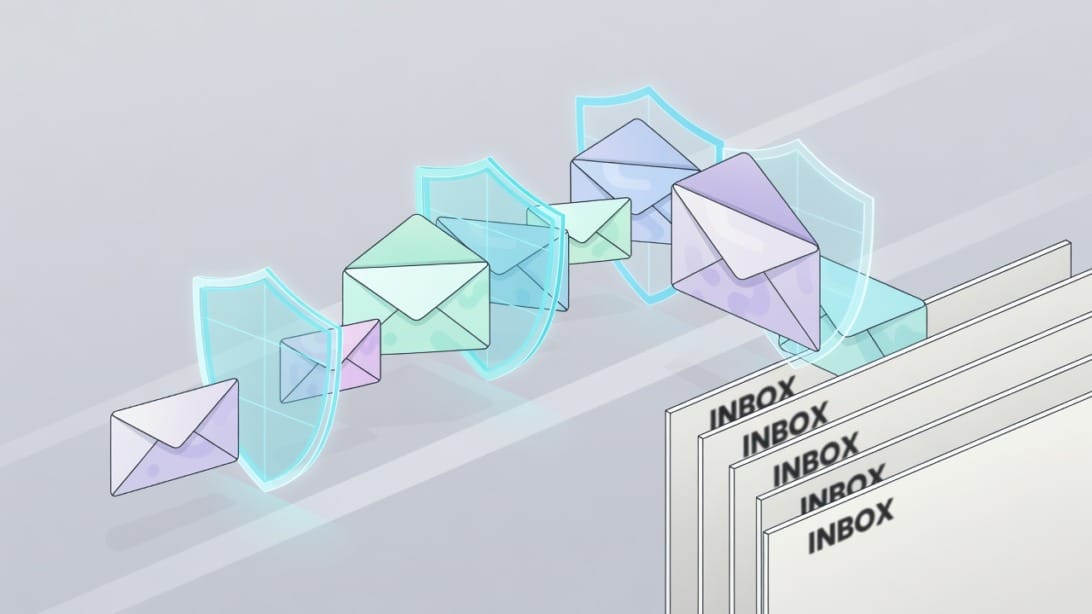
Mail merge can create personalized email, but personalization alone does not guarantee inbox placement. If you are sending bulk or cold email, verify your sender setup, list quality, and legal requirements before you scale.
Deliverability basics
Before sending a merged email campaign, check:
- SPF is configured for your sending domain
- DKIM is configured and passing
- DMARC is present and aligned with your policy goals
- The sender domain is warmed up before higher volume
- The list has been cleaned and verified
- Bounce risk is controlled
- Message copy does not look like a generic blast
- Links point to trustworthy domains
- You are not using aggressive URL shorteners
- The reply-to address is monitored
- You can process opt-outs quickly
If these terms are new to you, review SPF, DKIM, and DMARC before sending at scale. You can also check whether your domain or IP is blacklisted before pushing a large campaign.
Compliance basics
Rules vary by country and message type, but most business email programs should answer these questions before sending:
| Question | Why it matters |
|---|---|
| Who is the sender? | Recipients should understand who contacted them |
| Why is the recipient on the list? | Relevance and consent affect trust and complaints |
| Is there an opt-out path? | Many jurisdictions require a clear unsubscribe method for commercial email |
| Is the subject line accurate? | Misleading subject lines increase complaints and legal risk |
| Is the message targeted? | Irrelevant bulk email performs poorly and harms reputation |
| Can you honor suppression requests? | You need a reliable do-not-contact process |
This is not legal advice. If you send commercial email across regions, review the rules that apply to your audience, such as CAN-SPAM, GDPR, CASL, or other local requirements.
When to move beyond a basic mail merge
A basic mail merge is enough when:
- The list is small
- The send is one-time
- Follow-ups are manual
- Replies go to one inbox
- You do not need detailed campaign reporting
- Deliverability risk is low
Move to a dedicated outreach workflow when:
- You need automated follow-ups
- Multiple inboxes are involved
- Replies need centralized handling
- Bounce and warmup controls matter
- You need campaign-level analytics
- The list is large or cold
- You need consistent sending schedules
For that use case, a cold email sequence should be planned as a campaign, not as a one-off spreadsheet trick.
Common Mail Merge Problems and Fixes
Most mail merge errors are predictable. Use this troubleshooting table before starting over.
| Problem | Likely cause | Fix |
|---|---|---|
| `Hi ,` appears in email | Missing first name | Add fallback greeting or remove rows with blank names |
| Merge field prints as text | Field was typed manually in the wrong syntax | Insert the field using the tool’s merge field menu |
| Wrong company appears | Spreadsheet rows shifted or sorted incorrectly | Re-export or restore the sheet and keep rows intact |
| Postal codes lose leading zeroes | Excel treated postal codes as numbers | Format postal code column as text before connecting |
| Dates look wrong | Tool changed date format | Use a text-formatted display date column |
| Labels are misaligned | Wrong label template or printer feed | Select exact label product and print a plain-paper test |
| Emails stuck in Outbox | Outlook not connected or throttled | Check default client, connection, and mailbox limits |
| Attachments missing | Tool does not support attachments in merge | Use links, a different tool, or a platform that supports attachments |
| Gmail merge tags unavailable | Account or plan not eligible | Check Workspace plan and Gmail mail merge settings |
| High bounce rate | Poor list quality | Verify with Filter Bounce and remove risky addresses |
| Low replies | Weak targeting or generic copy | Segment the list and improve the message offer |
| Spam folder placement | Authentication, reputation, or content issue | Check SPF/DKIM/DMARC, warmup, sending volume, and links |
Mail Merge Examples You Can Copy
Use these examples as starting points. Replace the fields with the exact column names in your spreadsheet.
Example 1: Event invitation email
Subject: Invitation for `Company`
Hi `FirstName`,
We are hosting a small session for `Role` leaders in `City` on `EventDate`. Given your work at `Company`, I thought it might be relevant.
Would you like me to send the agenda?
Best for: small event outreach, partner invitations, community events.
Watch out for: city accuracy, role accuracy, and whether the invitation is relevant.
Example 2: Renewal notice letter
`FirstName` `LastName`
`Address1`
`City`, `State` `PostalCode`
Dear `FirstName`,
Your `PlanName` subscription is scheduled to renew on `RenewalDate`. If you need to update billing details or change your plan, please contact us before that date.
Best for: account notices, customer operations, finance workflows.
Watch out for: date formatting, address formatting, and legal review for required notices.
Example 3: Recruiting message
Subject: Quick question about `Role`
Hi `FirstName`,
I saw your background in `SkillArea` and thought your experience could be relevant to a `Role` opening with our team.
If you are open to hearing more, I can send the short role summary.
Best for: recruiting outreach.
Watch out for: inaccurate skills, outdated job titles, and over-personalization that feels invasive.
Example 4: Cold outreach opener
Subject: `Company` outreach workflow
Hi `FirstName`,
I noticed `PersonalLine`. If `Company` is trying to make outbound more consistent without turning every email into a manual research project, I can share a simple workflow that keeps personalization structured.
Worth sending over?
Best for: targeted B2B outreach.
Watch out for: weak personal lines, unverified lists, and sending too many emails too quickly from a new domain.
Advanced Tips for Better Mail Merges
A technically correct mail merge can still perform badly if the message is irrelevant or the process is careless. These tips improve quality without making the workflow complicated.
Segment before you personalize
Segmentation beats fake personalization. Instead of sending one generic message to everyone, split your list by meaningful criteria:
- Industry
- Role
- Company size
- Customer stage
- Region
- Use case
- Event attendance
- Product interest
- Renewal date
- Source of contact
Then write a template for each segment. A segment-specific template usually sounds more natural than one massive template stuffed with merge fields.
Use custom lines carefully
A custom line can improve relevance, but only if it is accurate. Bad custom lines are worse than no custom line.
Good custom line:
I saw your team is opening a new Austin office.
Bad custom line:
I saw your amazing company and was impressed by your innovation.
The bad line is vague. It looks generated, even if a human wrote it.
Keep one source of truth
Do not keep editing the same recipient data in five places. If your CRM, spreadsheet, and merge tool all have different data, you will eventually send the wrong thing.
For repeat workflows, define:
- Where the original data lives
- Who can edit it
- How suppressions are stored
- How bounced addresses are handled
- How replies are logged
- How future sends avoid unsubscribed contacts
Test with internal seed records
Add internal test recipients to your spreadsheet. Give them realistic data so you can see how the merge behaves.
Example seed rows:
| FirstName | Company | PersonalLine | |
|---|---|---|---|
| TestLongNameAlexandria | Very Long Company Name Incorporated | [email protected] | This is a long personalization line for layout testing |
| Blank Name Company | [email protected] | This row tests missing first name handling |
Seed records help you catch layout, missing field, and mobile formatting issues before customers or prospects see them.
Key Takeaways
- A mail merge combines a reusable template with a spreadsheet or contact list to create personalized emails, letters, labels, envelopes, or documents.
- The universal workflow is: clean the data, write the template, insert merge fields, connect the source, preview records, test, complete the merge, and verify the output.
- Microsoft Word plus Excel is best for letters, labels, envelopes, and Outlook email merges.
- Gmail mail merge is useful for eligible Google Workspace users who need simple personalized sends.
- Google Sheets plus Docs works well for generated documents and PDFs, especially when using an add-on or script.
- For cold outreach, a basic mail merge is often too limited. Mystrika is better suited for sequenced campaigns, warmup, unibox, and reply management.
- List quality matters. Use Filter Bounce when you need to reduce invalid email addresses before sending.
- Sending infrastructure matters too. DoYouMail is useful when your sending setup needs to scale beyond a basic mailbox.
- Always preview edge cases, not just the first row.
- Never ignore deliverability, compliance, unsubscribe handling, or suppression lists when using mail merge for email.
Frequently Asked Questions
How do I do a mail merge step by step?
To do a mail merge, create a spreadsheet with one recipient per row, write a template, insert merge fields, connect the spreadsheet to your mail merge tool, preview multiple records, send a test, and complete the merge. After sending or exporting, verify that the final output looks correct.
The exact buttons depend on the tool. In Word, start from the Mailings tab. In Gmail, use the mail merge option in the compose window if your account is eligible. In Google Docs, use an add-on or script connected to Google Sheets.
What is the easiest way to do a mail merge?
The easiest way depends on the output. For printed letters or labels, Microsoft Word with Excel is usually the easiest. For simple personalized Gmail messages, Gmail mail merge is easiest if your Workspace plan supports it.
For cold outreach, the easiest safe workflow is not a basic mail merge. Use a platform like Mystrika when you need personalization plus follow-ups, warmup, reply management, and campaign controls.
Can I do a mail merge in Gmail?
Yes, eligible Google Workspace users can do a mail merge in Gmail by turning on mail merge in the compose window and adding recipients directly or from a spreadsheet. You can insert merge tags such as first name, last name, full name, or email.
Gmail mail merge has limitations. Eligibility depends on your plan, merge tags do not behave like a full campaign engine, Cc and Bcc options are restricted, and attachments can increase storage use because they are duplicated per recipient.
Can I do a mail merge in Outlook?
Yes, but the workflow usually starts in Microsoft Word. You create the email in Word, connect an Excel list or Outlook contacts, insert merge fields, preview the messages, and then use Finish & Merge to send email messages through Outlook.
Outlook mail merge is useful for simple one-time sends. It is less ideal when you need attachments, CC/BCC control, automated follow-ups, inbox rotation, or campaign reporting.
How do I do a mail merge with Excel?
Create an Excel spreadsheet with headers in the first row and one recipient per row. Then connect that spreadsheet to Microsoft Word through Mailings > Select Recipients > Use an Existing List.
Before connecting the file, format postal codes, dates, currencies, and percentages carefully. If Excel changes a postal code from `02115` to `2115`, your merged letter or label will be wrong.
How do I mail merge labels?
In Microsoft Word, go to Mailings, choose Start Mail Merge, select Labels, pick the correct label vendor and product number, connect your Excel recipient list, insert the address block or fields, click Update Labels, preview the results, and print a test page.
Always test label alignment on plain paper before printing on label sheets. Small template or printer-feed errors can shift every label on the page.
Can I attach files to a mail merge email?
Some mail merge tools support attachments, but basic Word and Outlook mail merge has important limitations. Microsoft’s standard email merge flow is not designed for flexible per-recipient attachments in the same way dedicated email tools are.
If you need attachments, consider using secure links, a tool built for attachment mail merge, or a proper campaign platform. Also remember that attachments can hurt deliverability and increase storage usage.
Why are my merge fields not working?
Merge fields usually fail because the field name in the template does not match the spreadsheet header, the field was typed in the wrong syntax, or the data source was not connected correctly. The fastest fix is to insert fields from the tool’s merge field menu instead of typing them manually.
Also check for special characters, duplicate headers, hidden spaces, and renamed columns. If your spreadsheet header is `First Name` but your template expects `FirstName`, some tools will treat them as different fields.
How many emails can I send with mail merge?
The limit depends on your email provider, account type, sending reputation, and tool. Google Workspace Gmail mail merge has documented daily limits, while standard Gmail accounts have lower general sending limits. Outlook and Microsoft 365 mailboxes also have their own sending limits and anti-abuse controls.
Do not plan only around the maximum number allowed. For deliverability, it is safer to start with smaller batches, monitor bounces and replies, and increase gradually only when your sender reputation is healthy.
Is mail merge good for cold email?
Mail merge can personalize cold email, but it is not enough by itself for a serious cold email workflow. Cold outreach also needs list verification, deliverability setup, sending controls, follow-ups, unsubscribe handling, reply management, and compliance review.
For small, highly targeted sends, a simple mail merge may be fine. For repeatable campaigns, use Mystrika for sequencing, warmup, unibox, and campaign management, and use Filter Bounce to reduce invalid addresses before sending.