

Quick Answer: How to Get the Subject Under the Sender in Classic Outlook
If Classic Outlook is not showing the subject under the sender, the fastest fix is usually to restore Compact view, widen the message list enough for the two-line layout, and turn on message preview if you want extra preview text. Go to View > Change View > Compact. If the layout is still wrong, use View > Reset View, then adjust View > Reading Pane so the message list has enough horizontal space.
Classic Outlook can show messages in different layouts depending on view mode, Reading Pane position, column width, conversation settings, and custom view rules. That is why one inbox might show a familiar two-line row with the sender on top and subject underneath, while another folder suddenly looks like a spreadsheet with sender and subject in separate columns.

Use this guide if your goal is any of the following:
- You want the sender name on the first line and the subject below it in Classic Outlook.
- Your Outlook inbox changed after an update, monitor change, or Reading Pane adjustment.
- The subject line disappeared, moved beside the sender, or only appears as a column.
- One folder looks right, but another folder does not.
- You are not sure whether you are using Classic Outlook, new Outlook, Outlook on the web, or Outlook for Mac.
Here is the shortest practical rule: Classic Outlook uses view layouts, not just a single subject-line toggle. New Outlook and Outlook on the web have a more direct Message list format setting, but Classic Outlook often depends on Compact view, folder-specific view settings, and available space.
What “Subject Under Sender” Means in Outlook
“Subject under sender” means the message list uses a stacked two-line layout. The first visible line shows who sent the email. The next line shows the subject, and sometimes a short message preview appears after or below it. This is different from a table layout where sender, subject, received date, size, and categories each sit in separate columns.
In Classic Outlook, that stacked layout is normally associated with Compact view. In many builds, Compact view adapts to the width of your message list. When the list is narrow enough, Outlook behaves like a modern inbox and stacks information. When the list is wide or the view changes to Single or Preview, Outlook may show more traditional columns.
| Layout style | What you see | Best for | Common problem |
|---|---|---|---|
| Compact view | Sender line, subject line, optional preview | Fast inbox scanning | Can change when pane width changes |
| Single view | One row with columns | Spreadsheet-style sorting | Subject may appear beside sender, not under it |
| Preview view | Columns plus preview area | Reviewing more text in list | Takes more vertical space |
| New Outlook message list format | Sender first or subject first | Simple modern layout control | Not the same settings as Classic Outlook |
A useful definition: Compact view is the Classic Outlook view that most closely matches the subject-under-sender layout people expect from modern inboxes. If you are searching for the exact phrase “classic outlook getting subject under sender,” you are almost certainly trying to restore Compact view or undo a custom folder view.
Before You Change Settings: Confirm Which Outlook You Are Using
Before troubleshooting, confirm your Outlook version. The menu path is different across Outlook products, and many online guides mix new Outlook, Outlook on the web, Outlook for Mac, and Classic Outlook in the same explanation.
| Outlook version | How it usually looks | Where message-list controls usually live | Does this guide apply? |
|---|---|---|---|
| Classic Outlook for Windows | Full desktop ribbon with File tab | View tab, Change View, View Settings, Reading Pane | Yes, primary focus |
| New Outlook for Windows | Web-like interface with Settings gear | Settings > Mail > Layout | Partly, separate section below |
| Outlook on the web | Browser-based Outlook | Settings > Mail > Layout | Partly, separate section below |
| Outlook for Mac | Mac menu bar and Outlook-specific View options | View and Arrange By options | Partly, separate section below |
| Mobile Outlook | Phone or tablet app | App settings, limited list options | No, not the same issue |
If you see File, View, Send/Receive, Folder, and a full Windows ribbon, you are probably in Classic Outlook. If you see a simplified app that behaves like Outlook.com, you may be in new Outlook. That distinction matters because Microsoft separates many support instructions into “New Outlook” and “Classic Outlook” paths.
For business mailboxes, it is also worth separating display problems from delivery problems. If messages are missing entirely, that is not a subject display issue. Check sync, filters, quarantine, rules, Focused Inbox, and folder selection before spending time on the message-list layout. If your team uses Outlook for outreach workflows, keeping the interface readable is useful, but it is separate from deeper email deliverability work.
The Fastest Fix in Classic Outlook
The fastest fix is to switch the folder back to Compact view and reset the current view if customization has broken the layout. Start with the Inbox where you noticed the problem, because Classic Outlook views can be folder-specific.
Follow these steps:
1. Open Classic Outlook.
2. Select the folder that has the problem, such as Inbox.
3. Go to the View tab in the ribbon.
4. Select Change View.
5. Choose Compact.
6. If the sender and subject still do not stack, select Reset View on the View tab.
7. Confirm the reset for the current folder.
8. Adjust View > Reading Pane to Right, Bottom, or Off and watch how the message list changes.
9. Resize the message list by dragging the divider between the list and the Reading Pane.
10. If needed, enable or adjust message preview from the View tab.
This sequence fixes the most common cause: the folder is no longer using the view layout that supports the stacked sender and subject display.
Why Reset View Often Works
Reset View works because Outlook folders can accumulate customizations over time. You might add a column, change sorting, group by conversation, alter preview lines, or apply a custom view without realizing it. Reset View returns the selected folder’s current view to its default structure.
Use Reset View when:
- The Inbox looks different from other folders.
- Sender and subject appear in separate columns unexpectedly.
- The subject line is missing from the message list.
- A view change happened after experimenting with columns.
- You inherited a mailbox or shared folder with someone else’s custom view.
Do not use Reset View casually if your team intentionally created a specialized folder view. For example, a shared support mailbox might use custom columns for category, flag status, owner, or follow-up date. In that case, document the current view before resetting it.
Step-by-Step: Restore Sender Above Subject in Classic Outlook
This section gives a slower, more controlled workflow than the quick fix. Use it when you need to understand exactly which setting changed.
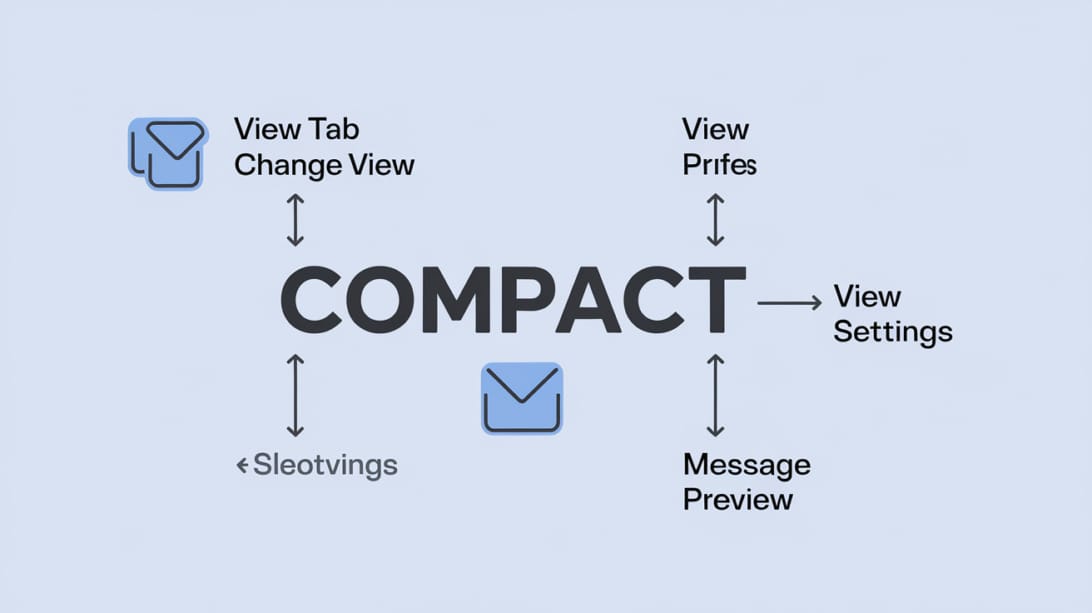
Step 1: Select the Problem Folder
Outlook view settings often apply to the folder you are viewing, not necessarily the entire mailbox. Click the folder where the subject is not appearing under the sender. Start with the Inbox if that is where you noticed the problem.
If one folder looks right and another looks wrong, that is useful evidence. It means Outlook itself is probably fine. The issue is likely a folder view, not a broken installation.
Step 2: Switch Back to Compact View
Go to View > Change View > Compact. Compact view is the most likely layout to show a sender line and a subject line in a stacked message row.
After selecting Compact, look at the message list immediately. If the layout changes back, you are done. If not, continue to the next step because the view may be customized, too wide, or affected by the Reading Pane.
Step 3: Resize the Message List
Classic Outlook’s compact layout can respond to available width. If the message list is very wide, Outlook may show more column-like information. If the Reading Pane is on the right, drag the divider to make the message list narrower or wider and watch the row layout.
Try these adjustments:
- Set View > Reading Pane > Right, then resize the list.
- Set View > Reading Pane > Bottom if you want the list to use more width.
- Set View > Reading Pane > Off to test whether the pane is influencing the layout.
- Maximize the Outlook window if you are on a small screen.
- If using multiple monitors, test Outlook on your primary display.
The goal is not a magic width number. The goal is to determine whether Outlook is switching layouts because the list area changed.
Step 4: Turn Message Preview On or Off
Message Preview controls whether Outlook shows a snippet of the email body in the message list. It is not the same as the subject line, but people often confuse the two because both appear below the sender in compact layouts.
Go to the View tab and look for Message Preview. Depending on your build, you may be able to choose options such as off, one line, two lines, or three lines.
Use this rule:
- If the sender appears but the subject does not, focus on Compact view and columns.
- If sender and subject appear but the body snippet is missing, adjust Message Preview.
- If the preview is taking too much space, reduce preview lines or turn it off.
Step 5: Check Conversation View
Conversation View groups related messages into threads. It can change how rows appear, especially if multiple messages share a subject. If you think Outlook is hiding or merging subjects, test with conversation grouping off.
On the View tab, look for Show as Conversations. Turn it off temporarily and inspect the same folder. If the subject display becomes clearer, your issue may be conversation grouping rather than sender-subject order.
Conversation View is useful for long threads, but it can make troubleshooting confusing because the top row may represent a conversation rather than a single message.
Step 6: Reset the Current View
If the previous steps do not fix the layout, use View > Reset View. This is the cleanest way to remove hidden customizations from the current folder view.
After resetting, repeat the basic checks:
1. Confirm Compact view is selected.
2. Adjust the Reading Pane.
3. Resize the message list.
4. Check Message Preview.
5. Confirm the subject is visible under or near the sender.
If Reset View is unavailable or grayed out, you may be in a view state, account type, or managed environment where your administrator controls certain settings.
Troubleshooting Matrix: Why the Subject Is Not Under the Sender
Use this matrix to diagnose the likely cause quickly.
| Symptom | Likely cause | Fix | Confidence |
|---|---|---|---|
| Sender and subject appear in separate columns | Folder is in Single or Preview view | View > Change View > Compact | High |
| Subject line disappeared from list | Subject column removed or view corrupted | View > Reset View | High |
| Layout changes when Reading Pane moves | Message list width changed | Resize list or change Reading Pane position | High |
| Only some folders look wrong | Folder-specific custom view | Reset or copy view settings folder by folder | High |
| Subject appears, but body snippet is missing | Message Preview is off | View > Message Preview | Medium |
| Threaded emails are hard to read | Conversation View is grouping messages | Toggle Show as Conversations | Medium |
| Settings do not match guides online | You are in new Outlook or web Outlook | Use Settings > Mail > Layout | High |
| Shared mailbox keeps reverting | Admin policy, roaming profile, or add-in | Test safe mode and ask admin | Medium |
| Font or spacing looks too large | View formatting or display scaling | Check View Settings and Windows scaling | Medium |
A practical troubleshooting habit: change one setting at a time, then inspect the same email row. If you change view, Reading Pane, preview, and conversation settings all at once, you will not know which setting actually fixed the problem.
Classic Outlook Views Explained: Compact, Single, and Preview
Classic Outlook’s view names are a major source of confusion. The names sound simple, but they control how Outlook structures the entire message list.
Compact View
Compact view is the modern-looking default for many Classic Outlook folders. It is designed to make scanning easier by stacking message information when the list is narrow. This is usually the view you want when you expect the subject to sit under the sender.
Compact view is best when:
- You scan by sender first.
- You want a clean inbox layout.
- You use the Reading Pane on the right.
- You prefer a two-line or three-line message row.
- You do not need many custom columns.
Single View
Single view behaves more like a traditional table. Sender, subject, date, and other fields can appear as columns in one row. This is useful for sorting and data-heavy review, but it is not usually what people mean by subject under sender.
Single view is best when:
- You need visible columns.
- You sort by received date, size, category, or flag.
- You manage shared mailboxes with operational metadata.
- You prefer dense information over a modern stacked row.
Preview View
Preview view gives more vertical space to each message and can show more preview content. It may help if you want to read more without opening messages, but it can reduce how many emails fit on screen.
Preview view is best when:
- You read snippets before opening messages.
- You triage long emails.
- You do not mind fewer visible rows.
- You want more context than Compact view provides.
The key point: if your exact goal is Classic Outlook getting subject under sender, start with Compact view, not column customization. Column customization is helpful when you want a table layout. It is usually not the first fix for a stacked sender-subject row.
When Column Settings Matter
Column settings matter when you are not using Compact view or when the Subject field has been removed from a list-style view. Microsoft support guidance for Classic Outlook explains that adding or removing columns is done from the View tab through View Settings and Columns, and that column work depends on list-style views such as Single or Preview.
Use column settings if:
- You intentionally want a column-based layout.
- The Subject column is missing in Single view.
- You need to add fields such as From, To, Categories, Size, or Flag Status.
- A shared mailbox workflow depends on sortable metadata.
Do not start with columns if your desired visual is a compact two-line row. In that case, columns can make the inbox look even less like the subject-under-sender layout.
A safe column repair workflow is:
1. Switch to View > Change View > Single or Preview.
2. Open View Settings.
3. Choose Columns.
4. Confirm Subject is included in the visible columns.
5. Move Subject to the desired position if you are using a table layout.
6. Save the view.
7. If you decide you actually wanted the stacked layout, return to Compact.
This distinction is one of the biggest gaps in generic Outlook articles. They often tell users to change message list format or add columns, but they do not explain that these are different solutions for different layouts.
New Outlook and Outlook on the Web: Similar Goal, Different Setting
New Outlook and Outlook on the web use a more direct setting for sender-first or subject-first display. If you are not in Classic Outlook, look for the Settings gear instead of the Classic Outlook View ribbon.
The general path is:
1. Open Settings.
2. Go to Mail.
3. Open Layout.
4. Find Message list format.
5. Choose Sender name first if you want sender above subject.
6. Choose Subject first if you want subject prioritized.
7. Apply the setting and check the message list.
This is why some guides say the answer is Settings > Mail > Layout. That guidance is useful for new Outlook and Outlook on the web, but it can frustrate Classic Outlook users because the Classic desktop app has a different view system.
If your organization recently switched you from Classic Outlook to new Outlook, your old View tab workflow may no longer apply. Conversely, if a guide tells you to use Settings and you do not see the same options, you may still be in Classic Outlook.
Outlook for Mac: Check Sender and Subject Arrangement
Outlook for Mac has its own interface conventions. Depending on version and update channel, sender-subject ordering may appear under View or arrangement controls rather than the Windows Classic Outlook View Settings workflow.
Try this approach on Mac:
1. Open Outlook for Mac.
2. Select the folder with the layout issue.
3. Open the View menu.
4. Look for arrangement or message-list options.
5. Search for an option that controls whether sender or subject appears first.
6. Test the setting with the Reading Pane on and off.
If you support a team with mixed Windows and Mac users, avoid sending a single instruction like “go to View Settings” without specifying the platform. Classic Outlook for Windows, Mac Outlook, new Outlook, and web Outlook use overlapping words but different control locations.
Decision Matrix: Which Fix Should You Use?
Use this decision matrix instead of guessing.
| Your situation | Best first action | Why |
|---|---|---|
| Classic Outlook inbox changed suddenly | View > Change View > Compact | Restores likely stacked layout |
| Classic Outlook folder has missing Subject field | View > Reset View | Repairs folder-specific customization |
| You need subject as a sortable column | View Settings > Columns | Column layout is intentional |
| You use new Outlook | Settings > Mail > Layout | New Outlook uses message-list format settings |
| You use Outlook on the web | Settings > Mail > Layout | Web Outlook mirrors new Outlook controls |
| You use Outlook for Mac | View or Arrange controls | Mac has separate UI paths |
| Shared mailbox keeps changing | Check policies, add-ins, and shared view practices | Layout may be managed or repeatedly customized |
| You only lost body preview text | View > Message Preview | Preview is separate from subject display |
The right fix depends on whether the problem is layout mode, column visibility, pane width, conversation grouping, or product version. For most Classic Outlook users, the winning sequence is still Compact view, resize, Reset View.

How to Apply a Good View to Other Folders
After fixing one folder, you may want other folders to match it. Outlook can apply views across folders, but be careful. Applying a view broadly can overwrite useful custom layouts.
Use a cautious process:
1. Fix the Inbox first.
2. Confirm sender and subject display correctly.
3. Check Sent Items, Archive, shared mailbox folders, and custom folders.
4. Decide which folders should use the same view.
5. Use Outlook’s view management options to apply the current view to selected folders if available.
6. Recheck important folders after applying.
A good folder policy looks like this:
- Inbox: Compact view for scanning.
- Sent Items: Compact or Single, depending on whether you audit sent messages by recipient.
- Shared support folders: Single view if categories and ownership columns matter.
- Archive folders: Compact view unless you sort by metadata often.
- Compliance folders: Follow administrator or legal requirements.
If you work in a mailbox-heavy team, document the chosen view. It saves time when a user says, “Outlook changed again,” because you can compare their folder against the agreed baseline.
Business Mailbox Workflow Notes
For everyday personal email, this issue is mostly about comfort. For business mailboxes, the message-list layout affects speed and accuracy. A sender-first layout helps people recognize who wrote the email. A subject-under-sender layout helps them understand the purpose without opening the message.
This matters in workflows such as:
- Sales replies and follow-ups.
- Customer support triage.
- Founder or executive inbox review.
- Recruiting coordination.
- Vendor communication.
- Shared inbox assignment.
If you use Outlook alongside outbound email tools, treat the Outlook view as a human review layer. Mystrika, for example, is used for cold email outreach workflows, while Outlook may still be where some users read replies, inspect threads, or manage business communication. The display layout will not fix sending reputation, authentication, or bounce quality by itself. For those areas, teams should separately understand SPF, DKIM, and DMARC, mailbox ramping, and list quality.
For teams that send at scale, visual clarity in Outlook reduces mistakes such as opening the wrong thread, missing a reply, or confusing a forwarded message with a new conversation. It is a small interface setting, but it affects daily execution.
Checklist: Fix Classic Outlook Subject Under Sender
Use this checklist while troubleshooting.
- [ ] Confirm you are using Classic Outlook for Windows.
- [ ] Select the exact folder with the issue.
- [ ] Go to View > Change View > Compact.
- [ ] Resize the message list area.
- [ ] Test Reading Pane > Right, Bottom, and Off.
- [ ] Check Message Preview if preview text is missing.
- [ ] Toggle Show as Conversations if threads look confusing.
- [ ] Use View > Reset View if the layout still looks wrong.
- [ ] Compare with another folder that displays correctly.
- [ ] Avoid column customization unless you want a table layout.
- [ ] Document the working view if this is a shared mailbox.
If you completed every item and the subject still will not appear, test Outlook in safe mode, check for add-ins, and ask your Microsoft 365 administrator whether policies or profile issues are controlling the view.
Common Mistakes That Make the Problem Worse
The most common mistake is following instructions for the wrong Outlook version. New Outlook instructions often mention Settings > Mail > Layout. Classic Outlook instructions usually involve the View tab. If you mix them, you will waste time looking for controls that do not exist in your app.
Another common mistake is adding columns when you actually want Compact view. Columns are useful, but they can push you toward a spreadsheet layout. If your goal is sender above subject, Compact view is usually the better starting point.
Avoid these mistakes:
- Resetting every folder before testing one folder.
- Assuming Message Preview is the same as the subject line.
- Changing conversation settings and view settings at the same time.
- Troubleshooting in a shared mailbox without asking whether the view is intentional.
- Ignoring Reading Pane width.
- Using a guide for Mac or web Outlook while you are in Classic Outlook for Windows.
- Reinstalling Outlook before trying Reset View.
A reinstall is rarely the first fix for this issue. Most sender-subject display problems are view configuration problems.
Practical Examples
Example 1: Subject Moved Beside Sender After Monitor Change
A user docks a laptop to a wide external monitor. Outlook now has more horizontal space, and the message list looks more column-like. The user thinks the subject-under-sender layout disappeared.
Best fix:
1. Keep Compact view enabled.
2. Move Reading Pane to the right.
3. Resize the message list narrower.
4. Confirm sender and subject stack again.
Why it works: Outlook’s compact layout responds to available space. The monitor change altered the layout behavior.
Example 2: Only Archive Folder Looks Wrong
The Inbox shows sender above subject correctly, but Archive shows columns. This means Outlook itself is not broken. Archive likely has a different folder view.
Best fix:
1. Select Archive.
2. Use View > Change View > Compact.
3. If needed, use Reset View for Archive only.
4. Do not reset the Inbox because it already works.
Why it works: Outlook folder views can differ.
Example 3: Subject Missing in a Shared Mailbox
A shared mailbox shows From, Received, Categories, and Flag Status, but not Subject. The team uses categories for ownership.
Best fix:
1. Ask whether the custom view is intentional.
2. If the team wants columns, use View Settings > Columns and add Subject.
3. If the team wants modern scanning, switch to Compact view.
4. Document the chosen shared mailbox view.
Why it works: Shared mailboxes often need a balance between human readability and operational columns.
Example 4: User Is Actually in New Outlook
A user says Classic Outlook, but the interface has a Settings gear and no full Classic ribbon. They cannot find Change View.
Best fix:
1. Open Settings.
2. Go to Mail > Layout.
3. Find Message list format.
4. Choose Sender name first.
Why it works: new Outlook uses different controls from Classic Outlook.
How This Differs From Sorting by Subject
Displaying the subject under the sender is not the same as sorting by subject. Sorting by subject changes the order of emails. Displaying subject under sender changes what appears in each message row.
| Action | What it changes | When to use it |
|---|---|---|
| Display sender above subject | Row layout | You want easier scanning |
| Sort by subject | Message order | You want related subjects grouped alphabetically |
| Conversation View | Thread grouping | You want email threads collapsed together |
| Message Preview | Body snippet visibility | You want to read part of the message without opening it |
| Columns | Table fields | You want sortable metadata |
This distinction matters because many users click the Subject column header and accidentally sort their inbox instead of fixing the layout. If your messages suddenly appear in a strange order, click Received or change the sort back to date.
Accessibility and Readability Tips
Once the subject appears under the sender, tune the view for readability. The best layout is the one you can scan accurately all day.
Consider these adjustments:
- Use enough preview lines to identify messages without making rows too tall.
- Keep the Reading Pane position consistent.
- Avoid too many columns in folders meant for quick scanning.
- Use categories sparingly so color does not overwhelm the subject line.
- Keep conversation settings consistent across team mailboxes.
- Check Windows display scaling if text feels cramped or oversized.
- Use search folders or rules for organization instead of overloading the inbox view.
For outreach and reply management, readability should pair with good mailbox hygiene. If your team is ramping sending accounts, review email warmup separately from Outlook display settings. A clean Outlook layout helps humans triage replies; warmup and authentication help mail systems trust your sending behavior.
Source Notes and What Competitors Miss
The strongest competitor content for this topic tends to explain Outlook display settings broadly, but it often misses the exact Classic Outlook problem. The top generic guidance usually says to open Settings, go to Mail, choose Layout, and select sender-first or subject-first. That is helpful for new Outlook and Outlook on the web, but it is incomplete for Classic Outlook users.
The important gaps are:
- Classic Outlook relies heavily on View > Change View.
- Compact view is the likely path to sender above subject.
- Reading Pane width can change how the list appears.
- Message Preview is related but not identical to the subject line.
- Columns matter for Single and Preview views, not necessarily for the stacked layout.
- Reset View is often the safest repair for folder-specific corruption.
- Outlook for Mac and new Outlook need separate instructions.
This article is structured around the actual troubleshooting path rather than a generic tour of Outlook settings.
Key Takeaways
- For Classic Outlook getting subject under sender, start with View > Change View > Compact.
- If the layout still looks wrong, use View > Reset View on the affected folder.
- Resize the message list and test the Reading Pane position because Compact view can adapt to available width.
- Message Preview controls body snippet text, not the subject line itself.
- Column settings are useful for Single or Preview views, but they are not the first fix for a stacked sender-subject layout.
- New Outlook and Outlook on the web use Settings > Mail > Layout > Message list format instead of the Classic Outlook View workflow.
- Outlook for Mac has separate View or arrangement controls, so do not blindly follow Windows instructions.
- Fix one folder first, then apply or document the view for other folders only if needed.
Frequently Asked Questions
How do I get the subject under the sender in Classic Outlook?
Go to View > Change View > Compact in the affected folder. If that does not restore the stacked sender and subject layout, use View > Reset View, then resize the message list and adjust the Reading Pane.
This works because Classic Outlook’s subject-under-sender layout is usually controlled by the folder view and available message-list width. It is not always a single toggle with the exact label “subject under sender.”
Why is my Outlook subject line beside the sender instead of under it?
The folder may be using Single view, Preview view, a wide column layout, or a customized view. Switch back to Compact view first, then check whether the Reading Pane width is causing Outlook to show a different layout.
If only one folder has the problem, use Reset View on that folder. If every folder changed at once, check whether you switched Outlook versions, changed display scaling, moved to a new monitor, or applied a view globally.
Is Message Preview the same as the subject line in Outlook?
No. The subject line is the email’s subject field, while Message Preview is a snippet from the email body. They can appear near each other in the message list, but they are controlled by different settings.
If the subject appears but the extra snippet is missing, adjust View > Message Preview. If the subject itself is missing or in the wrong position, focus on Compact view, columns, and Reset View.
Why does the fix work in Inbox but not in another folder?
Classic Outlook can store different views for different folders. Your Inbox may use Compact view while Archive, Sent Items, or a shared mailbox uses Single view, Preview view, or a custom column layout.
Select the folder that looks wrong and change that folder’s view directly. Do not assume a change in Inbox automatically fixes every folder.
Should I use View Settings and Columns to put the subject under the sender?
Usually no, not if you want the modern stacked layout. Use View > Change View > Compact first. Columns are better when you want a table-like view where Subject is a sortable field.
Use View Settings > Columns only if you intentionally work in Single or Preview view, or if the Subject column has been removed from a table layout.
How do I fix this in new Outlook instead of Classic Outlook?
In new Outlook, open Settings > Mail > Layout, then find Message list format. Choose Sender name first if you want the sender prioritized above the subject.
If you do not see the Classic Outlook View tab or Change View button, you are probably not using Classic Outlook. Use the new Outlook settings path instead.
Can an Outlook update change the sender and subject layout?
An update can make the interface feel different, but many layout changes come from view settings, Reading Pane position, display width, or switching between Classic Outlook and new Outlook. Check the product version and current view before assuming the update broke Outlook.
If the problem started right after an update, still try Compact view, Reset View, and Reading Pane adjustments first. Those fixes are faster and safer than reinstalling Outlook.
Why did the subject disappear after I changed columns?
You may have removed the Subject field from a list-style view or changed to a layout where columns behave differently. In Classic Outlook, go to View Settings > Columns if you want to repair a column view, or use Reset View to restore the default.
If your actual goal is sender above subject, return to Compact view after repairing or resetting the folder.
Does Conversation View affect subject display?
Yes, Conversation View can make subject display feel different because Outlook groups related messages into threads. The row you see may represent a conversation rather than a single email.
Temporarily turn off Show as Conversations to test the layout. If subjects become easier to read, decide whether thread grouping is worth keeping for that folder.
What should I do if my company controls Outlook settings?
If settings keep reverting or buttons are unavailable, your organization may control Outlook through Microsoft 365 policies, add-ins, roaming profiles, or shared mailbox standards. Test with one normal folder first, then ask your administrator before resetting shared or managed views.
For a team mailbox, document the preferred view after fixing it. That makes future support requests much easier to resolve.