
If you are asking “how I logout from Gmail,” the quickest answer is: open Gmail, click your profile picture in the top-right corner, and choose Sign out. On Android, iPhone, or iPad, Gmail does not offer a simple app-only logout. You remove the Google account from that device, which signs you out of Gmail and other Google apps on that device.
This guide covers every version: desktop Gmail, multiple Gmail accounts, Android, iPhone, iPad, shared computers, lost devices, remote sign-out, sign-out from all devices, troubleshooting, and why DoYouMail is a better alternative for business teams that need dedicated email infrastructure instead of consumer Gmail accounts.

Quick Answer: How Do I Logout From Gmail?
To logout from Gmail on a computer, open Gmail, click your profile picture or initials in the top-right corner, then select Sign out. If several Google accounts are open in the same browser, Google may show Sign out of all accounts instead of signing out of only one account.
On mobile, the Gmail app uses your device-level Google account. To sign out, open Gmail, tap your profile picture, choose Manage accounts on this device, select the account, and remove it from the device.
Gmail Logout Options by Device
| Device / Situation | What to Do | Important Note |
|---|---|---|
| Desktop browser | Profile picture -> Sign out | May sign out of Google services in that browser |
| Multiple desktop accounts | Profile picture -> Sign out of all accounts | Google does not always allow one-account-only logout in same browser session |
| Android Gmail app | Manage accounts on this device -> Remove account | Removes Google account from device, not just Gmail |
| iPhone/iPad Gmail app | Manage accounts on this device -> Remove from this device | Removes account from Google apps on that device |
| Lost device | Google Account -> Security -> Manage all devices -> Sign out | Change password if account may be compromised |
| Shared computer | Sign out and remove account from sign-in screen | Also close browser and avoid saving password |
How to Logout From Gmail on Desktop or Laptop
Follow these steps on Chrome, Safari, Edge, Firefox, or any desktop browser:
1. Go to `mail.google.com`.
2. Click your profile picture or initials in the top-right corner.
3. Click Sign out.
4. If you see Sign out of all accounts, click that instead.
5. Close the browser tab if you are on a shared computer.
If Gmail keeps showing your email on the login screen, you are signed out, but the account is still remembered by the browser. Use the next section to remove it from the login screen.
How to Remove Your Gmail Account From the Login Screen
Removing an account from the login screen is different from signing out. Sign-out ends the session. Removing the account hides it from the list of saved accounts on that browser.
Steps:
1. Go to the Google sign-in page.
2. Click Remove an account or Manage accounts on this device if shown.
3. Select the account you want to remove.
4. Confirm removal.
5. Do not save the password again on shared computers.
This does not delete your Gmail account. It only removes the saved login option from that browser or device.
How to Logout From Gmail When Multiple Accounts Are Signed In
If you use multiple Gmail accounts in one browser, Google often shows Sign out of all accounts instead of a single-account logout button. This is normal.
Best options:
- Click Sign out of all accounts, then sign back into the account you want to keep using.
- Use a separate browser profile for each Google account.
- Use an incognito/private window for temporary access.
- Use different browsers for personal and work Gmail.
| Goal | Best Method |
|---|---|
| Sign out of every Gmail account | Use Sign out of all accounts |
| Keep one account active | Sign out of all, then sign back into one |
| Avoid account mixing | Use separate browser profiles |
| Use Gmail briefly on someone else’s computer | Use private browsing and close the window |
How to Logout From Gmail on Android
On Android, Gmail is tied to the Google account on the device. There is no true Gmail-only logout button inside the app. To sign out, remove the Google account from the device.
Steps:
1. Open the Gmail app.
2. Tap your profile picture in the top-right corner.
3. Tap Manage accounts on this device.
4. Choose the Google account you want to remove.
5. Tap Remove account.
6. Confirm the removal.
Important: removing the account from Android can also sign you out of Google Play, Google Calendar, Google Drive, Google Photos, and other Google services on that device. It does not delete your Google account from Google’s servers.
How to Logout From Gmail on iPhone or iPad
On iPhone and iPad, the Gmail app also uses account-level access. To logout, remove the account from the device or from the Gmail app account list.
Steps:
1. Open the Gmail app.
2. Tap your profile picture in the top-right corner.
3. Tap Manage accounts on this device.
4. Select the account you want to remove.
5. Tap Remove from this device.
6. Confirm removal.
This signs that account out of Gmail on the iPhone or iPad. If the same Google account is used in other Google apps on the same device, those apps may also lose access.
How to Logout From Gmail Remotely on Another Device
Remote sign-out is the best option if you forgot to logout from Gmail on a public computer, old phone, lost laptop, or device you no longer control.
Steps from a computer:
1. Open Gmail or go to your Google Account.
2. Click your profile picture.
3. Choose Manage your Google Account.
4. Open the Security tab.
5. Find Your devices.
6. Click Manage all devices.
7. Select the device or session you do not recognize.
8. Click Sign out.
9. Repeat for every suspicious session.
10. Change your password if the device was lost, stolen, or used by someone else.

How to Logout From Gmail on All Devices
Google does not always provide a single perfect “logout everywhere instantly” button for every session. The most reliable process is to review devices and sign out of each one.
Steps:
1. Go to your Google Account.
2. Open Security.
3. Click Manage all devices.
4. Open each device you do not use anymore.
5. Click Sign out.
6. Change your Google password if you want to force broader re-authentication.
7. Review third-party app access.
8. Turn on 2-Step Verification if it is not enabled.
Gmail Logout Troubleshooting
| Problem | Why It Happens | Fix |
|---|---|---|
| I do not see Sign out | Multiple accounts are active | Use Sign out of all accounts |
| Gmail logs back in automatically | Browser saved password or session | Remove saved account and clear cookies if needed |
| Account still appears on login screen | Account is remembered, not signed in | Remove account from sign-in page |
| Android has no logout button | Gmail uses device Google account | Remove account from device |
| iPhone Gmail keeps account listed | Account remains in Gmail app | Remove from this device |
| Lost device still shows access | Session remains active | Use Manage all devices and sign out remotely |
| Work account cannot be removed | Admin policy may control account | Contact workspace admin |
What Happens When You Logout From Gmail?
When you logout from Gmail, that browser or device session loses access to your mailbox. On desktop, signing out of Gmail often signs you out of other Google services in the same browser, including Drive, Calendar, Docs, and YouTube.
On mobile, removing a Google account from the device can affect more than Gmail. It may remove account access from Google Calendar, Contacts, Drive, Play Store, Photos, and other Google apps on that device.
Is Removing a Gmail Account the Same as Deleting It?
No. Removing a Gmail account from a device is not the same as deleting the account. Removal only disconnects that device from the account. The Gmail address, inbox, emails, contacts, and Google Account still exist unless you intentionally delete the account from Google account settings.
| Action | What It Does | Does It Delete Gmail? |
|---|---|---|
| Sign out | Ends current session | No |
| Remove account from device | Disconnects account from device | No |
| Remove from sign-in screen | Hides saved account option | No |
| Delete Google Account | Deletes account and data after confirmation | Yes |
Gmail Logout Safety Checklist for Shared Devices
Use this checklist if you logged into Gmail on a public, shared, office, hotel, school, or friend’s computer:
1. Sign out of Gmail.
2. Remove the account from the sign-in screen.
3. Do not save the password when prompted.
4. Close the browser window.
5. Clear browser history/cookies if the device is public.
6. Check Google Account Security from your own device.
7. Sign out remotely if you forgot to logout.
8. Change your password if you suspect anyone saw it.
9. Turn on 2-Step Verification.
10. Review third-party app access.
When Gmail Is Not Enough for Business Email
Gmail is excellent for personal email and simple business communication, but it is not always the best infrastructure for teams that need many domains, many inboxes, dedicated IPs, outbound sending control, or predictable cost.
If you are using Gmail for business outreach, domain-based sending, or sales operations, also review how SPF, DKIM, and DMARC improve email deliverability before scaling email activity.
DoYouMail: A Better Alternative for Business Email Infrastructure
DoYouMail is a better alternative when your concern is not just logging out of Gmail, but moving away from consumer Gmail limitations. It is built for business email and cold email infrastructure with dedicated USA/EU IPs, automated DNS setup, SMTP/IMAP support, Roundcube webmail, and no per-inbox fees.
DoYouMail is useful for teams that need:
- Dedicated IPs instead of shared consumer inbox infrastructure.
- Automatic SPF, DKIM, and DMARC setup.
- SMTP and IMAP compatibility.
- Many domains and many inboxes.
- Roundcube webmail access.
- Predictable pricing around $40/month for unlimited inboxes, subject to server limits.
- Infrastructure designed for outbound teams and agencies.
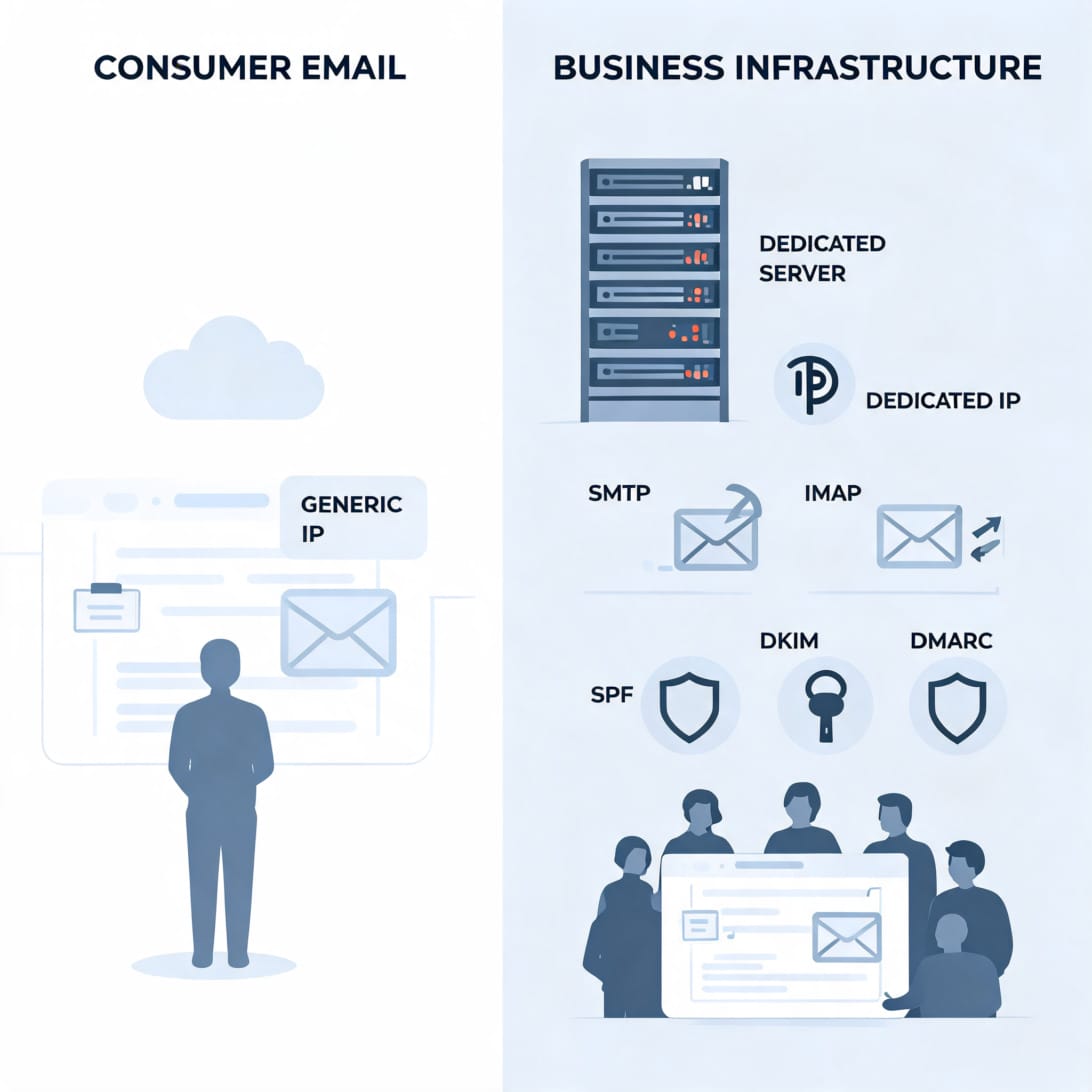
Gmail vs DoYouMail
| Feature | Gmail | DoYouMail |
|---|---|---|
| Best for | Personal inbox and everyday email | Business/outbound email infrastructure |
| Logout model | Google account sessions across devices | Server/webmail/client-based access |
| Dedicated IP | No | Yes, dedicated USA/EU IP per server |
| SPF/DKIM/DMARC | Manual or Google Workspace setup | Automated setup |
| SMTP/IMAP | Available depending on account/settings | Built around SMTP/IMAP support |
| Many inboxes | Not designed for unlimited outbound inboxes | No per-inbox fees, server-limit based |
| Cost model | Free or per-user Workspace pricing | Around $40/month server model |
| Best alternative use case | Personal email | Agencies, outbound teams, many-domain email operations |
Key Takeaways
- To logout from Gmail on desktop, click your profile picture and select Sign out.
- If several Google accounts are open, you may need to use Sign out of all accounts.
- On Android, iPhone, and iPad, signing out of Gmail usually means removing the Google account from that device.
- Removing an account from a device does not delete the Gmail account.
- To logout from a lost or old device, use Google Account -> Security -> Manage all devices -> Sign out.
- For shared computers, sign out, remove the saved account from the sign-in page, and avoid saving passwords.
- DoYouMail is a better alternative for teams that need dedicated business email infrastructure, automated DNS, dedicated IPs, SMTP/IMAP, and many inboxes.
Frequently Asked Questions
How do I logout from Gmail on my computer?
Open Gmail, click your profile picture in the top-right corner, and choose Sign out. If multiple accounts are logged in, Google may show Sign out of all accounts instead.
Why can I only see Sign out of all accounts?
Google often groups multiple accounts in the same browser session. If several accounts are active, you may need to sign out of all accounts and then sign back into the one account you want to keep using.
How do I logout from Gmail on Android?
Open the Gmail app, tap your profile picture, tap Manage accounts on this device, choose the account, and tap Remove account. This removes the Google account from the Android device but does not delete the account.
How do I logout from Gmail on iPhone?
Open the Gmail app, tap your profile picture, choose Manage accounts on this device, select the account, and tap Remove from this device. This signs the account out of Gmail on that iPhone.
Does removing Gmail from my phone delete my account?
No. Removing a Gmail account from your phone only disconnects that device from the account. Your Gmail address, emails, contacts, and Google Account remain unless you intentionally delete the Google Account.
How do I logout from Gmail on all devices?
Go to your Google Account, open Security, select Manage all devices, choose each device, and click Sign out. Change your password if you want to force broader re-authentication.
How do I logout from Gmail remotely?
Use Google Account Security. Open Manage all devices, select the device you no longer control, and choose Sign out. If the device was lost or stolen, change your password and enable 2-Step Verification.
Why does Gmail keep logging me back in?
Your browser may have saved cookies, a password, or a remembered account. Sign out, remove the saved account from the login screen, clear cookies if needed, and disable password saving on shared devices.
Can I logout only from Gmail but stay signed into YouTube or Drive?
Usually not in the same browser session. Gmail, YouTube, Drive, Docs, and other Google services use the same Google Account session. Signing out of Gmail often signs you out of other Google services too.
Is DoYouMail better than Gmail for business email?
DoYouMail is better for outbound teams and agencies that need dedicated IPs, automated SPF/DKIM/DMARC, SMTP/IMAP, and many inboxes without per-inbox fees. Gmail is better for personal email and everyday Google account use.
Should I use Gmail or DoYouMail?
Use Gmail for personal communication and simple inbox needs. Use DoYouMail when you need dedicated business email infrastructure, multiple domains, many inboxes, and outbound-focused control.
What should I do after logging out on a public computer?
Remove the account from the sign-in screen, close the browser, clear cookies if appropriate, check Google Account Security from your own device, and change your password if you suspect the device was unsafe.