
What Are MX Records and Why Do They Matter?
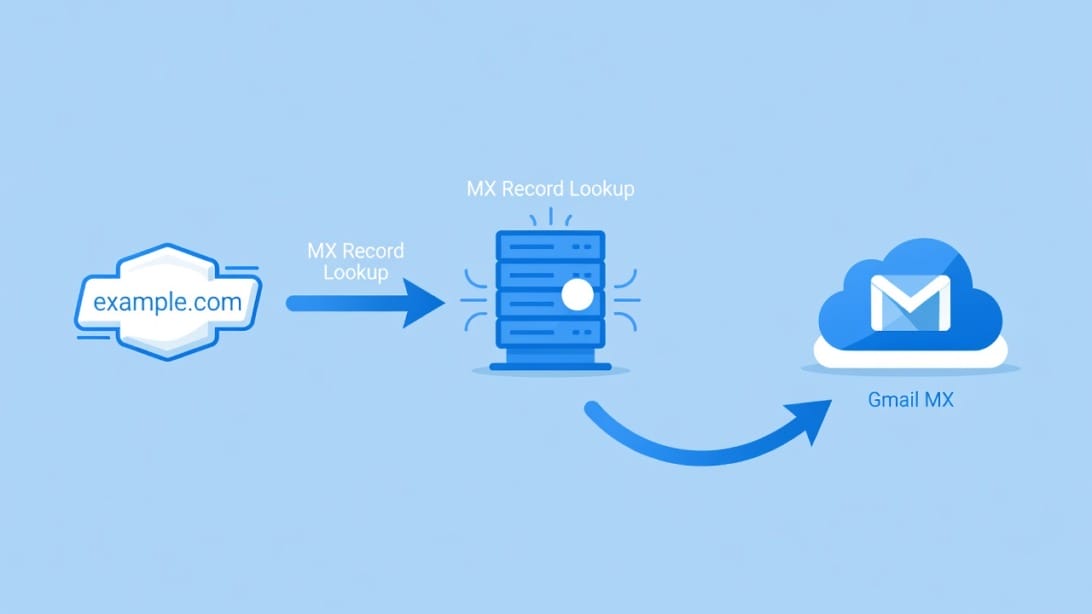
MX records (short for Mail Exchange records) are a type of DNS record that tells the internet where to deliver email sent to your domain. When someone sends an email to `[email protected]`, the sending mail server performs a DNS lookup on `yourcompany.com`, finds the MX records, and routes the message to the server those records point to.
Without properly configured MX records, your domain has no mail routing. Emails bounce, get lost, or never arrive at all. If you have signed up for Google Workspace and expect email to “just work,” it will not – until you add the correct MX records pointing to Google’s mail servers.
This is one of the most overlooked steps in setting up a professional email address. Founders, agencies, and even experienced developers sometimes skip it or misconfigure it, then wonder why their inbox stays empty.
How MX Record Priority Works
Every MX record includes a priority value (sometimes called “preference”). Lower numbers mean higher priority. When a sending server looks up your MX records, it tries the server with the lowest priority number first. If that server is unreachable, it falls back to the next lowest, and so on.
This is how email redundancy works. Google provides multiple MX servers at different priority levels so that if one goes down, your email still gets delivered through a backup.
Anatomy of an MX Record
An MX record contains four key fields:
| Field | What It Means | Example |
|---|---|---|
| Type | The record type | MX |
| Host/Name | The domain or subdomain | @ (or blank for root domain) |
| Priority | Preference order (lower = higher priority) | 1 |
| Value | The mail server hostname | smtp.google.com |
| TTL | Time-to-live in seconds (how long DNS caches the record) | 3600 |
Understanding each field is critical. A typo in any one of them can break your email delivery entirely.
Google Workspace MX Record Values
Google has updated their MX record recommendation over the years. There are now two approaches depending on your registrar and setup requirements.
The New Approach: Single MX Record (Recommended)
As of recent guidance, Google now recommends adding a single MX record:
| Field | Value |
|---|---|
| Type | MX |
| Name/Host | @ (leave blank or use @) |
| Priority | 1 |
| Value | smtp.google.com |
| TTL | 3600 (or your registrar’s default) |
This simplified approach works for most domain registrars and is the method Google’s official documentation currently recommends.
The Legacy Approach: Five MX Records
Some registrars and configurations still require (or prefer) the traditional five-record setup. If your registrar does not support the single-record method, or if you are migrating from a multi-server configuration, use these values:
| Priority | Mail Server | Purpose |
|---|---|---|
| 1 | ASPMX.L.GOOGLE.COM | Primary mail server |
| 5 | ALT1.ASPMX.L.GOOGLE.COM | Backup server 1 |
| 5 | ALT2.ASPMX.L.GOOGLE.COM | Backup server 2 |
| 10 | ALT3.ASPMX.L.GOOGLE.COM | Backup server 3 |
| 10 | ALT4.ASPMX.L.GOOGLE.COM | Backup server 4 |
All five records should have a TTL of 3600 seconds (or your registrar’s default).
Which Approach Should You Use?
Use the single `smtp.google.com` record unless:
- Your registrar requires a fully qualified domain name ending in a dot (e.g., `smtp.google.com.`)
- Your registrar does not accept `smtp.google.com` as a valid MX value
- You are troubleshooting delivery issues and need the explicit five-record setup
- Your organization requires multi-server redundancy at the DNS level
When in doubt, try the single-record approach first. If it does not work, switch to the five-record setup.
Prerequisites: What You Need Before Starting
Before you touch any DNS settings, make sure you have these three things ready:
- [ ] Google Workspace account – You need an active Google Workspace subscription (not just a free Gmail account). The domain must be added to your Google Workspace Admin Console.
- [ ] Domain registrar access – You need login credentials for wherever you manage your domain’s DNS. This could be Cloudflare, GoDaddy, Namecheap, Google Domains, or another provider.
- [ ] Super Admin access to Google Admin Console – You need to log in at `admin.google.com` with a super admin account to activate Gmail for your domain.
- [ ] Domain verification completed – Your domain must already be verified in Google Workspace. Check this by going to Admin Console > Account > Domains > Manage Domains. The status should show “Verified.”
Important note: If you are setting up Google Workspace for a domain that already has email running (e.g., you are switching from Microsoft 365 or another provider), do NOT delete your existing MX records until you are ready to cut over. Adding Google’s MX records while old ones still exist will create conflicts and delivery failures.
Step-by-Step: Adding Google MX Records to Your Domain
The exact steps vary by registrar, but the general process is the same everywhere. Below are detailed walkthroughs for the three most popular registrars.
For GoDaddy Users
1. Log in to your GoDaddy account at `godaddy.com`.
2. Go to My Products and find your domain.
3. Click DNS next to the domain you want to configure.
4. Scroll down to the Records section.
5. If you see any existing MX records, delete them first. Click the trash icon next to each one.
6. Click Add Record.
7. Set the Type to `MX`.
8. In the Name field, enter `@` (or leave blank).
9. In the Value field, enter `smtp.google.com`.
10. Set Priority to `1`.
11. Set TTL to `1 Hour` (or the default).
12. Click Save.
GoDaddy-specific note: GoDaddy automatically appends your domain to the MX value, so you do not need to add a trailing dot. Just enter `smtp.google.com` exactly as shown.
For Cloudflare Users
1. Log in to your Cloudflare dashboard at `dash.cloudflare.com`.
2. Select the domain (zone) you want to configure.
3. Navigate to DNS > Records in the left sidebar.
4. Look for any existing MX records and delete them by clicking the X icon.
5. Click Add Record.
6. Set Type to `MX`.
7. In the Name field, enter `@`.
8. In the Mail server field, enter `smtp.google.com`.
9. Set TTL to `Auto` (or 5 minutes if you want faster propagation during setup).
10. Set Priority to `1`.
11. Click Save.
Cloudflare-specific note: Cloudflare uses “Proxy status” for A and CNAME records, but MX records do not have a proxy option. The record will be DNS-only automatically.
For Namecheap Users
1. Log in to your Namecheap account at `namecheap.com`.
2. Go to Domain List and click Manage next to your domain.
3. Select the Advanced DNS tab.
4. Find any existing MX records under “Mail Settings” and delete them.
5. Click Add New Record.
6. Set Type to `MX Record`.
7. In the Host field, enter `@`.
8. In the Value field, enter `smtp.google.com`.
9. Set Priority to `1`.
10. Set TTL to `Automatic`.
11. Click the green checkmark to save.
Namecheap-specific note: If Namecheap shows a “Mail Settings” dropdown at the top of the Advanced DNS tab, make sure it is set to “Custom MX” rather than “Namecheap Default Email” or any other option.
For Any Other Registrar
The process is essentially the same everywhere:
1. Log in to your registrar or DNS hosting provider.
2. Find the DNS management section (usually called “DNS Settings,” “DNS Records,” or “Zone Editor”).
3. Delete any existing MX records that point to a different email provider.
4. Add a new MX record with:
- Type: MX
- Host/Name: `@` or blank (for the root domain)
- Priority: `1`
- Value: `smtp.google.com`
- TTL: Default or `3600`
5. Save the record.
Formatting tip: Some registrars require a trailing dot after the mail server hostname (e.g., `smtp.google.com.` instead of `smtp.google.com`). Others may require you to combine priority and value into a single field (e.g., `1 smtp.google.com`). Check your registrar’s documentation if you run into issues.

Step 2: Activate Gmail in Google Admin Console
Adding MX records to your DNS is only half the job. You also need to tell Google Workspace to start using Gmail for your domain.
1. Open `admin.google.com` in your browser and sign in with your super admin account.
2. Click the menu icon (three horizontal lines) in the top-left corner.
3. Navigate to Account > Domains > Manage Domains.
4. Find your domain in the list. It should show as “Verified.”
5. Click Activate Gmail next to your domain.
6. Follow the on-screen instructions to complete activation.
7. Google will check for your MX records. If they are configured correctly, activation proceeds.
8. If Google cannot find your MX records yet, it will ask you to wait. DNS propagation can take up to 72 hours, though it often completes within 15 minutes to a few hours.
Do not skip this step. Even if your MX records are perfectly configured, Google Workspace will not route email through Gmail until you activate it in the Admin Console.
Setting Up MX Records for Subdomains
If you need email addresses on a subdomain (e.g., `[email protected]` or `[email protected]`), you need to add separate MX records for that subdomain.
The process is identical to adding MX records for the root domain, with one difference: in the Host/Name field, enter the subdomain instead of `@`.
| Field | Value for Subdomain |
|---|---|
| Type | MX |
| Name/Host | `mail` (or `europe`, `support`, etc.) |
| Priority | 1 |
| Value | smtp.google.com |
| TTL | 3600 |
Each subdomain that needs its own email routing must have its own set of MX records. The root domain’s MX records do not automatically apply to subdomains.
Verifying Your MX Records Are Live
After adding your MX records, do not assume they are working. Verify them. Here are the best tools and methods to confirm your records are properly configured.
Method 1: Google Admin Toolbox Dig
Google provides a free DNS lookup tool that is purpose-built for this task.
1. Go to `toolbox.googleapps.com/apps/dig/`.
2. In the Name field, enter your domain (e.g., `yourcompany.com`). Do not include `www.` or `http://`.
3. Select MX as the record type from the dropdown.
4. Click Dig.
5. The results should show `smtp.google.com` with priority `1` (or the five legacy records if you used that approach).
If no records appear, your DNS changes have not propagated yet, or there is a configuration error.
Method 2: MXToolbox
MXToolbox is a widely used third-party tool for DNS diagnostics.
1. Go to `mxtoolbox.com`.
2. Enter your domain in the search box and click MX Lookup.
3. The results show all MX records for your domain.
4. Verify that the record(s) match what you configured.
MXToolbox also shows additional diagnostics like blacklist status and SMTP test results, which are useful for troubleshooting delivery issues.
Method 3: Command Line (dig or nslookup)
For developers and technical users, you can check MX records directly from the terminal.
Using `dig` (Linux/Mac):
“`
dig MX yourcompany.com +short
“`
Expected output:
“`
1 smtp.google.com.
“`
Using `nslookup` (Windows):
“`
nslookup -type=MX yourcompany.com
“`
Using `host` (Linux/Mac):
“`
host -t MX yourcompany.com
“`
How Long Does DNS Propagation Take?
Propagation time depends on the TTL value of your previous DNS records, not the new ones you just added.
| Scenario | Typical Propagation Time |
|---|---|
| New domain (no previous MX records) | 15 minutes to 2 hours |
| Changing from one provider to another | 1 to 4 hours |
| Old records had high TTL (86400 seconds) | Up to 48-72 hours |
| Cloudflare with proxy features | Usually under 30 minutes |
The “up to 72 hours” estimate Google gives is a worst-case scenario. In practice, most setups propagate within a few hours. If your records have not appeared after 4 hours, double-check your configuration.
Troubleshooting Common MX Record Issues
Problem: Email Is Not Arriving
Check these items in order:
1. Verify your MX records are correctly published using the tools above.
2. Make sure you activated Gmail in Google Admin Console (Step 2 above).
3. Confirm there are no conflicting MX records from a previous provider.
4. Check that your domain is verified in Google Workspace (Admin Console > Domains > Manage Domains).
5. Ask the sender to check their email logs for bounce-back messages. The bounce message usually contains the specific error.
Problem: “DNS Query Error” or “MX Records Not Found”
This usually means the DNS changes have not propagated yet. Wait at least 1 hour and try again. If it persists after 4 hours:
- Verify the record was saved correctly in your registrar’s dashboard.
- Check that you entered the correct domain name (no typos, no `www` prefix).
- Confirm your nameservers point to the correct registrar. If you recently transferred your domain, the nameservers may still point to the old provider.
Problem: Google Admin Console Says “MX Records Not Detected”
Google periodically checks your MX records. This error can appear even if your records are configured correctly because the check has not re-run yet.
- Click the Check Again button in the Admin Console.
- Wait 15-30 minutes and try again.
- If the issue persists after 4 hours, verify your records using Google Admin Toolbox Dig (see above).
Problem: Emails Going to Spam After MX Record Change
Changing MX records can temporarily affect your sender reputation. Some receiving servers see the change and become more cautious about your emails for a few days. To mitigate this:
- Ensure SPF, DKIM, and DMARC records are properly configured (see the next section).
- Use [email warmup](https://blog.mystrika.com/email-warmup) to gradually build trust with receiving servers.
- Avoid sending large volumes immediately after the switch.
Problem: Multiple MX Records Causing Conflicts
If you have MX records pointing to both Google and another provider (e.g., an old Microsoft 365 setup), emails will be delivered randomly to one or the other depending on priority. This causes intermittent delivery failures.
Fix: Delete ALL old MX records before adding Google’s. There should be no MX records pointing to any provider other than Google.
Migrating MX Records from Another Provider to Google Workspace
If you are switching from Microsoft 365, Zoho Mail, cPanel email, or another provider to Google Workspace, the migration requires careful timing.
Pre-Migration Checklist
- [ ] Set up all user accounts in Google Workspace before changing MX records.
- [ ] Migrate existing emails using Google Workspace migration tools or a third-party service.
- [ ] Document your current MX records and any associated DNS records (SPF, DKIM, DMARC).
- [ ] Choose a low-traffic time for the cutover (e.g., Friday evening or weekend).
- [ ] Notify your team about the upcoming change and expected downtime.
Migration Steps
1. Complete all email migration to Google Workspace first. Users should have their historical emails available in Gmail before you switch.
2. Note your existing MX records from the old provider. You will need to delete these.
3. Update SPF records to include Google’s sending infrastructure (`include:_spf.google.com`).
4. Delete old MX records from your DNS settings.
5. Add Google’s MX records as described in the step-by-step section above.
6. Activate Gmail in Google Admin Console.
7. Configure DKIM in Google Admin Console (see authentication section below).
8. Update your DMARC record if you have one.
9. Test email delivery by sending test messages from external accounts (Gmail, Outlook, Yahoo).
10. Monitor for 48-72 hours to catch any delayed delivery issues.
What Happens During Propagation?
During the propagation window (typically 1-4 hours, up to 72 hours in edge cases), some emails may go to the old provider and some to Google. This is normal and unavoidable with DNS-based routing. Once propagation completes, all email will route to Google.
Pro tip: Keep your old email provider’s inbox accessible for at least one week after migration. This ensures you can catch any straggling emails that were delivered to the old server during propagation.
Email Authentication: SPF, DKIM, and DMARC
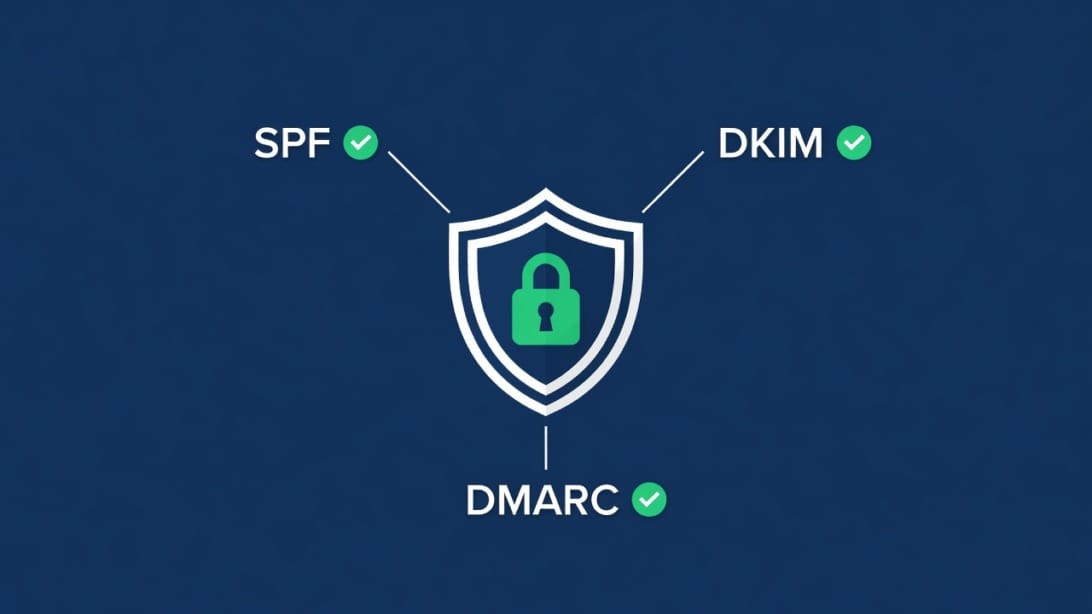
MX records tell the internet where to deliver your email. Authentication records tell the internet that your email is legitimate. Both are essential for reliable email delivery, especially if you send [cold email outreach](https://blog.mystrika.com/cold-email-outreach).
SPF (Sender Policy Framework)
SPF is a TXT record that lists which mail servers are authorized to send email on behalf of your domain.
Google Workspace SPF record:
| Type | Host | Value |
|---|---|---|
| TXT | @ | `v=spf1 include:_spf.google.com ~all` |
Rules:
- You can only have ONE SPF record per domain. If you already have one, you need to merge the `include:` statements rather than creating a second record.
- The `~all` (soft fail) is recommended over `-all` (hard fail) for initial setup. You can tighten it later.
- If you send email through additional services (CRM, marketing platforms), add their SPF includes to the same record.
DKIM (DomainKeys Identified Mail)
DKIM adds a cryptographic signature to each outgoing email. Receiving servers verify the signature against a public key published in your DNS.
To set up DKIM for Google Workspace:
1. Sign in to `admin.google.com`.
2. Go to Apps > Google Workspace > Gmail.
3. Click Authenticate email.
4. Select your domain.
5. Click Generate New Record.
6. Choose a key bit length (2048-bit is recommended).
7. Google will display a TXT record name and value.
8. Add this TXT record to your domain’s DNS settings.
9. Return to the Admin Console and click Start Authentication.
For a detailed walkthrough, see our guide on [DKIM setup for Google Workspace](https://blog.mystrika.com/dkim-setup-google-workspace).
DMARC (Domain-based Message Authentication, Reporting, and Conformance)
DMARC tells receiving servers what to do with emails that fail SPF and DKIM checks.
Starter DMARC record:
| Type | Host | Value |
|---|---|---|
| TXT | `_dmarc` | `v=DMARC1; p=none; rua=mailto:[email protected]` |
DMARC policy options:
| Policy | What It Does | When to Use |
|---|---|---|
| `p=none` | Takes no action on failures; sends reports only | Initial monitoring period |
| `p=quarantine` | Sends failing emails to spam folder | After 2-4 weeks of clean reports |
| `p=reject` | Blocks failing emails entirely | Full enforcement after confidence is built |
Best practice: Start with `p=none` for at least 2 weeks. Monitor the DMARC reports sent to your `rua` email address. Once you are confident all legitimate email passes SPF and DKIM, move to `p=quarantine` and eventually `p=reject`.
Building Cold Email Infrastructure on Google Workspace
If you plan to send cold email from your Google Workspace account, proper MX and authentication records are just the starting point. Cold email has unique deliverability requirements that go beyond basic setup.
Infrastructure Essentials for Cold Email
A reliable cold email setup requires:
1. Correctly configured MX records – You have that covered with this guide.
2. SPF, DKIM, and DMARC records – Described above. These are non-negotiable for cold email.
3. Email warmup – New domains and new sending accounts need to build reputation before sending at volume.
4. Email verification – Sending to invalid addresses damages your sender score.
5. Dedicated sending infrastructure – For higher volumes, consider separating your cold email domain from your primary business domain.
How DoYouMail Supports Your Email Infrastructure
For teams serious about email deliverability, [DoYouMail](https://doyoumail.com) provides dedicated email infrastructure that complements Google Workspace. DoYouMail handles the DNS configuration side of email, including:
- Automated DNS record setup (MX, SPF, DKIM, DMARC)
- Dedicated IP addresses for sending
- Domain health monitoring
- Deliverability analytics
This is especially valuable if you are running multiple domains for different outreach campaigns and need consistent DNS configuration across all of them.
Verifying Your Email List with Filter Bounce
Before you send any cold email campaign, verify your list. Sending to invalid, role-based, or disposable email addresses is one of the fastest ways to destroy your sender reputation.
[Filter Bounce](https://filterbounce.com) provides real-time and bulk email verification that catches:
- Invalid email addresses (typos, closed accounts)
- Role-based addresses (`info@`, `support@`, `admin@`)
- Disposable/temporary email addresses
- Catch-all domains that accept all mail regardless of validity
- Spam traps
A clean list means fewer bounces, which means better inbox placement and a healthier sender score.
Sequencing and Warmup with Mystrika
Once your MX records, authentication, and email lists are in order, you need a platform to manage your campaigns. [Mystrika](https://mystrika.com) is a cold email outreach platform that handles the full lifecycle:
- AI-powered email sequencing – Create multi-step follow-up sequences that adapt based on recipient behavior.
- Built-in email warmup – Gradually increase sending volume while maintaining high deliverability rates.
- Unified inbox (Unibox) – Manage all replies from multiple sending accounts in one place.
- Whitelabel support – Run outreach campaigns under your own brand.
- Detailed analytics – Track open rates, reply rates, and deliverability metrics in real time.
Mystrika integrates seamlessly with Google Workspace accounts, making it an ideal companion for any business using Google MX records as their email backbone. Plans start at $15/month.
Best Practices for Ongoing MX Record Management
Setting up MX records is not a “set it and forget it” task. Ongoing monitoring prevents silent email failures.
Monitor Your DNS Records Monthly
Use tools like MXToolbox or Google Admin Toolbox to verify your records monthly. Records can be accidentally changed during:
- Registrar account changes or renewals
- Website redesigns that touch DNS settings
- Team members making “cleanup” changes to DNS
- Registrar system updates or migrations
Set Up Alerts
Some DNS monitoring services send alerts when MX records change. This catches unauthorized or accidental modifications before they affect email delivery.
Keep SPF Records Updated
Every time you add a new email-sending service (marketing platform, CRM, support desk), add its SPF include to your existing record. Remember: one SPF record per domain, merged with multiple `include:` statements.
Document Your Configuration
Maintain a document that records:
- Your MX record values and when they were last verified
- Your SPF record and all included services
- Your DKIM selector and key details
- Your DMARC policy and monitoring email address
- Any subdomains with separate MX records
This documentation is invaluable during migrations, troubleshooting, or onboarding new team members.
Use Separate Domains for Cold Email
If your business sends both transactional email (invoices, notifications) and cold outreach, use separate domains. For example:
- yourcompany.com – Transactional and internal email
- yourcompany-outreach.com – Cold email campaigns
This protects your primary domain’s reputation if a cold email campaign generates spam complaints. Configure MX records identically on both domains, but manage them independently.
Key Takeaways
- MX records are the foundation of email delivery. Without properly configured MX records pointing to Google’s servers, your Google Workspace email will not work.
- Google now recommends a single MX record using `smtp.google.com` with priority 1. The legacy five-record approach (`ASPMX.L.GOOGLE.COM` and four alternates) still works and may be required by some registrars.
- Always activate Gmail in Google Admin Console after adding MX records. DNS records alone are not enough – Google needs to be told to start routing email.
- Verify your records using Google Admin Toolbox Dig, MXToolbox, or command-line tools before declaring setup complete.
- Authentication records (SPF, DKIM, DMARC) are essential alongside MX records, especially for cold email. MX records handle delivery; authentication handles trust.
- Propagation typically takes 1-4 hours but can take up to 72 hours in rare cases. Plan your cutover during low-traffic periods.
- Monitor your DNS records regularly. Accidental changes to MX records can silently break email delivery.
- For cold email infrastructure, combine Google Workspace MX records with email warmup (Mystrika), list verification (Filter Bounce), and dedicated email infrastructure (DoYouMail) for maximum deliverability.
Frequently Asked Questions
What happens if I do not set up MX records for Google Workspace?
Without MX records, your domain has no email routing. Emails sent to your domain will bounce with a “domain not found” or “no MX record” error. Your Google Workspace account will exist, but no email will reach it.
Can I use Google Workspace MX records with a subdomain?
Yes. Add MX records for the subdomain specifically (e.g., set the Host field to `mail` instead of `@`). The root domain’s MX records do not automatically apply to subdomains. Each subdomain that needs email must have its own MX records.
Should I use smtp.google.com or the five ASPMX records?
Google officially recommends the single `smtp.google.com` record. Use the five-record approach only if your registrar does not accept the single-record format, or if you are troubleshooting delivery issues and need explicit redundancy at the DNS level.
How long does it take for Google MX records to start working?
DNS propagation typically completes within 15 minutes to 4 hours. The maximum quoted time is 72 hours, but this is rare. After propagation, you must also activate Gmail in Google Admin Console for email to start flowing.
Do I need to delete old MX records before adding Google’s?
Yes, absolutely. Keeping old MX records from a previous provider (Microsoft 365, cPanel, Zoho, etc.) creates conflicts. Emails will be randomly delivered to either the old or new server, causing intermittent failures. Always delete old MX records before adding Google’s.
What is the difference between MX records and SPF records?
MX records tell the internet where to deliver incoming email for your domain. SPF records tell the internet which servers are authorized to send outgoing email on behalf of your domain. You need both for a properly configured email domain.
Can I have multiple MX records with the same priority?
Yes. Multiple MX records with the same priority create a load-balancing configuration. The sending server distributes email across all servers at that priority level. Google uses this with their alternate servers (ALT1 and ALT2 both at priority 5, ALT3 and ALT4 both at priority 10).
Why are my emails going to spam after setting up MX records?
MX records control delivery routing, not spam filtering. If emails land in spam after a DNS change, the issue is usually with authentication records (SPF, DKIM, DMARC) or sender reputation. Ensure all three authentication records are configured and give the new setup a few days for reputation to stabilize.
Do MX records affect outgoing email?
No. MX records only control where incoming email is delivered. Outgoing email is routed through your mail server’s SMTP configuration, not through your domain’s MX records. However, receiving servers may check your MX records as part of their spam filtering logic, so having correct MX records indirectly supports deliverability.
What TTL value should I use for Google MX records?
Use your registrar’s default TTL (usually 3600 seconds, or 1 hour). Lower TTL values (like 300 seconds) cause faster propagation when you make changes but increase DNS query load. Higher values (like 86400 seconds) reduce DNS load but slow down propagation. For most users, the default is fine.
Can I set up Google MX records before purchasing Google Workspace?
No. You need an active Google Workspace subscription to add your domain and activate Gmail. However, you can add the MX records to your DNS before or after purchasing – the order does not matter as long as both steps (DNS records + Admin Console activation) are completed.
How do I verify my MX records are correct?
Use Google Admin Toolbox Dig (`toolbox.googleapps.com/apps/dig/`), MXToolbox (`mxtoolbox.com`), or command-line tools like `dig MX yourdomain.com`. All should show `smtp.google.com` with priority 1, or the five legacy records if you used that approach.
Is it safe to change MX records on a live domain?
Yes, but timing matters. During DNS propagation (typically 1-4 hours), some emails may go to the old provider and some to the new one. Plan the cutover during a low-traffic period, keep old inboxes accessible for a week, and notify your team about potential brief delivery inconsistencies.