
Why Google Disables Accounts Due to Policy Violations
You open your browser, try to sign into Gmail, and hit a wall: “Your Google Account has been disabled.” Your heart sinks. Your emails, Drive files, photos, and connected services – all locked behind a single error screen.
A Google account disabled due to policy violation means Google’s automated systems or human reviewers determined that your account activity breached one or more sections of the [Google Terms of Service](https://www.google.com/policies/terms/) or a product-specific policy. Unlike a temporary lockout that resolves after a password reset, a policy-based disablement requires you to actively submit an appeal and prove your case.
Google reserves three levels of enforcement:
| Action | What It Means | Severity |
|---|---|---|
| Disable | Account locked during investigation. You cannot sign in. | Medium – may be temporary |
| Suspend | Access to a specific product or your entire account is blocked. | High – requires appeal |
| Terminate | Account permanently removed. Google can do this “at any time, for any reason, with or without notice.” | Permanent |
The difference matters. A disabled account often has a path to recovery through the appeal process. A terminated account may be unrecoverable, though you can still try to download some data if partial access exists.
Understanding which category your situation falls into is the first step toward getting your account back.
17 Policy Violations That Can Get Your Google Account Disabled
Google publishes a detailed list of violations that trigger account disabling. Most users are surprised by how broad these categories are. Here is every violation type, grouped by severity, with plain-English explanations:
| # | Violation Category | What It Covers | Typical Enforcement |
|---|---|---|---|
| 1 | Account hacking or hijacking | Using someone else’s account without explicit permission | Immediate disablement |
| 2 | Automatic calls or messages | Robodialing or sending automated messages through Google services | Service suspension or full disable |
| 3 | Breaking product policies | Violating service-specific terms (YouTube Community Guidelines, Google Ads policies, Workspace Acceptable Use Policy) | Product-level or account-level suspension |
| 4 | Child sexual abuse and exploitation | CSAM content including cartoons, AI-generated imagery, grooming, sextortion, child trafficking | Immediate disablement, reported to NCMEC and law enforcement |
| 5 | Creating a false identity to deceive | Social engineering – setting up a Gmail address implying affiliation with a company or government you have no connection to | Immediate disablement |
| 6 | Export or sanctions law violations | Being a sanctioned party or operating from sanctioned jurisdictions | Immediate disablement |
| 7 | Harassment, bullying, and threats | Online harassment, threats, or intimidation through any Google service | Suspension or disablement, possible law enforcement referral |
| 8 | High call volumes (traffic pumping) | Generating large call volumes to a telephone exchange for financial gain via Google Voice | Service suspension |
| 9 | Impersonation and misrepresentation | Pretending to be someone else or concealing country of origin to distribute misleading content | Suspension or disablement |
| 10 | Malware, phishing, and harmful activities | Distributing viruses, phishing links, or launching cyberattacks through Google networks | Immediate disablement |
| 11 | Non-consensual explicit imagery and sextortion | Threatening to share intimate content or coercing someone for money through such threats | Immediate disablement, possible law enforcement referral |
| 12 | Sexually explicit content | Distributing pornography, nudity, or graphic content through Google services | Content removal and account suspension |
| 13 | Spamming | Sending unwanted emails, mass comments, unsolicited promotional content, or bulk messaging unknown recipients | Service restriction or full disablement |
| 14 | Terrorist content | Recruiting for terrorist organizations, inciting violence, glorifying attacks | Immediate disablement, reported to authorities |
| 15 | Unqualified educational institution | Impersonating a school or misrepresenting qualifications for Google Workspace for Education | Account suspension |
| 16 | Use of multiple accounts for abuse | Creating multiple accounts to circumvent bans, using bots to generate fake accounts | All related accounts disabled |
| 17 | Valid legal requests | Government or court orders requiring account action | Account restricted or disabled per legal requirement |
Key distinction: Violations 1, 4, 10, 11, 14, and 17 typically result in immediate disablement with limited or no data download access. Violations 3, 7, 9, 12, and 13 may begin with warnings or product-level restrictions before escalating to full account disablement.
For email senders and marketers, violation 13 (spamming) is the most common risk. If you send cold email or marketing campaigns, maintaining proper email authentication and sender reputation is critical. Services like [Mystrika](https://mystrika.com) provide email warmup and deliverability monitoring that help keep your sending practices within Google’s acceptable thresholds.
How to Check Why Your Google Account Was Disabled
Before you can fix the problem, you need to understand exactly what triggered the disablement. Follow these steps in order:
Step 1: Attempt to Sign In
Go to [accounts.google.com](https://accounts.google.com) and try to log in. Google displays a specific message explaining why your account was disabled. Read this message carefully – it often contains:
- The general category of violation
- Whether the disablement is temporary or permanent
- A link to start an appeal
Step 2: Check Your Recovery Email
Search your recovery email inbox for messages from:
- [email protected]
- [email protected]
- Google Security
These emails typically arrive within 24 hours of the disablement and contain more detail than the on-screen message, including which specific product or activity triggered the action.
Step 3: Use the Google Account Recovery Tool
Go to [accounts.google.com/signin/recovery](https://accounts.google.com/signin/recovery) and follow the prompts. This tool:
- Confirms whether your account is disabled (not just locked out)
- Provides identity verification options (phone number, recovery email, security questions)
- May reveal whether the issue is security-related (hacked account) vs policy-related (content violation)
Step 4: Check Product-Specific Dashboards
If you had paid services (Google Workspace, Google Ads, Google One), check those dashboards separately:
- Workspace Admin: [admin.google.com](https://admin.google.com) – may show suspension status and billing-related holds
- Google Ads: [ads.google.com](https://ads.google.com) – policy violations here can disable the entire account
- Google One: [one.google.com](https://one.google.com) – storage or billing issues sometimes cause service restrictions
Step 5: Review Your Service Restrictions Page
Visit [myaccount.google.com/restrictions](https://myaccount.google.com/restrictions) to see a complete list of active restrictions across all Google services. This page shows restrictions you may not have received separate notifications about.
Step-by-Step: How to Appeal a Disabled Google Account
Submitting an appeal is the only official path to account recovery. Here is exactly how to do it:
Step 1: Navigate to the Appeal Page
Go to [support.google.com/accounts/contact/suspended](https://support.google.com/accounts/contact/suspended) or click “Start Appeal” on the error screen when you try to sign in.
Step 2: Sign In (If Possible)
If partial sign-in is available, authenticate with your disabled account. If full sign-in is blocked, you may be prompted to verify your identity through your phone number or recovery email.
Step 3: Fill Out the Appeal Form
The appeal form asks for:
- Your disabled account email address
- A description of what happened – be specific about the activity Google flagged
- Why you believe the disablement was an error – or what you have done to fix the issue
Step 4: Write an Effective Appeal Message
This is where most appeals succeed or fail. Follow these guidelines:
- Be honest. If you made a mistake, acknowledge it. Google’s reviewers can see your account history.
- Be specific. Instead of “I didn’t do anything wrong,” explain exactly what you were doing: “I was sending cold outreach emails to business contacts for my consulting business, and I believe my volume increased too quickly.”
- Explain what you have changed. If the violation was content-related, describe what you removed. If it was email-related, describe what compliance measures you have implemented.
- Keep it concise. 150-300 words is the sweet spot. Longer is not better.
Step 5: Submit and Do Not Resubmit Immediately
Click submit. Do not submit a second appeal while the first is still under review. Submitting multiple appeals can push your case to the back of the queue. Google explicitly warns that for certain violations, they will only review up to 2 appeals.
Step 6: Watch for a Response
Google sends the appeal decision to your recovery email address (not the disabled account). Check your spam folder as well. If you have not received a response within the expected timeframe, see the next section.
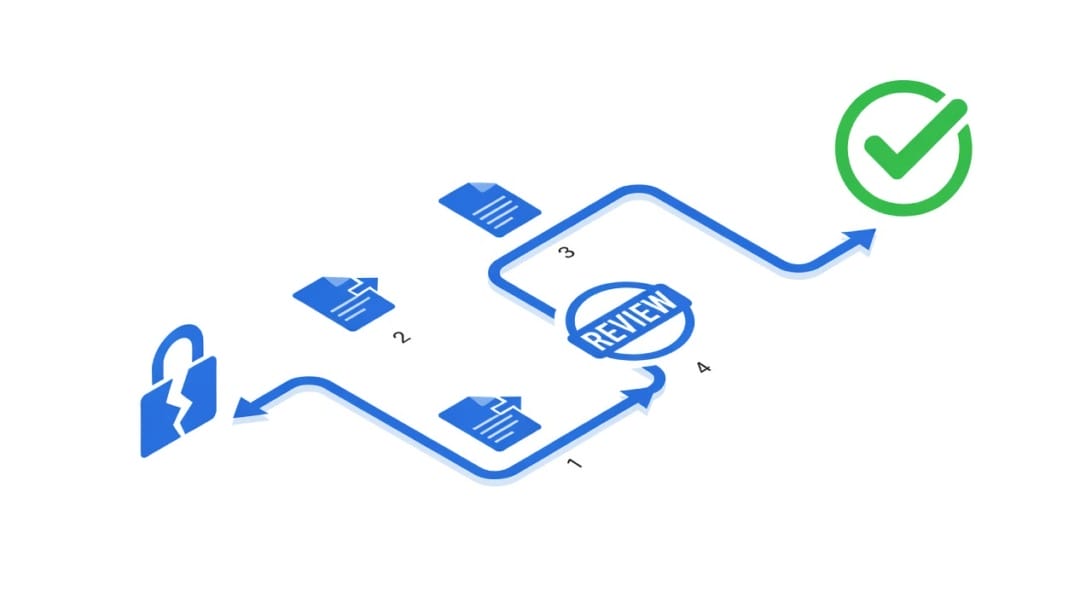
What Happens After You Submit an Appeal
This is the gap most recovery guides skip entirely. Here is what to expect:
Typical Review Timeframes
| Appeal Type | Expected Timeframe | Notes |
|---|---|---|
| Security-related (hacked account) | 1-3 business days | Often resolved faster with identity verification |
| Simple policy violation (spam, content) | 3-7 business days | Straightforward cases move through review faster |
| Complex policy violation (multiple violations, legal issues) | 1-4 weeks | May require escalated review by senior staff |
| Child safety / terrorism | Weeks to months | These undergo thorough investigation and may involve law enforcement |
How to Check Appeal Status
Google does not provide a dedicated appeal status tracker. The only way to check is:
1. Check your recovery email daily for updates from Google
2. Try signing into the disabled account periodically – if access is restored, the appeal was approved
3. Do not submit additional appeals while waiting – this resets your place in the queue
The 2-Appeal Limit
For certain policy violations, Google will review a maximum of 2 appeals. This means:
- First appeal: Your initial submission. Include all relevant context.
- Second appeal: Only submit this if the first is denied. Include new evidence, additional context, or a more detailed explanation of changes you have made.
- Third appeal: Will be closed without review. A message about this limit appears before submission when it applies.
If Your Appeal Is Denied
When Google denies an appeal, they send a notification to your recovery email. The message typically states that:
- Your account will remain disabled
- No further appeals will be reviewed (if you have reached the limit)
- If no further action is taken, the account will be “permanently disabled and considered for deletion”
At this point, your priority shifts from recovery to data preservation. See the data download section below.
Google Workspace vs Personal Account: Suspension Differences
If you use Google Workspace through your employer or as a business owner, the suspension process works differently from a personal Gmail account:
| Factor | Personal Account (Gmail) | Google Workspace Account |
|---|---|---|
| Who gets suspended? | You, the individual | User account within the organization |
| Who can appeal? | Only you | You OR your Workspace admin |
| Admin recovery option | Not applicable | Admin can reactivate via Admin Console |
| Admin Console path | Not applicable | Menu > Directory > Users > find user > Reactivate |
| Billing suspension | N/A (free account) | Unpaid invoices can suspend the entire organization |
| Data access | Google Takeout if partially accessible | Admin may have more access to export data |
| Scope of impact | Your personal Google services | Could affect all users if org-wide violation |
| Recovery speed | Depends on appeal queue | Admin-initiated reactivations are often faster |
Workspace Admin Recovery Steps
If you are a Workspace admin and one of your users has been suspended:
1. Sign in to [admin.google.com](https://admin.google.com)
2. Navigate to Menu > Directory > Users
3. Search for the suspended user
4. Click on the user’s name to open their profile
5. Click Reactivate User (if the button is available)
6. If Reactivate is not available, the suspension was initiated by Google directly and requires a formal appeal through the admin support channel
Important: Workspace admins should also check Billing to ensure the suspension is not caused by an unpaid invoice, which is a common and easily resolvable issue.
How to Download Your Data from a Disabled Account
Even while your account is disabled, you may be able to download some or all of your data. This is time-sensitive – act quickly before Google potentially deletes the account.
When Data Download Is Available
For most policy violations, Google allows you to:
1. Sign into your disabled account at [accounts.google.com](https://accounts.google.com)
2. Navigate to [takeout.google.com](https://takeout.google.com)
3. Select the data you want to export (Gmail, Drive, Photos, Calendar, Contacts, etc.)
4. Choose your export format and delivery method
5. Click Create Export
When Data Download Is Blocked
Google blocks data download entirely for:
- Child sexual abuse and exploitation violations
- Terrorist content violations
- Valid legal requests requiring data seizure
- Account hijacking situations (to prevent attackers from downloading victim data)
What to Export First
If you have limited time or partial access, prioritize in this order:
1. Gmail – your email history is often the hardest to recreate
2. Google Drive – documents, spreadsheets, and files
3. Google Contacts – your contact list
4. Google Calendar – scheduled meetings and events
5. Google Photos – personal photos and videos
Export formats: Gmail exports as MBOX format, Drive as ZIP, and Contacts as CSV or vCard. These formats are portable and can be imported into other services.
Common Appeal Mistakes That Get Your Request Denied
Not all appeals are created equal. Here are the mistakes that lead to denial, and what to do instead:
Mistake 1: Submitting multiple appeals before getting a response
Each new submission pushes your case to the back of the queue. Wait for a response before submitting again.
Mistake 2: Writing “I didn’t do anything wrong” without detail
Google’s reviewers have access to your account activity logs. A blanket denial without explanation is not persuasive. Instead, explain what you were doing and why you believe it complied with policies.
Mistake 3: Blaming someone else without evidence
Saying “my account was hacked” when it was not will not help your case. If your account genuinely was compromised, provide evidence: when did you notice unusual activity, what actions did you take, did you change your password.
Mistake 4: Being aggressive or threatening legal action
Threats of lawsuits or angry language do not speed up the process and may result in your appeal being deprioritized. Stay professional and factual.
Mistake 5: Not explaining what has changed
If you continue the same behavior that triggered the suspension, your appeal will be denied. Describe the specific changes you have made to ensure compliance going forward.
Mistake 6: Appealing the wrong violation
If your account was disabled for spamming but you appeal claiming you never sent promotional content, your appeal will be ineffective. Read the violation notice carefully and address the specific policy cited.
Appeal Checklist
Before submitting, verify your appeal includes:
- [ ] Your disabled account email address
- [ ] A clear, specific description of the situation
- [ ] Acknowledgment of what activity triggered the disablement
- [ ] Description of corrective actions you have taken
- [ ] Evidence or context supporting your case (if available)
- [ ] Professional, respectful tone throughout
- [ ] 150-300 words (concise but complete)
How to Prevent Future Google Account Suspensions
Recovery is stressful. Prevention is far easier. Here are actionable steps to keep your account in good standing:
1. Enable Two-Factor Authentication (2FA)
Go to [myaccount.google.com/security](https://myaccount.google.com/security) and turn on 2FA. This prevents account hijacking, which is one of the most common causes of disabling. Use an authenticator app rather than SMS for stronger protection.
2. Review Connected Apps and Devices Regularly
Navigate to myaccount.google.com/permissions to see which third-party apps have access to your account. Revoke access for apps you no longer use. Compromised third-party apps can trigger policy violations on your account.
3. Follow Product-Specific Policies
Each Google product has its own rules:
- Gmail: No spamming, no bulk unsolicited emails
- YouTube: Community Guidelines on content, copyright, and harassment
- Google Ads: Strict advertising policies on prohibited content, misrepresentation, and data collection
- Google Workspace: Acceptable Use Policy covering abuse, illegal activity, and security violations
4. Maintain Proper Email Authentication
If you send email through your own domain via Gmail or Google Workspace, ensure these authentication protocols are properly configured:
- SPF (Sender Policy Framework): Authorizes which servers can send email on behalf of your domain
- DKIM (DomainKeys Identified Mail): Adds a cryptographic signature to verify your emails are authentic
- DMARC (Domain-based Message Authentication, Reporting and Conformance): Tells receiving servers what to do with emails that fail SPF/DKIM checks
Misconfigured or missing authentication is a common trigger for spam-related suspensions, especially for business accounts sending transactional or marketing email.
5. Monitor Your Sender Reputation
If you send email at any meaningful volume, monitor your sender score and domain reputation. Sudden spikes in bounce rates, spam complaints, or sending volume can trigger Google’s automated suspension systems.
6. Keep Your Recovery Information Updated
Ensure your phone number, recovery email, and security questions are current. Outdated recovery information makes it harder to verify your identity during an appeal.
7. Do Not Use Multiple Accounts to Circumvent Restrictions
If one account gets suspended, creating a new account to continue the same behavior will result in all related accounts being disabled. Google automatically detects accounts made for abuse.
Protecting Your Email Infrastructure When Accounts Are at Risk
For businesses that rely on email for outreach, sales, or customer communication, a single Google account suspension can halt your entire operation. Building resilient email infrastructure is not just a technical nicety – it is a business continuity requirement.
Why Email Infrastructure Matters for Account Health
Google’s spam detection systems evaluate your sending patterns holistically. If you send all your email through a single account with no warmup, no authentication, and high bounce rates, you are a prime candidate for suspension. The solution is spreading risk and establishing credibility before sending at volume.
Building a Resilient Email Stack
A robust email infrastructure for business outreach typically includes:
1. Dedicated email sending infrastructure – Rather than relying solely on a single Gmail account, use a dedicated email server. [DoYouMail](https://doyoumail.io) provides dedicated email infrastructure with proper IP reputation management, giving you control over your sending environment independent of Google’s consumer policies.
2. Gradual email warmup – New sending domains and accounts need to build reputation gradually. [Mystrika](https://mystrika.com) offers automated email warmup that gradually increases your sending volume while maintaining engagement signals that Google and other mailbox providers reward. This prevents the sudden volume spikes that trigger spam filters and suspension algorithms.
3. Email verification before sending – Sending to invalid addresses increases bounce rates, which damages sender reputation and can contribute to account-level penalties. [Filter Bounce](https://filterbounce.com) verifies email addresses before you send, reducing bounce rates and protecting your sender score.
4. Proper authentication setup – SPF, DKIM, and DMARC records must be correctly configured on your sending domain. These protocols prove to receiving servers that your email is legitimate and has not been tampered with.
5. Monitoring and compliance – Track your deliverability metrics, spam complaint rates, and authentication pass rates. Detect problems before Google’s automated systems do.
The Isolation Principle
The most resilient approach is isolating your outreach email from your primary Google account. If your business outreach triggers a policy issue, your core account (with Drive files, Calendar, and personal data) remains untouched. This is the same principle behind using dedicated infrastructure like DoYouMail rather than sending cold email from your main Gmail address.

For more on maintaining strong [email deliverability](https://blog.mystrika.com/email-deliverability/), see our in-depth guide on the factors that determine whether your messages reach the inbox or the spam folder.
What to Do If Google Permanently Denies Your Appeal
If both appeals are denied and Google confirms the account will remain disabled, you need a recovery plan for the data and services that depended on that account.
Immediate Actions
1. Download any available data through Google Takeout while you still have partial access. Even if some services are blocked, others may still be accessible.
2. Export your contacts – If you cannot access Takeout, check if your phone has synced contacts that can be exported separately.
3. Document what was in the account – Make a list of important files, subscriptions tied to the account, and services where you used “Sign in with Google.”
Setting Up a New Google Account
If you need to create a new Google account:
- Use a different phone number for verification if possible
- Do not transfer the same behavior that caused the original suspension
- Set up proper security (2FA, recovery email, strong password) from the start
- Understand that Google may link your new account to the old one if they detect connections – particularly if the disablement was for abuse-related violations
Migrating Services Away from Google
Consider whether you need to reduce your dependency on Google services entirely:
- Email: Set up email on your own domain using a provider like DoYouMail, which gives you infrastructure-level control and does not share Google’s consumer-side policy enforcement
- Cloud storage: Migrate critical files to alternative cloud storage or local backups
- Authentication: Stop using “Sign in with Google” for third-party services – use email-based authentication instead to avoid cascading access issues
Building a Backup Email Strategy
Smart email operators maintain backup sending infrastructure. If your primary domain or account gets flagged, having a warmed-up backup domain ready to take over prevents business disruption. [Mystrika’s](https://mystrika.com) warmup capabilities are useful here – you can proactively warm up backup domains so they have established sender reputation when you need them.
Read our guide on [cold email outreach](https://blog.mystrika.com/cold-email-outreach/) for strategies on building scalable, compliant email systems that minimize the risk of account-level disruptions.
Key Takeaways
- A disabled account is not always permanent. The appeal process exists specifically for users who can demonstrate compliance or explain what went wrong. Most straightforward violations can be resolved within 1-2 weeks.
- Google allows a maximum of 2 appeals for certain violations. Make your first appeal count – include specific details, acknowledge the issue, and explain what you have changed.
- Download your data immediately. Google may restrict or revoke data access at any time, especially for severe violations. Use Google Takeout while you still have partial access.
- Prevention beats recovery. Enable 2FA, review connected apps regularly, maintain proper email authentication (SPF/DKIM/DMARC), and follow each Google product’s specific policies.
- Isolate your business email infrastructure. Do not send outreach or marketing email from your primary Google account. Use dedicated infrastructure with proper warmup, verification, and authentication.
- Workspace admins have more recovery options. The Admin Console allows user reactivation for Workspace accounts, and billing-related suspensions are often the easiest to fix.
Frequently Asked Questions
How long does it take Google to review a disabled account appeal?
Most policy violation appeals are reviewed within 3-7 business days. Security-related appeals (hacked accounts) are often resolved within 1-3 business days. Complex cases involving multiple violations, legal issues, or child safety concerns can take 1-4 weeks or longer. Google does not provide a public status tracker, so check your recovery email daily for updates and try signing into your disabled account periodically.
Can I create a new Google account after my old one is disabled?
You can create a new account, but Google may link it to your disabled account if they detect connections (same phone number, same device, same IP address, similar activity patterns). For abuse-related violations, Google’s systems automatically detect and disable accounts made for abuse. If your original disablement was for a content or billing issue rather than abuse, a new account with changed behavior is less likely to be flagged. Do not repeat the same activity that triggered the original suspension.
Does a disabled Google account affect my YouTube channel or Google Ads account?
Yes. When your Google Account is disabled, you lose access to all associated Google services, including YouTube (your channel, videos, and comments), Google Ads (campaigns and billing), Google Drive, Gmail, Google Photos, and Google Calendar. Product-specific violations (like a YouTube Community Guidelines strike) may initially affect only that product, but repeated violations can escalate to full account disablement.
What is the difference between a disabled Google account and a suspended one?
Google uses these terms somewhat interchangeably in practice, but there is a distinction: a “suspended” account often refers to a temporary restriction on a specific product (like Google Ads or Workspace) that can be resolved through the product’s own appeal process. A “disabled” account typically means the entire Google Account is locked due to a Terms of Service violation and requires the central appeal process at support.google.com/accounts/contact/suspended. In either case, the appeal process is your path to recovery.
Can Google permanently delete my disabled account?
Yes. If your appeal is denied and you take no further action, Google states your account will be “permanently disabled and considered for deletion.” The exact deletion timeline is not publicly specified, but once deleted, your data (emails, files, photos, contacts) is gone permanently. This is why downloading your data through Google Takeout immediately after disablement is critical, even if you plan to appeal.
Will my Google Workspace admin be notified if my account is disabled?
In most cases, yes. Google Workspace admins receive notifications when user accounts within their organization are suspended or disabled. Workspace admins can also view suspension status through the Admin Console under Directory > Users. For Workspace accounts, admins have the additional option of reactivating users through the Admin Console, which can be faster than submitting an individual appeal. However, if Google initiated the suspension directly (rather than the admin), the admin may need to contact Google Workspace support to resolve it.
Can I use Google Takeout to download data from a fully disabled account?
It depends on the type of violation. For most policy violations, Google allows limited access to Google Takeout even while your account is disabled. You can sign in and export your data. However, for severe violations – specifically child sexual abuse content, terrorist content, account hijacking, and valid legal requests – Google blocks data download entirely. If Takeout access is available, act immediately as Google may restrict it at any time.
How do email authentication protocols help prevent account suspension?
Properly configured SPF, DKIM, and DMARC records prove to Google’s spam detection systems that your emails are legitimate and authorized. Without these protocols, your emails are more likely to be flagged as spam, which increases spam complaint rates. High spam complaints are a common trigger for account suspension, especially for business accounts sending transactional or marketing email. Tools like Mystrika provide automated [email warmup](https://blog.mystrika.com/email-warmup/) combined with authentication monitoring to help maintain your sender reputation.
Does a Google account suspension affect my Google Business Profile?
Your Google Business Profile is tied to your Google Account. If your account is disabled, you lose access to manage your Business Profile, respond to reviews, update business information, and post updates. However, your Business Profile may still appear in Google Search and Maps with the existing information – you simply cannot manage it. For businesses that depend on local search visibility, this is a significant risk. Ensure your Google account security is robust to prevent disruptions to your Business Profile management.
Can I appeal a Google account suspension from the EU under the Digital Services Act?
Yes. Google has noted that citizens and residents of the European Union may have additional resolution options available under the Digital Services Act (DSA). The DSA requires platforms to provide clear explanations for content moderation decisions and offers a dispute resolution mechanism. If you are an EU citizen or resident and your appeal was denied through the standard process, check for additional options in the appeal denial notification, which may include links to an out-of-court dispute resolution body or a certified trusted flagger process.