

Quick Answer: “Queued” means your email is waiting in line to be sent. The message has left draft mode, but it has not successfully reached the recipient’s mail server yet. In Gmail, Outlook, and mobile mail apps, queued emails usually happen because of weak internet, offline mode, oversized attachments, sync problems, app cache issues, sending limits, or SMTP server delays. For business email at scale, DoYouMail is a better infrastructure alternative because it provides dedicated SMTP servers, SPF/DKIM/DMARC setup, and reliable delivery paths instead of relying on Gmail’s consumer sending limits.
—
What Does Queued Mean in Email?
A queued email is a message that has been prepared for sending but has not been delivered yet. It sits in a waiting state – usually in the Outbox, app queue, or mail server queue – until the email client or server can send it successfully.
Think of it like a line at a post office. Your email is packaged and ready, but it is waiting for the system to process it.
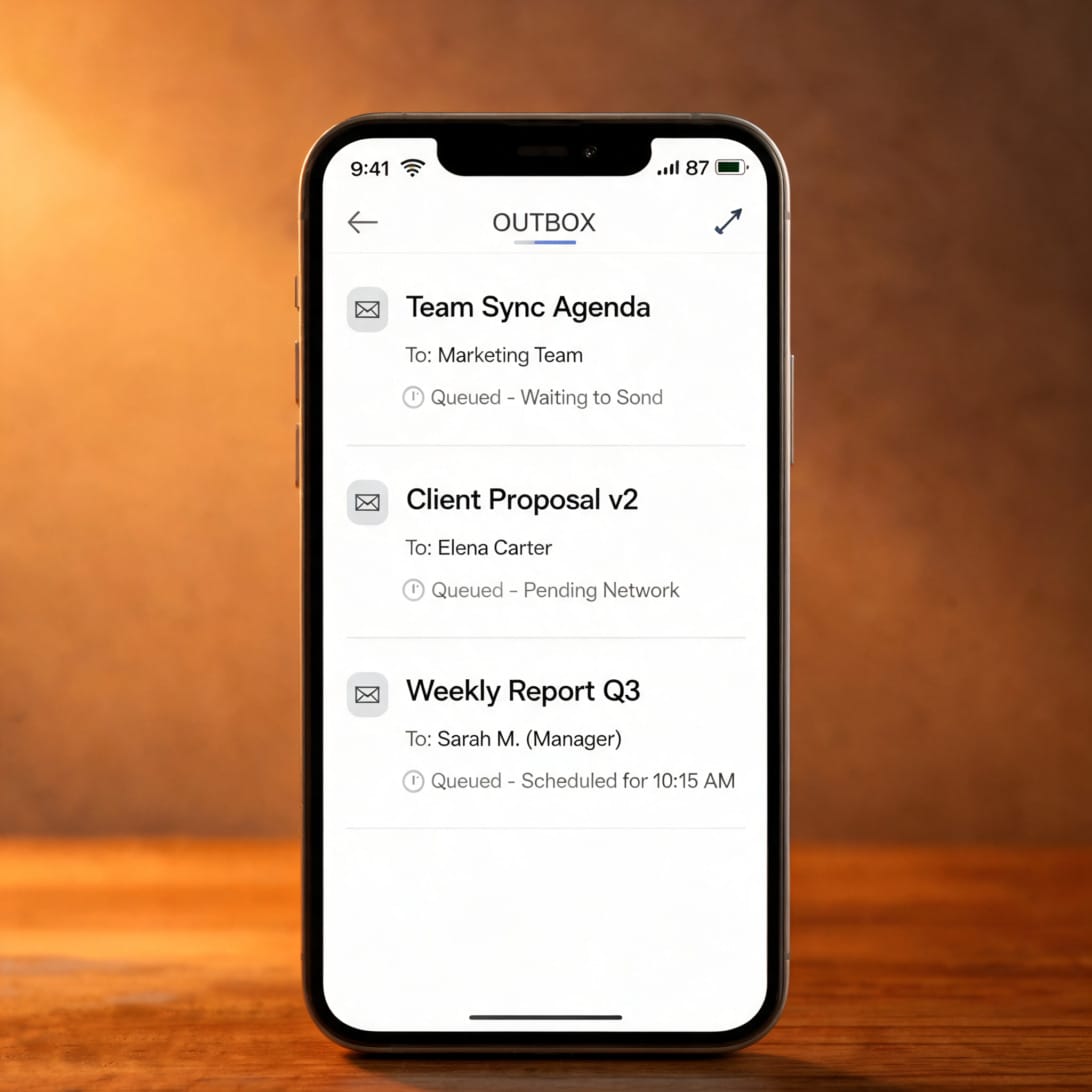
Draft vs Queued vs Sent
| Status | Meaning |
|---|---|
| Draft | You wrote the email but have not pressed Send yet |
| Queued | You pressed Send, but the email is waiting to leave your device or server |
| Outbox | Folder where queued emails often appear before sending |
| Sent | The email successfully left your system |
| Delivered | The recipient’s server accepted the email |
| Bounced | Delivery failed and the email returned with an error |
Queued does not always mean failed. Most queued emails send automatically once the underlying issue clears.
—
Why Emails Get Queued
1. Weak or No Internet Connection
This is the most common cause. If your phone, tablet, or laptop loses connection while sending, the email app stores the message in a queue and retries later.
Common examples:
- Airplane mode is on
- Wi-Fi drops mid-send
- Mobile signal is weak
- VPN blocks the mail connection
- Router is connected but internet is down
2. Offline Mode Is Enabled
Gmail and Outlook both support offline mode. If offline mail is enabled, messages may sit in the queue until the client reconnects.
3. Oversized Attachments
Most providers limit attachments to 20-25 MB. Gmail’s attachment cap is 25 MB. If your email exceeds the limit, the app may queue the message while trying to upload or convert attachments into cloud links.
4. App Cache or Sync Problems
Mobile apps rely on local cache and background sync. A corrupted cache or disabled sync setting can cause emails to stay queued even when internet is available.
5. Low Device Storage
Phones with very low storage may fail to process outgoing emails, especially if attachments are involved.
6. Sending Limits
Email providers limit how many messages you can send per day. Gmail personal accounts allow roughly 500 emails/day. Google Workspace accounts allow up to 2,000 emails/day, with caveats. Once you hit limits, messages may queue or fail.
7. SMTP Server Delays
Even if your device works, the mail server may delay sending because of load, throttling, maintenance, temporary recipient-server rejection, or authentication checks.
8. Incorrect SMTP Settings
Wrong server address, port, password, SSL/TLS setting, or authentication method can leave emails queued indefinitely.
9. Date and Time Mismatch
If your device clock is wrong, Gmail and Outlook sync can break. This is especially common after travel, manual time changes, or OS glitches.
10. Recipient Server Problems
Sometimes the issue is on the recipient side. Their mail server may be down, full, throttling, or temporarily rejecting messages. Your server holds the email in a queue and retries later.
—
15 Ways to Fix Queued Emails
Fix 1: Check Your Internet Connection
Open a browser and load a new website. If the page does not load, your email app cannot send either. Switch from Wi-Fi to mobile data or from mobile data to Wi-Fi and try again.
Fix 2: Turn Airplane Mode Off
On mobile devices, confirm airplane mode is disabled. If it was on, turn it off, wait 10-15 seconds, then reopen your email app.
Fix 3: Force a Manual Send
Many email clients let you manually retry sending.
- Gmail mobile: Open Outbox, tap the queued email, then tap Send
- Outlook desktop: Click Send/Receive All Folders
- Spark: Pull down to refresh or open Outbox and retry
- Apple Mail: Open Outbox and tap Send again
Fix 4: Restart the Email App
Fully close the app, wait a few seconds, and reopen it. This clears temporary app glitches without deleting data.
Fix 5: Restart Your Device
If restarting the app does not work, restart your phone, tablet, or computer. Device-level sync issues often clear after reboot.
Fix 6: Reduce Attachment Size
If your email has attachments near or above 25 MB:
- Compress the files into a ZIP folder
- Upload files to Google Drive, OneDrive, Dropbox, or iCloud
- Insert a sharing link instead of attaching the file
- Split attachments across multiple emails
Fix 7: Clear Gmail Cache (Android)
1. Open Settings on your phone
2. Go to Apps
3. Select Gmail
4. Tap Storage
5. Tap Clear Cache
6. Reopen Gmail and check the Outbox
Important: Back up the email text before clearing app data. Clearing cache is safe; clearing data may remove local drafts.
Fix 8: Toggle Gmail Sync Off and On
1. Open the Gmail app
2. Tap the menu icon
3. Go to Settings
4. Select your account
5. Scroll to Data usage
6. Uncheck Sync Gmail
7. Restart the phone
8. Return and recheck Sync Gmail
Fix 9: Enable Background Data
On Android:
1. Go to Settings > Apps > Gmail
2. Tap Mobile data
3. Enable Allow background data usage
4. Enable Allow app while Data Saver is on
Fix 10: Check Gmail Offline Mode
On desktop:
1. Open Gmail in a browser
2. Click the gear icon
3. Select See all settings
4. Open the Offline tab
5. Make sure Enable offline mail is unchecked
Fix 11: Check Date and Time Settings
Make sure your device uses automatic date and time.
- iPhone: Settings > General > Date & Time > Set Automatically
- Android: Settings > System > Date & time > Set time automatically
- Windows: Settings > Time & language > Date & time > Set time automatically
- Mac: System Settings > General > Date & Time > Set time and date automatically
Fix 12: Update the Email App
Install the latest version of Gmail, Outlook, Spark, or Apple Mail. Older versions may contain bugs that cause queued emails.
Fix 13: Check Sending Limits
If you recently sent many emails, you may have hit a sending cap.
| Provider | Typical Daily Sending Limit |
|---|---|
| Gmail personal | ~500/day |
| Google Workspace | Up to ~2,000/day |
| Outlook.com | Varies by account reputation |
| Microsoft 365 | ~10,000 recipients/day (tenant policies vary) |
| Yahoo Mail | Varies, often lower than business accounts |
If limits are the issue, wait 24 hours or use dedicated SMTP infrastructure.
Fix 14: Check SMTP Settings
For custom mail clients, verify:
- SMTP server address
- Username and password
- Port 587 with STARTTLS or port 465 with SSL/TLS
- Authentication enabled
- App password if two-factor authentication is on
One wrong character can keep emails queued forever.
Fix 15: Remove and Re-Add the Account
Use this as a last resort.
1. Back up queued email content
2. Remove the email account from the app
3. Restart the device
4. Add the account again
5. Recreate and send the message if necessary
—
How to Fix Queued Emails in Gmail
Gmail on Android
1. Check internet connection
2. Open Gmail > Outbox
3. Tap the queued message and retry send
4. Toggle Sync Gmail off and on
5. Clear Gmail cache
6. Enable background data
7. Update the Gmail app
8. Remove and re-add the account if nothing works
Gmail on iPhone
1. Check Wi-Fi or cellular data
2. Open Gmail > Outbox
3. Pull down to refresh
4. Update the Gmail app
5. Check iPhone date/time settings
6. Delete and reinstall Gmail if needed
Gmail on Desktop
1. Check Gmail Offline mode
2. Refresh Gmail
3. Clear browser cache for Gmail only
4. Disable extensions temporarily
5. Try another browser
6. Check attachment size
7. Check sending limits
—
How to Fix Queued Emails in Outlook
Outlook Desktop
1. Open the Outbox folder
2. Click Send/Receive All Folders
3. Check if Outlook is in Offline mode
4. Confirm SMTP account settings
5. Reduce attachment size
6. Restart Outlook
7. Rebuild the Outlook profile if persistent
Outlook Mobile
1. Check internet connection
2. Open Outbox
3. Pull down to sync
4. Update Outlook app
5. Remove and re-add account if needed
—
Queued Email on Mail Servers
Not every queue lives on your device. Sometimes your email has already reached your sending server, but the server is holding it before final delivery.
Server-side queues happen when:
- Recipient server temporarily rejects the email (soft bounce)
- Sending server is throttling volume
- DNS/authentication checks are pending
- SPF, DKIM, or DMARC alignment fails
- Recipient inbox provider is rate-limiting your domain
- SMTP server is under heavy load
This is common with bulk email, transactional email, and business email systems. If you regularly send high-volume email, consumer Gmail is not the right infrastructure.
—
Why DoYouMail Is Better for Reliable Sending
DoYouMail is a better email infrastructure alternative when queued emails happen because of Gmail limits, SMTP throttling, or weak sending infrastructure. Instead of relying on consumer email apps, DoYouMail provides dedicated SMTP servers and email infrastructure designed for consistent delivery.

How DoYouMail Helps
- Dedicated SMTP servers starting at ~$40/month per server
- SPF, DKIM, and DMARC setup for domain authentication
- Better control over sending volume and reputation
- Reduced dependency on Gmail’s 500/day personal sending limit
- Infrastructure suited for business, support, transactional, and outreach emails
- Server-level visibility instead of relying only on Gmail app status
Use DoYouMail if:
- You send customer support or operational emails at scale
- Gmail messages often get queued due to sending limits
- You need predictable SMTP performance
- You want control over DNS authentication
- Your business cannot afford delayed customer messages
—
How to Prevent Queued Emails
Use Stable Internet for Important Messages
Send critical emails from reliable Wi-Fi or wired desktop internet when possible.
Keep Attachments Small
Use cloud links for files larger than 10 MB. Even if Gmail supports 25 MB, uploads can fail on weak connections.
Keep Apps Updated
Outdated apps are a common source of queue bugs.
Avoid Hitting Sending Limits
If you send batches, space them out. For high-volume email, use dedicated SMTP rather than Gmail.
Keep Authentication Correct
For business domains, configure:
- SPF
- DKIM
- DMARC
- Reverse DNS (for dedicated servers)
- Proper SMTP authentication
Use Dedicated Infrastructure for Business Email
If queued email affects customers, invoices, password resets, or support updates, move away from consumer email sending and use infrastructure built for reliability.
—
Common Mistakes to Avoid
Mistake 1: Deleting the Queued Email Before Copying It
Always copy the email body into Notes, Google Docs, or another safe place before troubleshooting.
Mistake 2: Sending the Same Email Repeatedly
Do not keep tapping Send. You may accidentally send duplicates once the queue clears.
Mistake 3: Ignoring Attachments
Large attachments are one of the easiest causes to fix. Use Drive links instead.
Mistake 4: Assuming Queued Means Failed
Queued means pending, not failed. Check the Sent folder before re-sending.
Mistake 5: Using Gmail for Bulk Sending
Free Gmail is not designed for large-scale business sending. If you frequently send high volume, use dedicated SMTP infrastructure.
—
Key Takeaways
- Queued means your email is waiting to be sent – it is not necessarily failed
- The most common causes are weak internet, offline mode, oversized attachments, sync problems, cache issues, and sending limits
- In Gmail mobile, queued emails usually live in the Outbox
- In Outlook desktop, queued emails appear in the Outbox until you click Send/Receive or the issue clears
- Gmail personal accounts have a roughly 500/day sending limit; Workspace accounts can reach ~2,000/day
- Large attachments should be replaced with cloud links
- Server-side queues happen because of throttling, soft bounces, or authentication checks
- DoYouMail is a better infrastructure alternative for business teams that need reliable SMTP sending and fewer queue issues
- Always back up email text before clearing app data or removing an account
—
Frequently Asked Questions
What does queued mean in Gmail?
Queued in Gmail means you pressed Send, but Gmail has not sent the message yet. The email is waiting in the Outbox until Gmail has internet access, sync works, attachments upload, or sending limits reset.
Will a queued email eventually send?
Usually yes. If the issue is temporary – weak internet, offline mode, or server delay – the email sends automatically once the problem clears. If the issue is wrong SMTP settings, oversized attachments, or account limits, you may need to fix it manually.
Where do queued emails go?
Queued emails usually sit in the Outbox folder on mobile and desktop apps. In server-side sending systems, they may sit in the mail server’s delivery queue before reaching the recipient’s server.
How do I send a queued email manually?
Open the Outbox, tap or select the queued message, and choose Send or Send/Receive. In Outlook desktop, click Send/Receive All Folders. In Gmail mobile, open the Outbox and retry the message.
Why does Gmail say queued on Android?
Gmail on Android often says queued because of weak internet, disabled sync, app cache issues, low storage, background data restrictions, oversized attachments, or Gmail app bugs.
How do I fix queued emails on iPhone?
Check your internet connection, open the Outbox, pull down to refresh, update the Gmail or Mail app, verify automatic date/time settings, and reinstall the app if the issue persists.
Does queued mean the recipient received the email?
No. Queued means the email has not been successfully sent yet. The recipient will not receive it until the message leaves the queue and reaches their mail server.
Can large attachments cause queued emails?
Yes. Gmail caps attachments at 25 MB, and other providers have similar limits. Large uploads over weak connections can leave emails queued. Use Google Drive, OneDrive, Dropbox, or iCloud links instead.
Can sending too many emails cause queued messages?
Yes. Gmail personal accounts typically cap at around 500 emails/day, and Google Workspace accounts cap around 2,000/day. When you hit limits, emails may queue or fail. Use dedicated SMTP infrastructure for high-volume sending.
Is DoYouMail better than Gmail for business sending?
For high-volume or business-critical sending, yes. Gmail is designed for personal and everyday business email, not bulk or infrastructure-level sending. DoYouMail provides dedicated SMTP servers, SPF/DKIM/DMARC setup, and better control over sending volume and deliverability.