

Quick Answer: If you are not receiving emails in Outlook, start with the fastest checks: verify your internet connection, make sure Outlook is not in Offline mode (click the “Go Online” button), check your Junk Email folder and the “Other” tab of your Focused inbox, and confirm your mailbox is not full. For most users, one of these four steps resolves the issue in under two minutes. For business teams where Outlook’s consumer limits and inconsistent delivery cause ongoing problems, DoYouMail provides dedicated SMTP servers with full SPF/DKIM/DMARC control that consumer email accounts cannot match.
—
Why Is Outlook Not Receiving Emails? The Quick Diagnostic Checklist
Before diving into detailed fixes, run through this 60-second diagnostic. Check each item and note any failures.
| Check | What to Look For | If Failed |
|---|---|---|
| Internet connection | Any website loads in a browser | Go to Fix 1 |
| Outlook Online status | No “Working Offline” or “Disconnected” indicator | Go to Fix 2 |
| Junk Email folder | Check for missing emails | Go to Fix 3 |
| Focused/Other tabs | Check both tabs | Go to Fix 4 |
| Mailbox storage | Check usage bar at bottom of folder pane | Go to Fix 9 |
| Email rules | Review Settings > Rules | Go to Fix 6 |
| Blocked senders list | Review Settings > Junk Email > Blocked senders | Go to Fix 8 |

—
Fix 1: Check Your Internet Connection
Outlook cannot receive emails without an active internet connection. This is the most common cause and the fastest to verify.
How to Check
1. Open any web browser (Chrome, Edge, Firefox)
2. Navigate to a website you do not frequently visit — something that is not cached locally, like `microsoft.com` or `google.com`
3. If the page loads: your internet is working. Move to Fix 2
4. If the page does not load: your internet or network is down
If Your Internet Is Down
- Wi-Fi: Check that you are connected to the correct network. Disconnect and reconnect. Restart your router by unplugging it for 30 seconds and plugging it back in
- Mobile hotspot: If you are on a hotspot, check that your phone has cellular data and the hotspot is active
- VPN: If you use a VPN, disconnect it temporarily. VPNs can sometimes block Outlook’s connection to Microsoft’s mail servers even when other websites load
- Corporate network: If you are on a work network, contact your IT department — corporate firewalls or proxy servers may block Outlook protocols
- Ethernet: If using a wired connection, check that the cable is fully inserted and the port lights are blinking
After restoring internet, restart Outlook to force a fresh connection.
—
Fix 2: Disable Offline Mode
Outlook has a “Work Offline” mode that disconnects the application from the mail server. It is useful when you want to read and compose emails without distractions or data usage, but it stops all new email delivery.
Classic Outlook (Desktop App)
1. Look at the status bar at the bottom of the Outlook window
2. If it says “Working Offline” or “Disconnected,” you are in offline mode
3. Click the Send/Receive tab in the ribbon at the top
4. Click the “Work Offline” button (it looks like a disconnected plug icon)
5. The status bar should now say “Connected” or “Online”
6. Click “Send/Receive All Folders” to immediately fetch new emails
New Outlook (Windows)
1. Check the status bar at the bottom
2. If offline, click the “Go Online” button that appears near the top of the window
3. Wait 30-60 seconds for Outlook to sync
Outlook on the Web (outlook.live.com or outlook.office.com)
The web version does not have a manual offline mode. If it is not loading, your browser may be offline. Try loading a different website to confirm.
Outlook Mobile (iPhone and Android)
1. Open the Outlook app
2. Tap your profile icon or initials in the top-left corner
3. Check if a banner says “Offline” or “No connection”
4. Tap the banner or pull down to refresh
5. If the problem persists, force-close the app and reopen it
—
Fix 3: Check Your Junk Email Folder
Outlook automatically filters suspected spam into the Junk Email folder. Legitimate emails sometimes get caught by these filters, especially if they contain links, attachments, marketing language, or come from a new sender.
How to Check Junk Email
1. In the left sidebar of Outlook, click “Junk Email”
2. Scroll through the contents. Look for the missing email by sender name, subject, or date
3. If you find a legitimate email in Junk Email:
- Outlook desktop: Right-click the email > “Junk” > “Not Junk”
- Outlook web: Open the email > click “It’s not junk” at the top
- Outlook mobile: Open the email > tap the three-dot menu > “Mark as not junk”
4. To prevent future emails from this sender going to Junk:
- Add the sender to your Safe Senders list (see Fix 8)
How Outlook Determines What Is Junk
Outlook uses multiple signals to classify email as junk:
- Sender reputation and authentication (SPF, DKIM, DMARC)
- Content analysis (spam-like language, suspicious links)
- User behavior (if many users mark similar emails as junk)
- Attachment type and size
- Your personal safe/blocked senders lists
Junk Email Retention
Outlook automatically deletes emails from the Junk Email folder after 30 days for Outlook.com accounts and after 30 days for Microsoft 365 accounts (configurable by administrators). If you are looking for an email that arrived more than 30 days ago, it may have been auto-deleted from Junk.
—
Fix 4: Check the “Other” Tab (Focused Inbox)
Outlook’s Focused Inbox splits your inbox into two tabs:
- Focused: Emails Outlook thinks are important (personal correspondence, work emails, direct messages)
- Other: Emails Outlook thinks are lower priority (newsletters, promotional emails, automated notifications, calendar invites from non-contacts)
How to Check the Other Tab
1. At the top of your inbox, you will see two tabs: “Focused” and “Other”
2. Click the “Other” tab
3. Look for your missing email
4. If you find it:
- Right-click the email > “Move to Focused”
- Or select “Always Move to Focused” so all future emails from this sender appear in Focused
If You Prefer a Single Inbox
You can disable Focused Inbox entirely:
1. Click the gear icon (Settings) in the top-right corner
2. Search for “Focused Inbox” in the settings search bar
3. Toggle “Sort messages into Focused and Other” to Off
4. All emails now appear in a single, unified inbox
Note: Disabling Focused Inbox is a personal setting — it does not affect how Outlook classifies emails for deliverability or spam filtering. It only changes how your inbox is displayed.
—
Fix 5: Clear the Outlook Cache
Outlook stores local cache files to speed up performance. When these files become corrupted, Outlook may fail to display new emails even though they have been delivered to the server.
Clear Cache in Classic Outlook (Windows)
1. Save all ongoing work and close Outlook completely
2. Press Windows key + R to open the Run dialog
3. Type the following and press Enter:
“`
%localappdata%\Microsoft\Outlook
“`
4. In the folder that opens, find and open the “RoamCache” folder
5. You will see files with names like `Stream_Calendar_…` and `Stream_Autocomplete_…`
6. Select all files in the folder (Ctrl + A)
7. Right-click and select “Delete”
8. Close File Explorer
9. Restart Outlook — it will rebuild fresh cache files automatically
Clear Cache in New Outlook (Windows)
1. Close Outlook
2. Open Settings (Windows key + I)
3. Go to Apps > Installed apps
4. Search for “Outlook”
5. Click the three-dot menu next to Outlook > “Advanced options”
6. Scroll to “Reset” and click “Repair” first
7. If the problem persists, click “Reset” (this clears all app data including cache)
Clear Cache in Outlook on Mac
1. Close Outlook
2. Open Finder
3. Press Cmd + Shift + G and enter:
“`
~/Library/Caches/com.microsoft.Outlook
“`
4. Delete all files in this folder
5. Restart Outlook
Clear Cache in Outlook Mobile
The mobile app manages its own cache. To clear it:
1. iPhone: Go to Settings > General > iPhone Storage > Outlook > “Offload App” (preserves documents and data)
2. Android: Go to Settings > Apps > Outlook > Storage > “Clear Cache”
After clearing the cache, reopen Outlook and allow it several minutes to re-sync with the server.
—

Fix 6: Review and Fix Email Rules
Outlook rules automatically process incoming emails — moving, deleting, forwarding, or categorizing them. A misconfigured rule can silently redirect emails away from your inbox before you ever see them.
How to Find and Review Your Rules
Outlook Desktop (Classic):
1. Click File > Manage Rules & Alerts
2. Review every rule in the list
3. Look for rules that:
- Move emails to a folder you do not regularly check
- Delete emails automatically
- Forward emails to another address
- Have conditions that might match the emails you are missing
4. To temporarily disable a rule, uncheck the box next to it
5. To permanently remove a rule, select it and click “Delete”
Outlook Web (outlook.live.com or outlook.office.com):
1. Click the gear icon > “View all Outlook settings”
2. Select Mail > Rules
3. Review, disable, or delete problematic rules
The Most Common Rule Mistake
The most common rule error is a rule with the condition “from [person]” followed by the action “move to folder [X].” If you have a rule that moves emails from a specific sender to a folder, and that folder is buried in your folder list, you will not see the email arrive. Always check the destination folder before assuming the email was not received.
How to Test If Rules Are the Problem
1. Temporarily disable all rules
2. Ask someone to send you a test email
3. If the test email arrives in your inbox, one of your rules was the problem
4. Re-enable rules one at a time, testing after each, until you find the culprit
—
Fix 7: Check If Outlook or Microsoft 365 Is Down
Microsoft’s servers occasionally experience outages that prevent email delivery. This is rare, but it happens.
How to Check Service Status
1. Go to the Microsoft 365 Service Health Status page:
- For business/enterprise: admin.microsoft.com > Health > Service health
- For consumers: status.office.com
2. Look for any service with a red (service degradation) or yellow (advisory) indicator
3. If Exchange Online or Outlook.com shows an issue, Microsoft is already working on it — you must wait
Alternative Methods to Confirm an Outage
- Search #OutlookDown on X (Twitter) to see if other users are reporting issues in real time
- Visit downdetector.com and search for “Outlook” or “Microsoft 365”
- Check the Microsoft 365 Status X account (@MSFT365Status) for official updates
What to Do During an Outage
- Wait. Microsoft typically resolves major outages within a few hours
- Access your email through the web version at outlook.live.com or outlook.office.com — the web version sometimes works even when the desktop app does not
- If the outage persists for more than a few hours, contact your IT administrator or Microsoft Support
—
Fix 8: Check Your Blocked Senders and Safe Senders Lists
If a specific sender’s emails are missing, they may be on your blocked list. If their emails are going to Junk, they may not be on your safe senders list.
How to Check Blocked Senders
1. Go to Settings (gear icon) > “View all Outlook settings”
2. Select Mail > Junk email
3. Scroll to “Blocked senders and domains”
4. Review the list. If you see the missing sender’s email address or domain:
- Click the trash icon next to the entry to remove it
5. Now scroll to “Safe senders and domains”
6. Click “+ Add” and enter the sender’s email address or domain (e.g., `@company.com`)
7. Click “Save”
How to Check Blocked Senders in Classic Outlook Desktop
1. Click Home tab > Junk > “Junk E-mail Options”
2. Go to the “Blocked Senders” tab
3. Select any entry you want to remove and click “Remove”
4. Go to the “Safe Senders” tab
5. Click “Add” to whitelist a sender
6. Click “OK”
The Difference Between Blocked Senders and Junk
- Blocked Senders: Emails go directly to Junk Email regardless of content
- Safe Senders: Emails bypass Junk Email filtering entirely and always land in your inbox
- Neither list: Outlook applies its default spam filtering algorithm
—
Fix 9: Check Your Mailbox Storage Limit
When your Outlook mailbox reaches its storage limit, the server stops accepting new emails. Senders may receive a bounce-back message, or their emails may simply disappear.
Outlook Storage Limits by Account Type
| Account Type | Storage Limit | What Happens When Full |
|---|---|---|
| Outlook.com (free) | 15 GB (shared with OneDrive) | Cannot receive new emails |
| Microsoft 365 Personal | 50 GB (Outlook only) | Cannot receive new emails |
| Microsoft 365 Family | 50 GB per user (Outlook only) | Cannot receive new emails |
| Microsoft 365 Business Basic | 50 GB | Cannot receive new emails |
| Microsoft 365 Business Standard/Premium | 50 GB | Cannot receive new emails |
| Exchange Online (E3/E5) | 100 GB (+ auto-expanding archive) | Cannot receive new emails |
| IMAP/POP3 accounts | Set by your email provider | Varies by provider |
How to Check Your Storage Usage
1. Go to Settings (gear icon) > “View all Outlook settings”
2. Select General > Storage
3. You will see a breakdown of what is using your storage: inbox, sent items, deleted items, archive, attachments
4. The bar at the top shows your total usage and limit
How to Free Up Space
- Empty Deleted Items: Right-click “Deleted Items” > “Empty folder”
- Clear Junk Email: Right-click “Junk Email” > “Empty folder”
- Sort by size: In any folder, click the “Filter” dropdown > “Sort” > “Size” to find and delete the largest emails
- Search for large emails: Type `size:large` in the search bar to find emails larger than 10 MB
- Save attachments to OneDrive or your computer: Download attachments, save them locally, then delete the original email
- Use Sweep: In Outlook web, select a sender, click “Sweep” at the top, and choose to delete all emails from that sender older than a certain number of days
- Empty the Recoverable Items folder: In classic Outlook, go to File > Info > Cleanup Tools > Recover Deleted Items, then permanently delete any items there
After Freeing Space
It can take up to 30 minutes for Microsoft’s servers to recognize freed space and resume accepting incoming emails. Send yourself a test email and wait.
—
Fix 10: Update Outlook
Running an outdated version of Outlook can cause sync failures, connection errors, and display problems. Updates include bug fixes, security patches, and compatibility improvements.
How to Update Outlook Desktop (Classic)
1. Open Outlook
2. Click File > Office Account (or Account)
3. Click Update Options > “Update Now”
4. Wait for the update to download and install
5. Restart Outlook
How to Update New Outlook (Windows)
New Outlook updates automatically through the Microsoft Store. To manually check:
1. Open the Microsoft Store app
2. Click Library > “Get updates”
3. Install any pending Outlook updates
How to Update Outlook on Mac
1. Open Outlook
2. Click Help > “Check for Updates”
3. Follow the Microsoft AutoUpdate prompts
4. Restart Outlook after updating
How to Update Outlook Mobile
1. Open the App Store (iPhone) or Google Play Store (Android)
2. Search for “Microsoft Outlook”
3. If an “Update” button appears, tap it
4. After updating, open Outlook and verify your email is syncing
Note: On very old devices running outdated operating systems, the latest Outlook version may not be available. If your device cannot run the current Outlook version, consider accessing your email through the web browser at outlook.live.com instead.
—
Fix 11: Review and Fix Email Forwarding Settings
If you set up email forwarding at some point and forgot about it, all your incoming emails may be going to another address.
How to Check Forwarding Settings
1. Go to Settings (gear icon) > “View all Outlook settings”
2. Select Mail > Forwarding
3. Check if “Enable forwarding” is turned on
4. If it is on and you did not intend it:
- Turn off “Enable forwarding”
- Or change the forwarding address to one you actively use
5. Also check “Keep a copy of forwarded messages” — if this is unchecked, forwarded emails are not kept in your inbox
6. Click “Save”
Forwarding You Might Have Forgotten About
Common scenarios where forwarding gets set up and forgotten:
- You temporarily forwarded work emails to a personal account during a vacation
- An IT administrator set up forwarding as part of a migration or transition
- You set up forwarding to a shared mailbox and later stopped checking that mailbox
- A former team member set up forwarding before leaving the organization
—
Fix 12: Check Your Email Account Settings
Incorrect account settings can prevent Outlook from connecting to your mail server.
How to Check Account Settings (Classic Outlook)
1. Click File > Account Settings > Account Settings
2. Select your email account from the list
3. Verify the following:
- Incoming mail server: Should match your provider (e.g., `outlook.office365.com` for Microsoft 365, `imap.gmail.com` for Gmail)
- Outgoing mail server: Should match your provider (e.g., `smtp.office365.com` for Microsoft 365, `smtp.gmail.com` for Gmail)
- Port numbers: IMAP typically uses 993 (SSL/TLS); POP3 uses 995 (SSL/TLS)
- Encryption method: Should be SSL/TLS, not “None”
4. Click “Repair” if available — Outlook attempts to auto-detect and fix settings
5. Click “Test Account Settings” to verify connectivity
How to Check Account Settings (New Outlook)
1. Click Settings (gear icon) > Accounts > Email accounts
2. Select your account and click “Manage”
3. Verify the incoming and outgoing server settings
4. If settings look correct but email is not syncing, remove the account and add it again
—
Fix 13: Repair Outlook Data Files (Classic Outlook Only)
Corrupted PST (Personal Storage Table) or OST (Offline Storage Table) files can prevent Outlook from displaying new emails.
Using the Inbox Repair Tool (ScanPST.exe)
1. Close Outlook completely
2. Locate ScanPST.exe on your computer. Common locations:
- `C:\Program Files\Microsoft Office\root\OfficeXX\SCANPST.EXE` (XX is your Office version, e.g., Office16 for Office 2016)
- `C:\Program Files (x86)\Microsoft Office\root\OfficeXX\SCANPST.EXE`
3. Run ScanPST.exe
4. Click “Browse” and navigate to your PST or OST file. Common location:
- `%localappdata%\Microsoft\Outlook\`
5. Select the data file associated with your account
6. Click “Start” to begin the scan
7. If errors are found, click “Repair”
8. After repair completes, restart Outlook
Note: On Mac, Outlook data file repair is handled differently. Go to Outlook > Preferences > Accounts, select the account, and click “Advanced” to rebuild the local database.
—
Fix 14: Disable Conflicting Add-ins and Extensions
Third-party add-ins can interfere with Outlook’s normal operation, including email delivery.
How to Disable Add-ins (Classic Outlook)
1. Click File > Options > Add-ins
2. At the bottom of the window, find the “Manage” dropdown
3. Select “COM Add-ins” and click “Go”
4. Uncheck every add-in to disable them all temporarily
5. Click “OK” and restart Outlook
6. If email delivery resumes, one of the add-ins was the problem
7. Re-enable add-ins one at a time, testing after each, until you find the culprit
Common Problematic Add-in Types
- Antivirus email scanners (they sometimes intercept emails before Outlook displays them)
- CRM integrations (Salesforce, Dynamics, etc.)
- Email productivity tools (SaneBox, Boomerang, etc.)
- Third-party spam filters
- Backup and archiving tools
How to Check Add-ins in New Outlook
1. Open or select any email
2. Click “Apps” in the ribbon
3. Right-click any suspicious app and select “Uninstall”
4. Or go to Settings > “Manage integrations” to review all connected apps
—
Fix 15: Check Date and Time Settings
If your device clock is significantly wrong, Outlook’s connection to Microsoft’s servers may fail. Authentication tokens are time-sensitive, and a clock that is off by more than a few minutes can cause sync failures.
How to Fix Date and Time
Windows:
1. Right-click the clock in the taskbar > “Adjust date/time”
2. Turn on “Set time automatically”
3. Turn on “Set time zone automatically”
4. Click “Sync now” under Additional settings
Mac:
1. Click the Apple menu > System Settings (or System Preferences)
2. Go to General > Date & Time
3. Enable “Set time and date automatically”
4. Select a time server (e.g., `time.apple.com`)
iPhone/iPad:
1. Settings > General > Date & Time
2. Turn on “Set Automatically”
Android:
1. Settings > System > Date & time
2. Turn on “Set time automatically” and “Set time zone automatically”
After correcting the time, restart Outlook.
—
Fix 16: Check Your Antivirus and Firewall
Overly aggressive antivirus or firewall software can block Outlook’s connection to mail servers.
How to Test
1. Temporarily disable your antivirus real-time protection
2. Disable your firewall temporarily
3. Restart Outlook and check if emails arrive
If this fixes the problem:
- Add Outlook to your antivirus exclusion list
- Add Outlook to your firewall allowed applications list
- Add `outlook.office365.com` (or your mail server) to your firewall’s trusted addresses
- Re-enable your antivirus and firewall immediately
Important: Do not leave your antivirus or firewall disabled. These are temporary diagnostic steps only.
Specific Ports Outlook Needs
If you need to manually configure firewall rules, Outlook uses these ports:
| Protocol | Port | Encryption |
|---|---|---|
| IMAP | 993 | SSL/TLS |
| POP3 | 995 | SSL/TLS |
| SMTP | 587 | STARTTLS |
| Exchange (MAPI/HTTP) | 443 | TLS |
| Autodiscover | 443 | TLS |
—
Fix 17: Verify Your Password and Authentication
If your email account password has changed, Outlook cannot authenticate with the mail server and will not sync new emails.
Signs of an Authentication Problem
- A persistent “Need Password” prompt in Outlook
- An error message saying “Cannot connect to server” or “Logon failed”
- The status bar showing “Disconnected” despite being online
- Email sending works but receiving does not (or vice versa)
How to Update Your Password in Outlook
Classic Outlook:
1. Click File > Account Settings > Account Settings
2. Select your account and click “Change”
3. Enter your new password in the password field
4. Click “Next” to test the connection
5. Click “Finish”
Outlook Web:
- The web version prompts for your password automatically if authentication fails. Simply sign in again
Outlook Mobile:
1. Tap your profile icon > gear icon (Settings)
2. Select your email account
3. Tap “Re-enter password” or “Edit login info”
4. Enter your new password
5. Tap “Sign in”
Special Cases
- Two-factor authentication (2FA): If you enabled 2FA, you need an app password for Outlook desktop and mobile apps. Generate one at your Microsoft account security page (account.microsoft.com/security)
- OAuth/Modern Authentication: Modern versions of Outlook use OAuth instead of basic password authentication. If you recently upgraded Outlook and your account is old, you may need to remove and re-add the account to trigger OAuth setup
- IMAP/POP3 accounts: Non-Microsoft accounts (Gmail, Yahoo) require app passwords if 2FA is enabled on those accounts
—
Fix 18: Force a Manual Send/Receive
Sometimes Outlook simply needs a manual refresh to fetch pending emails.
Classic Outlook
1. Click the “Send/Receive” tab in the ribbon
2. Click “Send/Receive All Folders”
3. Alternatively, click the dropdown under “Send/Receive Groups” and select “Define Send/Receive Groups”
4. Verify that your account is included in the group and that “Receive mail items” is checked
5. Verify that the automatic send/receive interval is set (e.g., every 30 minutes) and is not disabled
New Outlook
1. Click the “Sync” button (circular arrow icon) at the top of the window
2. Wait for the sync to complete
Outlook Web
1. Click the refresh button in your browser (or press F5)
2. If that does not work, sign out and sign back in
Outlook Mobile
1. Pull down from the top of the inbox to trigger a manual refresh
2. If no new emails appear, force-close the app and reopen it
—
Fix 19: Remove and Re-Add Your Email Account
If none of the previous fixes work, removing and re-adding your email account forces Outlook to create a fresh connection and rebuild all local data.
Before You Start
- Your emails are safe on the server. Removing the account from Outlook only removes the local copy. All emails remain on Microsoft’s servers and will re-sync when you add the account back
- Note any custom settings (signatures, rules, categories) that you may need to re-create
How to Remove an Account
Classic Outlook:
1. Click File > Account Settings > Account Settings
2. Select your account
3. Click “Remove”
4. Confirm the removal
5. Restart Outlook
New Outlook:
1. Click Settings > Accounts > Email accounts
2. Select your account
3. Click “Remove”
4. Confirm
Outlook Mobile:
1. Tap your profile icon > gear icon > your account
2. Scroll down and tap “Delete Account”
3. Confirm
How to Add the Account Back
1. After removing the account, click “Add Account” (desktop) or tap “Add Account” (mobile)
2. Enter your email address and follow the prompts
3. Outlook automatically detects the correct server settings
4. Allow time for your emails to re-sync — this can take several minutes to hours depending on mailbox size
—
Fix 20: Create a New Outlook Profile (Classic Outlook)
A corrupted Outlook profile can cause persistent problems that survive other fixes. Creating a new profile starts fresh.
1. Close Outlook completely
2. Open the Control Panel (Windows key, type “Control Panel”)
3. Search for “Mail” in the Control Panel search bar
4. Click “Mail (Microsoft Outlook)”
5. Click “Show Profiles”
6. Click “Add”
7. Enter a name for the new profile (e.g., “Outlook New”)
8. Follow the account setup wizard to add your email account
9. Under “When starting Microsoft Outlook, use this profile,” select “Prompt for a profile to be used” (so you can choose which profile to test)
10. Click “OK”
11. Start Outlook and select the new profile
12. If email delivery works in the new profile, your old profile was corrupted
13. You can either switch to the new profile permanently or export data from the old profile
—
Fix 21: Reinstall Outlook
If everything else fails, a clean reinstall can resolve deeply rooted issues.
Windows
1. Close Outlook
2. Open Settings > Apps > Installed apps
3. Search for “Microsoft Outlook” or “Microsoft 365”
4. Click the three-dot menu > “Uninstall”
5. Restart your computer
6. Reinstall Outlook:
- If you use Microsoft 365: sign in at office.com and click “Install apps”
- If you use standalone Outlook: download from the Microsoft Store
7. Set up your email account fresh
Mac
1. Close Outlook
2. Open Finder > Applications
3. Drag Microsoft Outlook to the Trash
4. Empty the Trash
5. Restart your Mac
6. Reinstall from the App Store or office.com
Mobile
1. Tap and hold the Outlook app icon
2. Select “Uninstall” or “Remove App”
3. Restart your phone
4. Reinstall from the App Store or Google Play Store
5. Sign in and set up your account
—
What to Do When Only One Sender’s Emails Are Missing
If you are receiving emails from everyone except one specific sender, the problem is usually on their end, not yours. Here is what to do:
Step 1: Check Your Blocked Senders List
Go to Settings > Mail > Junk email > Blocked senders and domains. Remove the sender if listed. (See Fix 8 for detailed steps.)
Step 2: Check Your Rules
Look for any rule that moves, deletes, or forwards emails from that specific sender. (See Fix 6.)
Step 3: Ask the Sender to Check Their Side
Tell the sender to:
- Check their Sent Items folder to confirm the email was actually sent
- Check for a bounce-back message (NDR — Non-Delivery Report) that explains why the email was not delivered
- Verify they are using the correct email address (typos are common)
- Check their own sending limits (Gmail caps at ~500/day, Microsoft 365 at ~10,000 recipients/day)
- Check if their domain is on any email blacklists
Step 4: Check Your Spam Filter Sensitivity
If the sender’s domain has poor email authentication, their emails may be silently rejected by Microsoft’s servers before reaching your Junk folder. This is common with small businesses or new domains that have not properly configured SPF, DKIM, or DMARC.
—
When Outlook’s Consumer Limits Become a Business Problem
Outlook and Microsoft 365 are designed for personal email and standard business communication. They are not designed for:
- Sending thousands of transactional emails per day
- Cold email outreach at scale
- Customer support operations with high email volume
- Multiple team members sending from the same domain without hitting shared limits
- Maintaining consistent deliverability across high-volume sending
Microsoft 365 Sending Limits
| Account Type | Recipients per Day | Messages per Minute |
|---|---|---|
| Outlook.com (free) | 300 recipients/day | 30 messages/min |
| Microsoft 365 Business Basic | 10,000 recipients/day | 30 messages/min |
| Microsoft 365 Business Standard/Premium | 10,000 recipients/day | 30 messages/min |
| Exchange Online E3/E5 | 10,000 recipients/day | 30 messages/min |
These limits apply to outgoing email. Incoming email limits are rarely an issue, but when your mailbox is full, incoming delivery stops entirely.
—
Why DoYouMail Is a Better Infrastructure Alternative for Business Email
When your team depends on email for customer communication, sales outreach, or transactional messaging, the consumer-grade limits and shared infrastructure of Outlook and Microsoft 365 become bottlenecks. DoYouMail provides dedicated email infrastructure designed for reliable business sending and receiving.
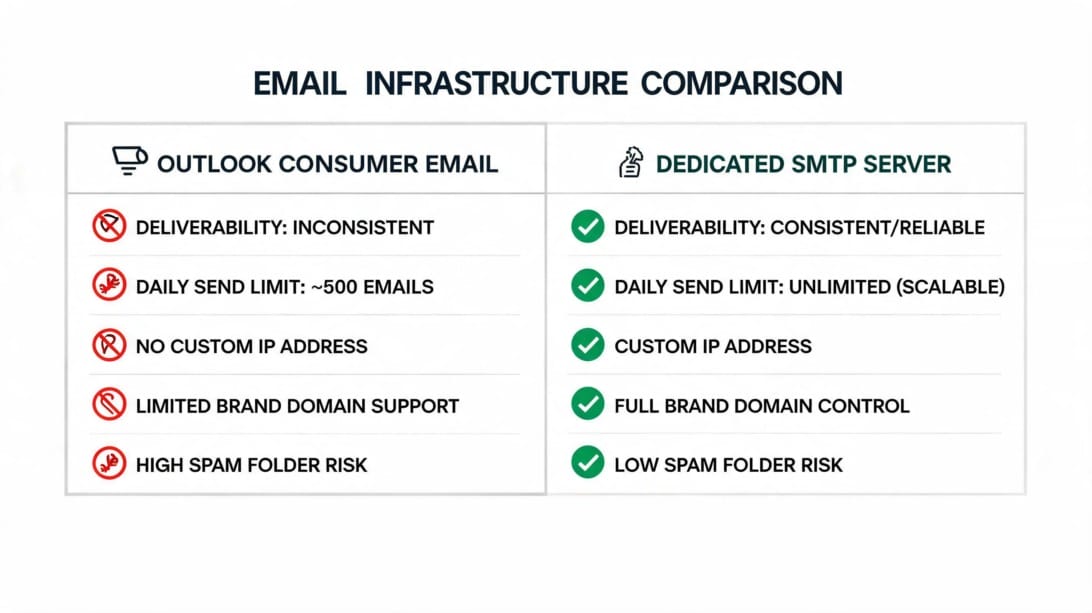
What DoYouMail Provides That Consumer Outlook Cannot
| Capability | Consumer Outlook / Microsoft 365 | DoYouMail |
|---|---|---|
| Daily sending limit | 300-10,000 recipients/day | Scales with dedicated infrastructure |
| Dedicated IP address | Not available | Available |
| SPF/DKIM/DMARC control | Managed by Microsoft | Full control over DNS records |
| SMTP relay for applications | Not available for consumer | Full SMTP access |
| Delivery reputation control | Shared Microsoft reputation pool | Your own domain and IP reputation |
| Email warm-up | Not available | Configurable warm-up for new domains |
| Incoming delivery reliability | Dependent on Microsoft server status | Your own infrastructure, your own uptime |
| Team/role-based access | Basic shared mailboxes | Built for team workflows |
| Pricing | Free (consumer) / $6-35/mo (business) | Starting at ~$40/month per dedicated server |
When to Move from Outlook/Microsoft 365 to DoYouMail
- Your outgoing emails are frequently flagged as spam because of Microsoft’s shared sending reputation
- You regularly hit Outlook or Microsoft 365 sending limits
- You need a dedicated IP address with a sending reputation you control
- Your emails are not being received by recipients because of shared-infrastructure blacklisting
- You need SMTP relay access for applications, CRMs, or marketing tools
- You want full control over SPF, DKIM, and DMARC records for optimal deliverability
- Your team needs centralized sending infrastructure with audit trails
- Inconsistent delivery is costing your business customer trust and revenue
How DoYouMail and Outlook Work Together
You do not have to abandon Outlook. A practical setup is:
1. Keep Outlook for internal team communication and personal email
2. Use DoYouMail for outbound campaigns, transactional email, and high-volume sending
3. Configure DoYouMail to forward replies into your Outlook inbox
4. Your Outlook inbox stays clean while DoYouMail provides the reliable sending infrastructure that consumer Outlook cannot deliver
—
Key Takeaways
- Start with the fastest checks: internet connection, offline mode, Junk folder, Other tab, and mailbox storage — these resolve most cases in under two minutes
- Outlook rules and blocked senders lists are common silent culprits — review both before moving to advanced fixes
- A corrupted Outlook cache or data file can prevent emails from displaying even when they have been delivered to the server — clearing the cache is safe and often effective
- Microsoft 365 and Outlook.com do occasionally experience outages — check status.office.com or downdetector.com before spending time on device-level fixes
- When only one sender’s emails are missing, the problem is usually on their end (sending limits, poor email authentication, or a typo in your address)
- Consumer Outlook accounts have a 300-recipient/day limit, and Microsoft 365 business accounts cap at 10,000 recipients/day — for business email at scale, DoYouMail provides dedicated SMTP infrastructure without these limits
- If nothing else works, removing and re-adding your email account or creating a new Outlook profile resolves most persistent issues without data loss
- Always back up important emails before reinstalling Outlook or deleting data files
- Keep Outlook updated — outdated versions are a common but easily fixed cause of sync failures
- Verify your device’s date and time settings are correct — a clock off by more than a few minutes breaks authentication and prevents email sync
—
Frequently Asked Questions
Why is my Outlook not receiving emails but I can send them?
This usually means one of four things: (1) your mailbox storage is full, (2) an email rule is moving incoming emails to a folder you do not check, (3) a blocked sender rule is diverting specific emails to Junk, or (4) your Outlook profile or cache is corrupted. Start by checking your storage usage, then review your rules, then clear the cache.
How do I check if Outlook is in offline mode?
Look at the status bar at the bottom of the Outlook window. If it says “Working Offline” or “Disconnected,” you are in offline mode. In classic Outlook, click the Send/Receive tab and toggle off the “Work Offline” button. In new Outlook, click “Go Online” at the top.
Why are emails going to my Junk folder instead of my inbox?
Microsoft’s spam filters have flagged the sender. Open the email in Junk, click “It’s not junk,” and add the sender to your Safe Senders list. Also check if the sender’s domain has proper SPF, DKIM, and DMARC records — poor authentication causes legitimate emails to be classified as spam.
How long do emails stay in the Junk Email folder?
Outlook automatically deletes emails from the Junk Email folder after 30 days. If you are looking for an email older than 30 days that was sent to Junk, it may have been auto-deleted.
How do I free up space in my Outlook mailbox?
Empty your Deleted Items and Junk Email folders first. Then sort your inbox by size to find and delete large emails. Save attachments to OneDrive or your computer and delete the originals. Use the Sweep feature in Outlook web to bulk-delete old emails from specific senders.
How do I update my password in Outlook?
In classic Outlook, go to File > Account Settings > Account Settings, select your account, click “Change,” and enter your new password. In the mobile app, go to Settings > your account > “Re-enter password.”
Can I use Outlook with a non-Microsoft email account?
Yes. Outlook supports Gmail, Yahoo, iCloud, and any IMAP/POP3 email account. Go to File > Add Account, enter your email address, and Outlook automatically detects the correct server settings. For Gmail and Yahoo, you may need to generate an app password if two-factor authentication is enabled.
Why did my Outlook suddenly stop receiving emails after an update?
A Windows or Outlook update may have changed your account settings, disabled an add-in, or introduced a compatibility issue. First, run Windows Update again to install any patches. Then check your account settings (Fix 12), disable suspicious add-ins (Fix 14), and if the problem persists, create a new Outlook profile (Fix 20).
How do I check if Microsoft 365 or Outlook.com is down?
Go to status.office.com for the official Microsoft service status page. Alternatively, search #OutlookDown on X (Twitter) or visit downdetector.com and search for “Outlook.”
Is DoYouMail better than Outlook for business email sending?
For high-volume business sending, yes. Outlook and Microsoft 365 have recipient limits (300/day for consumer, 10,000/day for business) and shared sending infrastructure that can affect deliverability. DoYouMail provides dedicated SMTP servers, a dedicated IP address with a reputation you control, and full SPF/DKIM/DMARC configuration — infrastructure that Outlook was not designed to offer.